
The Orders Page
The Orders page allows authorized users to create and send orders directly to suppliers. Suppliers can then accept or reject orders, giving you visibility of order status and helping you manage delivery requirements.
Each order is assigned a unique order number. This number can be referenced in dockets or used to match API-generated delivery dockets, creating a direct link between an order and the work or deliveries recorded against it.
In this article
Permissions
To access the Orders page (Menu > Orders) to create and manage orders, and update orders created by other users, you must have the following permission:
- Order Admin
Note: Supervisors, engineers, and suppliers do not require Order Admin permission for read-only access to the Orders page. Suppliers can view only view orders for their own company and accept or reject orders only when assigned as the contact.
Order Types
You can create and manage the following order types from the Orders page:
| Order Type | Description |
| Concrete orders | Requests to deliver concrete to a location. |
| Concrete test orders | Standalone orders or sub-orders for concrete tests (tests that verify the quality, workability, and strength of a mix) that are linked to concrete orders. |
| Item orders | Requests to supply labor, machinery, materials or all three. |
| Spoil transport orders | Orders to transport waste material such as excavated soil, asphalt, rubble, or contaminated materials to a disposal site. |
Note: Order numbers indicate the order type. Concrete orders begin with CO, concrete test orders with CTO, item orders with IO and spoil transport orders with STO.
Create a New Order
To create a new order:
- Sign in to Virtual Superintendent.
-
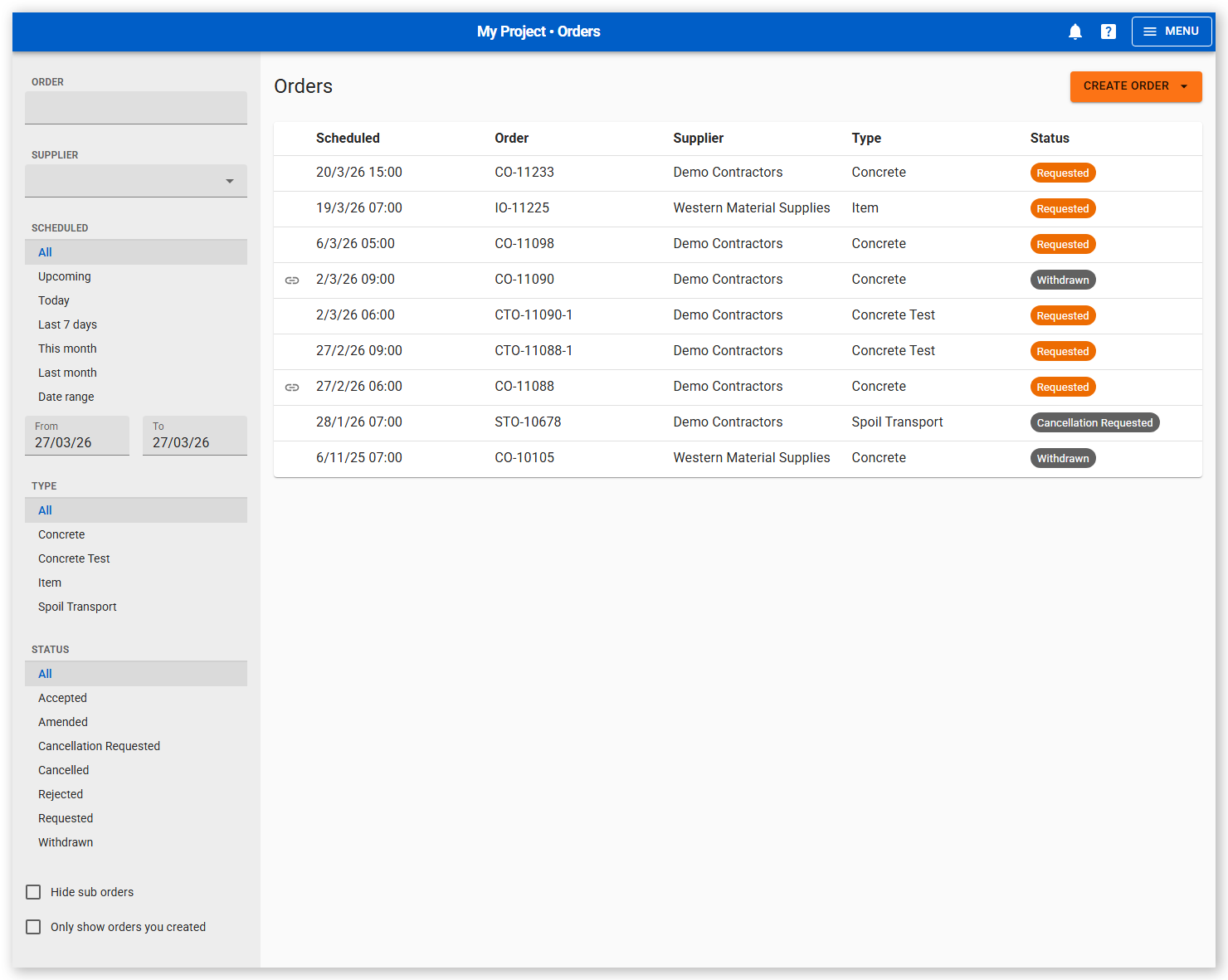
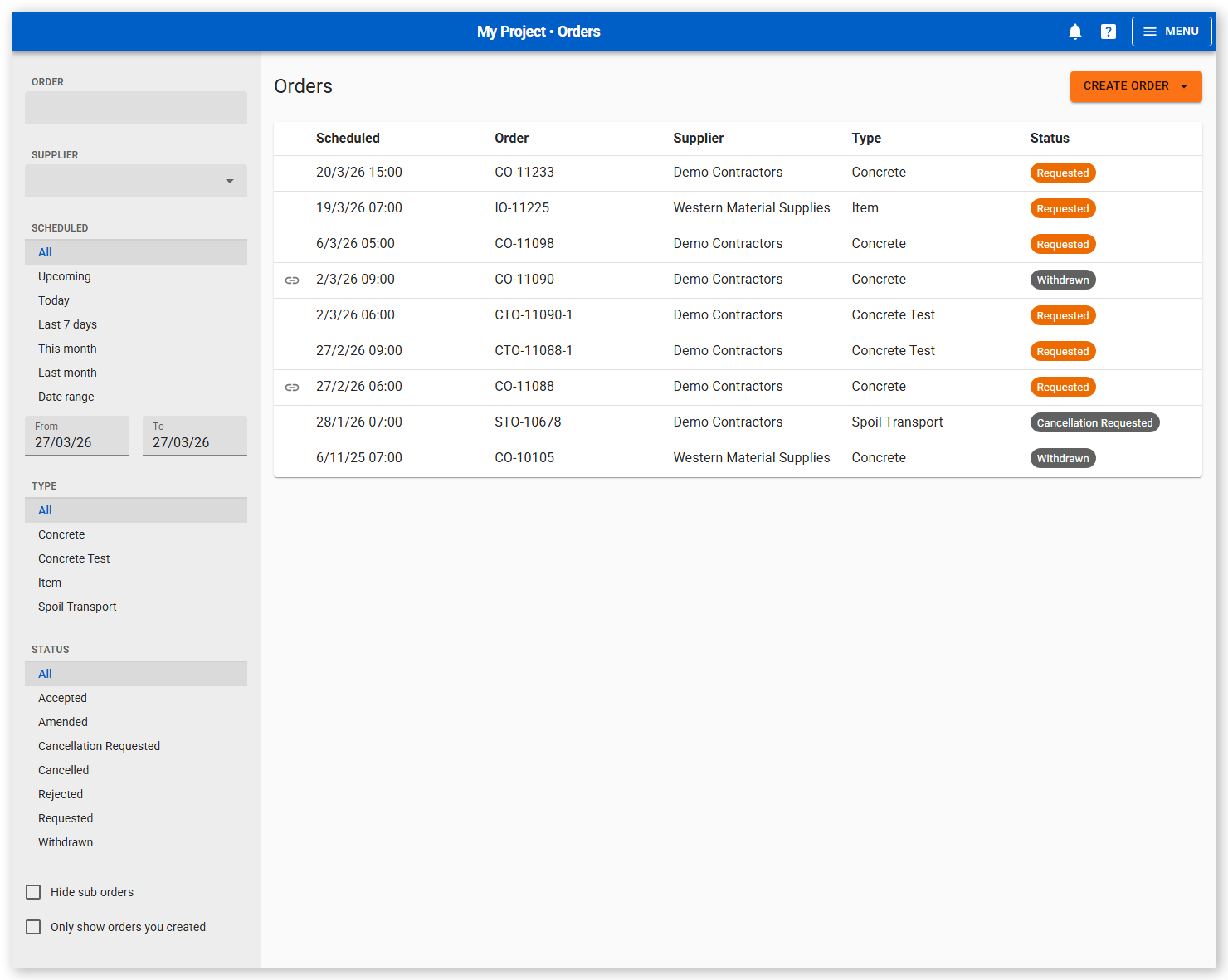
Click Menu > Orders. The Orders page opens. The most recent orders appear at the top of the list:
 Click or tap to expand image
 -
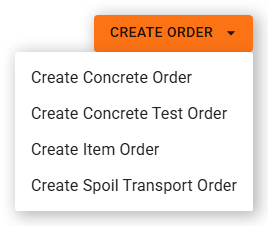
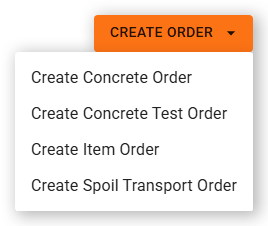
Click Create Order. A contextual menu opens.
 Click or tap to expand image
 -
Select the order type from the menu.
- Click Create Concrete Order to create and send a concrete supply order.
- Click Create Concrete Test Order to create and send a standalone concrete test order. You can also create a concrete test as a sub-order linked to an existing concrete order.
- Click Create Item Order to create an order for any item code, such as labor, materials, or plant.
- Click Create Spoil Transport Order to create an order for transporting spoil or waste material.
The Create Order panel opens.
-
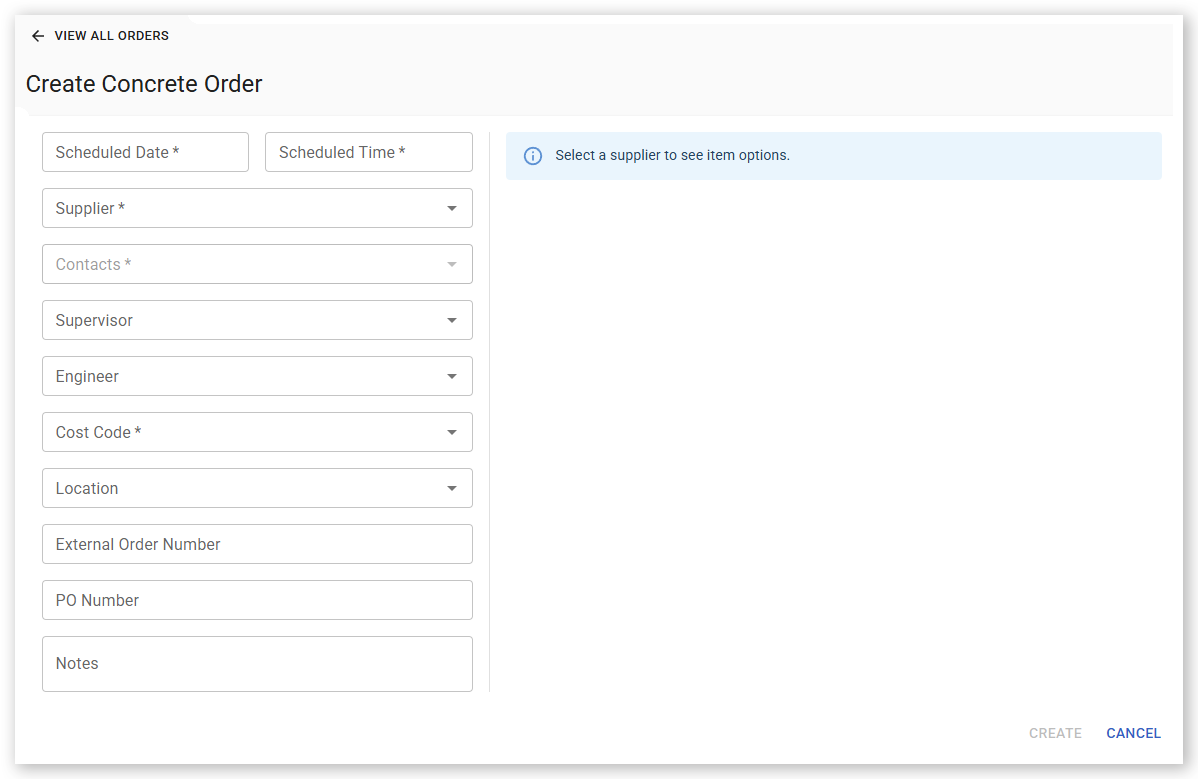
Complete the required fields marked with an asterisk (*). The order form and its layout varies depending on the order type.
 Click or tap to expand image
 - Click Create. The order is created and Virtual Superintendent sends an email notification to the supplier contact automatically. The order creator and the supplier are also automatically sent email notifications whenever the order is updated.
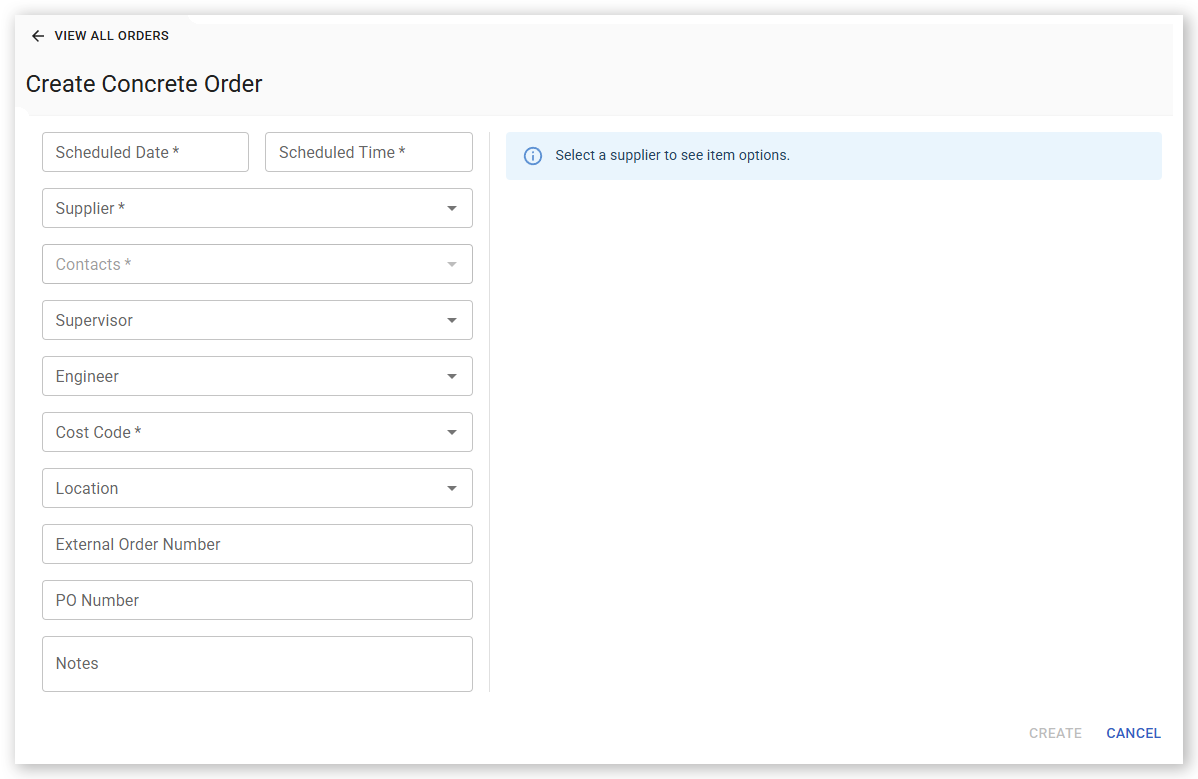
When creating a Concrete Order, you must select a Scheduled Date, Scheduled Time and Cost Code. After you select a supplier, the available item codes for that supplier are automatically displayed.
If the supplier has a default contact configured, that contact is automatically added to the Contacts field when the supplier is selected.
The Supervisor, Engineer, Cost Code, and Location values selected on the order are used to automatically populate related docket information.
Filter Orders
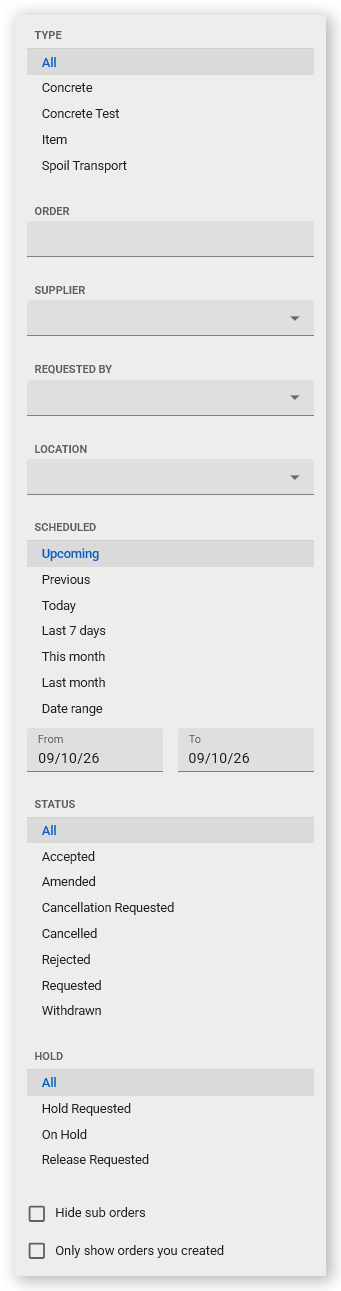
You can also select Hide sub orders to show only parent orders to hide all concrete test sub-orders or Only show orders you created to show only orders you created.
Pause and Resume an Order
Note: You can only place Spoil Transport Orders and Item Orders on hold when their status is Accepted or Amended. Concrete Orders and Concrete Test Orders cannot be placed on hold.
When you request that an order be paused, it is assigned a Hold Requested status and the supplier is notified. The supplier must acknowledge the request before the hold status changes to On Hold.
When you are ready to resume the order, you can submit a release request. This changes the hold status to Release Requested and notifies the supplier that the order is ready to proceed. The supplier must acknowledge the release request before the hold status is removed and the order returns to its active state.
The supplier can cancel the order at any stage of the hold workflow, including when the order is in Hold Requested, On Hold, or Release Requested status.
Available order hold statuses are:
| Hold Status | Description |
| Hold Requested | The order administrator has requested that an order with an Accepted or Amended state be placed on hold. The supplier must acknowledge the request. Once acknowledged, the order's hold status is changed to On Hold. |
| On Hold | The supplier has acknowledged the hold request, and the order is temporarily paused until the order administrator submits a release request. |
| Release Requested |
The order administrator has requested that an order with a hold status of On Hold be reactivated. The supplier must acknowledge the request. Once acknowledged, the order's hold status is removed and the order returns to its active status and can proceed.
|
Pause an order
To place an Accepted or Amended order on hold:
- Sign in to Virtual Superintendent.
- Click Menu > Orders. The Orders page opens.
- Locate the order you want to pause in the list.
- Click the order. The Order Details panel opens.
-
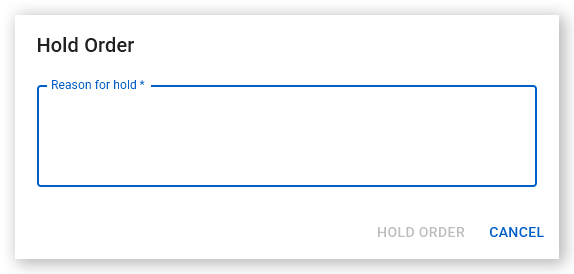
Click Hold Order. The Hold Order dialog opens.
 Click or tap to expand image
 -
Enter a reason in the Reason for hold field, then click Hold Order. This field is required. The order is updated with a Hold Requested status, the reason is displayed at the top of the order details, and an email notification is sent to the supplier requesting that the order be placed on hold.
 Click or tap to expand image
Once the hold request is acknowledged, the order's hold status changes to On Hold, and the supplier's acknowledgment note is added to the order details.
Note: If you change your mind before the supplier has acknowledged the hold request, you can open the order and click Cancel Hold Request. This removes the Hold Requested status from the order and an email notification is sent to the supplier.
Resume a paused order
To resume an order that is currently on hold:
- Sign in to Virtual Superintendent.
- Click Menu > Orders. The Orders page opens.
- Locate the On Hold order in the list. You can filter the orders list to show only paused orders by selecting the On Hold filter option.
- Click the order. The Order Details panel opens.
-
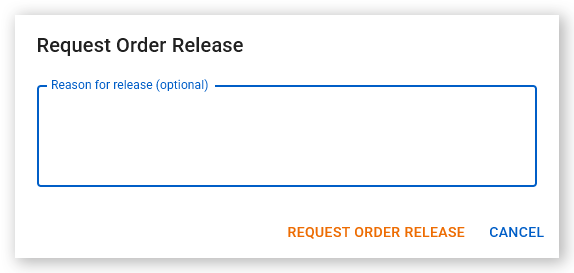
Click Request Order Release. The Request Order Release dialog opens.
 Click or tap to expand image
 -
Enter a reason in the Reason for release (optional) field, then click Request Order Release. The order is updated with a Release Requested status, the reason is added to the top of the order details, and an email notification is sent to the supplier requesting that the order be released from its hold.
 Click or tap to expand image
The supplier must open the order from the Orders page and click Acknowledge Release to accept the release request, or reject the order by clicking Reject Order if it can no longer be fulfilled.
Note: If you change your mind before the supplier has acknowledged the release request, you can open the order and click Cancel Release Request. This removes the Release Requested status from the order changing it back to On Hold and an email notification is sent to the supplier.
Once the release request is acknowledged, the order's On Hold status is removed and the supplier's acknowledgment note is added to the order details.
Orders that have been placed on hold and later released include a hold summary at the top of the order details. This summary shows the date and time the order was put on hold and the date and time it was released.
To view more information, click View to open the Hold History dialog. This dialog displays the complete hold timeline, including any comments added by order administrators or the supplier. You can also access this information from the order history by clicking View Changes.
Filtering hold states
The Hold filter in the left-hand panel of the Orders screen lets you quickly find orders at different stages of the hold workflow. Available options are All, Hold Requested, On Hold, and Release Requested.
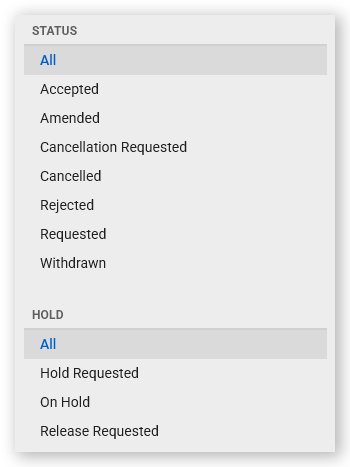
Use these filters to identify orders that are awaiting supplier acknowledgment, have been placed on hold, or have a pending release request.
Hold statuses work alongside standard order statuses. While an order moves through the hold workflow, it retains its existing Accepted or Amended status and is assigned an additional hold status to indicate its current hold state.
Order Status and Actions
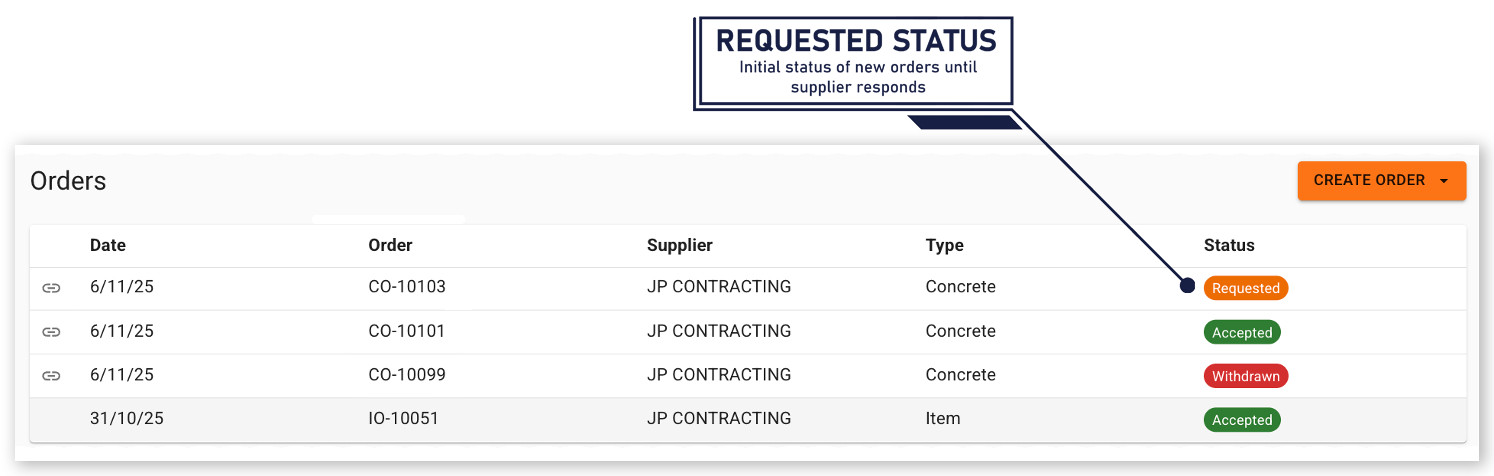
Depending on the supplier's response, and any actions you take, the order status is updated accordingly.
Available order states are:
| Status | Description |
|
Requested
|
The order has been submitted to the supplier for review, or an order rejected by the supplier has been updated by the order administrator. The supplier can choose to Accept or Reject this new or edited order. |
| Accepted | The order has been reviewed by the supplier and has been accepted. |
|
Rejected
|
The order has been reviewed by the supplier and has been rejected. The order administrator can edit the order, changing its status to Requested, or cancel it, changing its status to Cancelled. |
|
Amended
|
An order that was previously accepted by the supplier has been edited by the order administrator, changing its status from Accepted to Amended. The supplier can choose to Accept or Reject this amended order. |
|
Withdrawn
|
The order administrator has withdrawn an order that had a status of Requested. If updated by the order administrator, this order changes status to Requested. Suppliers can also add notes to Withdrawn orders. |
|
Cancel Requested
|
An order has been cancelled by the order administrator and is waiting for the supplier to confirm the cancellation. Orders with a status of Cancellation Requested cannot be edited. |
|
Cancelled
|
The supplier has confirmed the cancellation request. Orders with a status of Cancelled cannot be edited. |
Note: Suppliers can only change an order's status to Accepted, Rejected, or Cancelled.
Update orders
You can update orders before the scheduled start date.
- When an Accepted order is updated, its status changes to Amended.
- When a Rejected or Withdrawn order is reinstated, its status changes to Requested.
Withdraw orders
Cancel orders
Order cancellation behavior depends on the current order status:
- Accepted orders change to Cancel Requested when a cancellation is requested.
- Requested and Amended orders must first be Withdrawn before they can be cancelled.
- Orders with a status of Cancel Requested or Cancelled cannot be edited.
View order history
Concrete Test Sub-orders
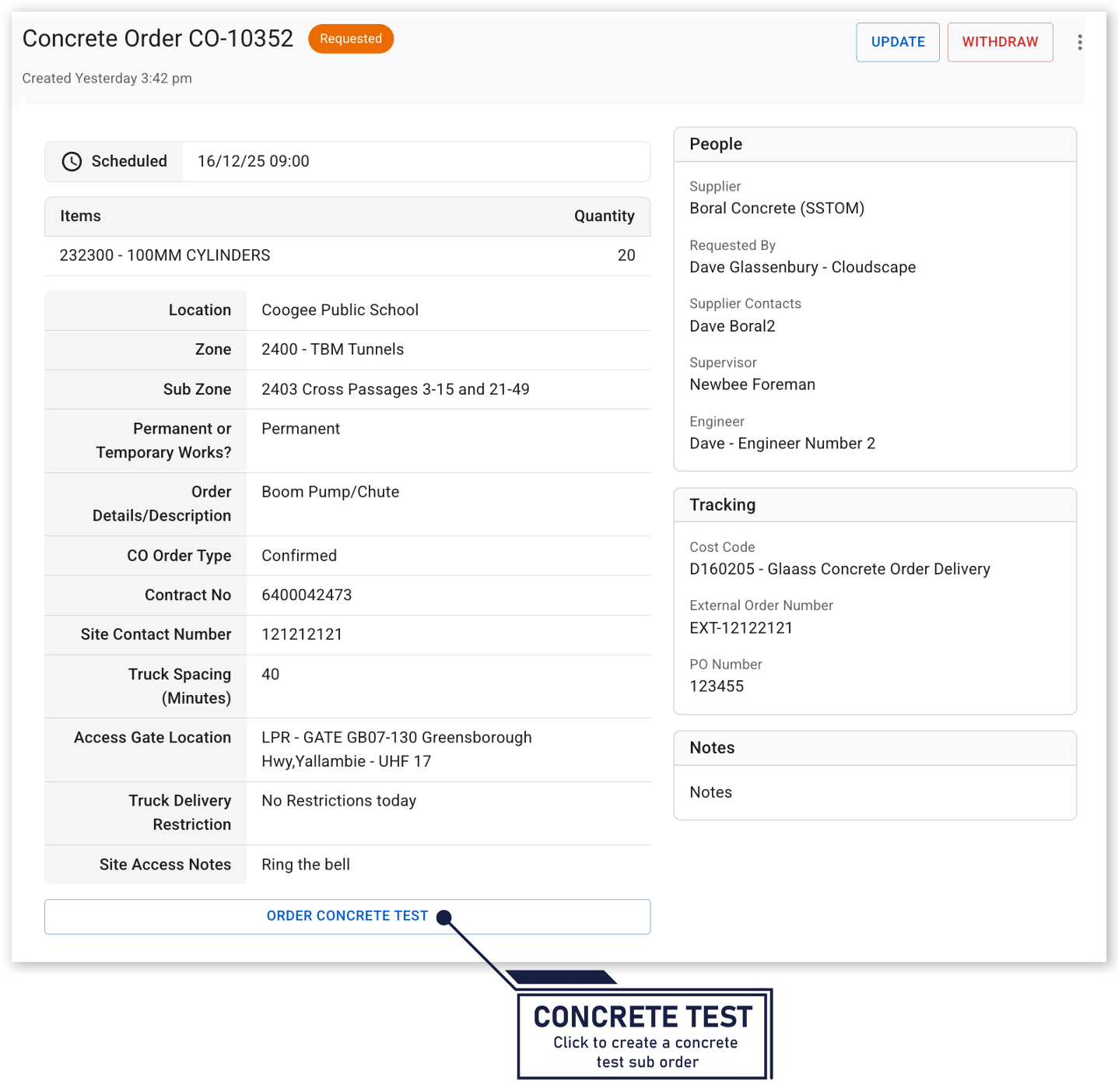
Concrete test sub-orders:
- Are linked to the parent concrete order.
- Can be assigned to the same supplier as the parent order or to a different supplier.
- Are identified in the Orders list with a link icon, making it easy to see that they are associated with a parent concrete order.
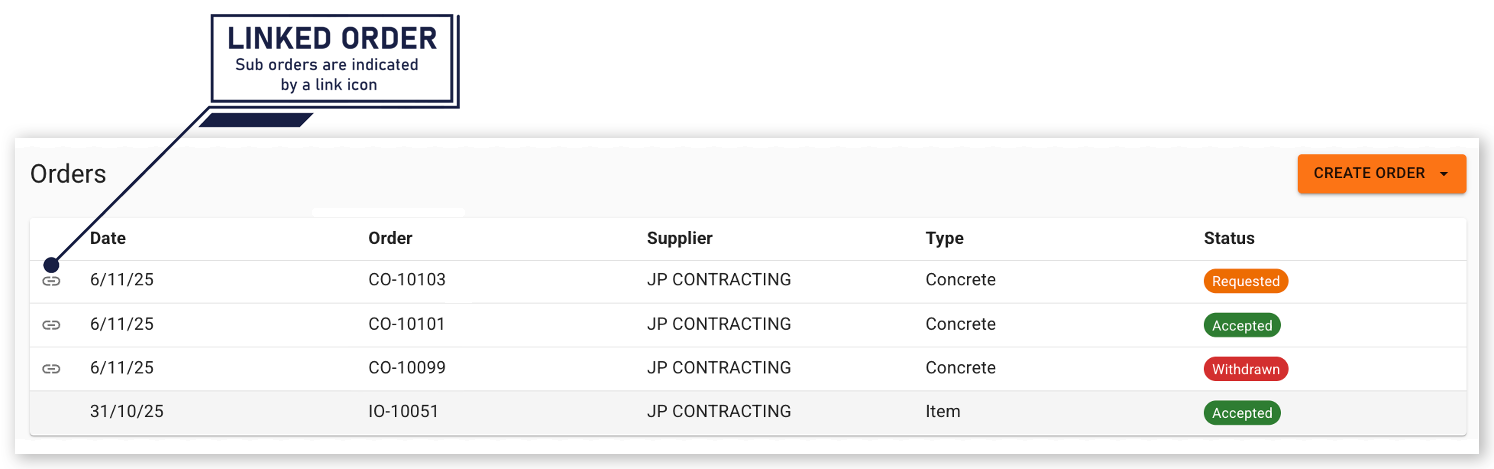
Tip: To view concrete test sub-orders in the Orders list, ensure Hide sub orders is not selected in the filter panel. If this option is selected, sub-orders are hidden from view.
Additional Order Actions
Use the More Actions menu to access additional options for an order. To open the menu, click the More Actions icon (three vertical dots) on the order.
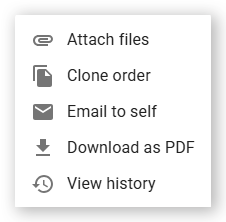
Attach files
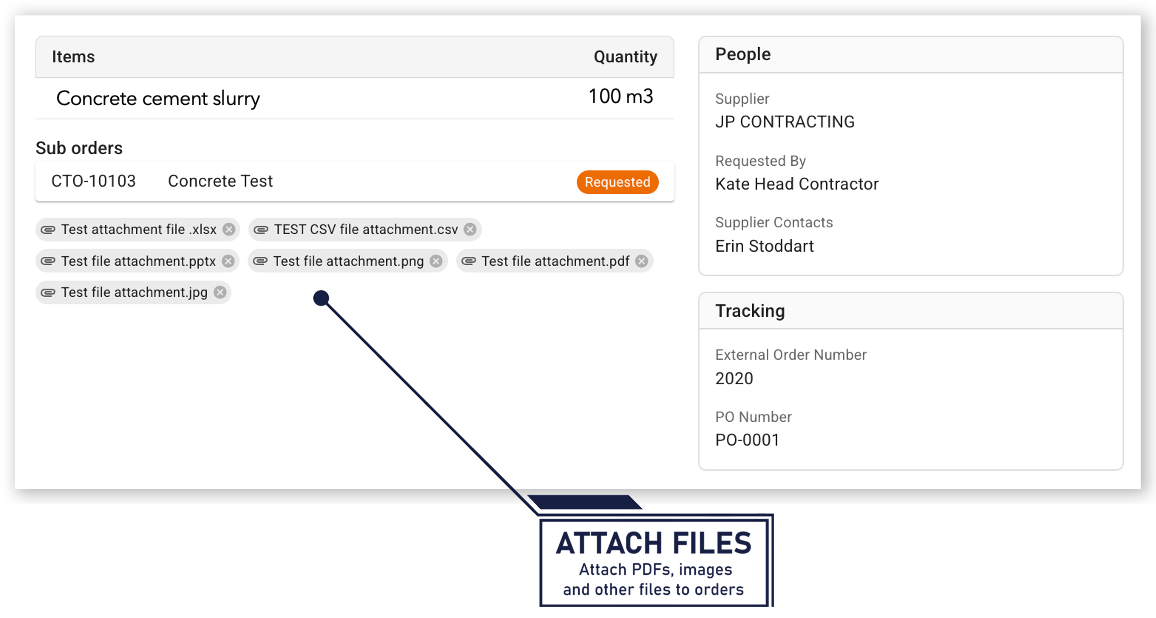
You can attach files to an order to provide supporting information or documentation.
- Upload any file type, including PDFs, images, and spreadsheets.
- Images display as previews within the order.
- PDFs open in a new browser tab.
- Other file types download automatically when selected.
Suppliers assigned to the order can also attach files. This allows both parties to share relevant documents, photos, delivery information, test results, or other supporting records throughout the order lifecycle.
Clone order
To create a copy of an existing order, open the More Actions menu and select Clone Order.
The new order is created with the same details as the original order, except for the following scheduling fields, which must be entered manually:
- Scheduled Date
- Scheduled Time
- End Date
- End Time
Cloning an order can save time when creating a similar order while allowing you to set new dates and times as required.
Email to self
To email yourself a copy of an order summary, open the More Actions menu and select Email to Self.
This sends an email containing the order details to the email address associated with your account.
Note: The Email to Self option is also available to users with read-only access.
Download as PDF
To download a PDF copy of an order, open the More Actions menu and select Download as PDF.
A PDF summary of the order is generated and downloaded to your computer. You can use the PDF for record keeping, sharing order details, or printing a hard copy if required.
View history
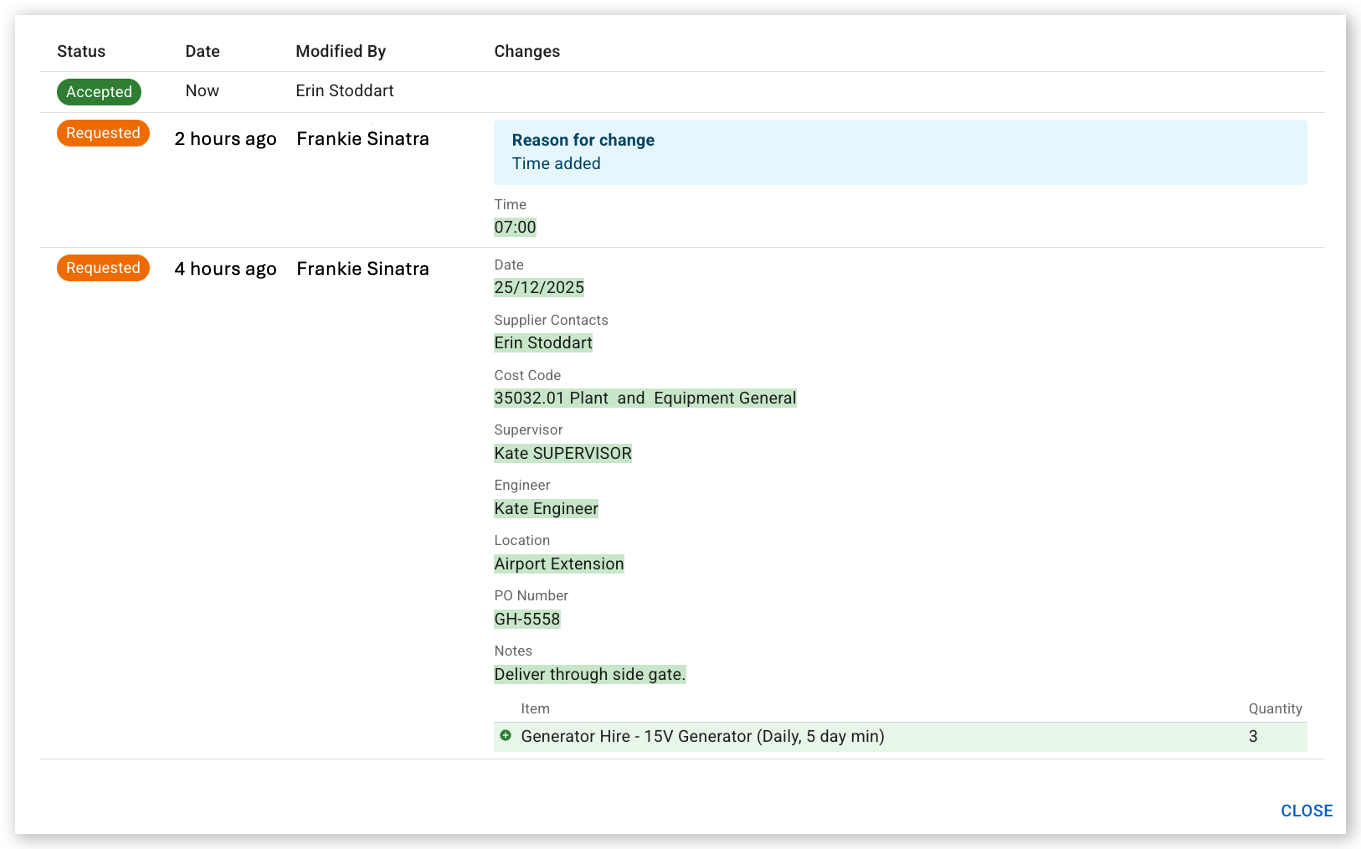
To view the history of an order, open the More Actions menu and select View History.
The history view displays a timeline of changes made to the order, including:
- Status changes
- Order updates and amendments
- Hold and release activity
- Cancellation requests and cancellations
- Comments and acknowledgments
- File attachments and other order-related actions
Use the history timeline to track the order lifecycle and see who made each change and when it occurred.
Note: The View History option is also available to users with read-only access.
Linking Orders to Dockets and Movements
Link concrete orders to delivery dockets
When delivery dockets are generated through an API integration, Virtual Superintendent attempts to match and link the delivery to a concrete order using:
- Concrete Order Number
- Purchase Order Number
When a match is found, the linked order number is displayed in the docket's PO field.
Link spoil transport orders to material movements
Virtual Superintendent can link Accepted spoil transport orders to material movements when trucks have been assigned to the order.
The system uses the following information to identify potential matches:
- Project
- Supplier
- Plant
- Movement Time
Virtual Superintendent then validates the match against:
- Load Site
- Disposal Site
- Material
Matching results are displayed in the Matches column of the Spoil Report, allowing you to review and confirm links between spoil transport orders and recorded material movements.