
Understand Orders for Suppliers
Use the Orders page (Menu > Orders) to review and manage supplier orders, including concrete deliveries, concrete testing, materials, and spoil transport.
Suppliers and head contractors use the Orders page to confirm, update, track orders, and request order pauses until the scheduled date.
Note: The Orders page and the Orders menu option are not visible until at least one supplier order has been placed.
In this article
Permissions
Suppliers with Subcontractor Admin permissions have read-only access to orders shown on the Orders page (Menu > Orders) but to accept and manage orders, you must have the following permission:
- Subcontractor Order Admin
Note: Users with Subcontractor Admin rights can see all orders for their organization and can see the buttons that are used to change order status (such as Accept, Reject and Confirm Cancellation) but these buttons do not function without additional permissions.
Understand the Order Process
When an order is first sent to a supplier:
- The new order appears on the Orders page (Menu > Orders) with a status of Requested.
- An email summarizing the order details and containing a link to view the order in Virtual Superintendent is sent to the supplier.
Suppliers then review the request and choose whether to accept or reject it.
When an order is accepted, it can be updated or cancelled until the scheduled date of the order. The head contractor can also request that the order be paused or resumed.
Any changes made to the order automatically trigger email notifications and changes must be accepted or rejected. This back-and-forth notification and confirmation process ensures that everyone remains aware of any changing order requirements.
Order types
Orders sent to suppliers can be of four types:
| Order Type | Description |
| Concrete Order | Requests to deliver concrete to a location. |
| Concrete Test Order | Standalone orders or sub-orders for concrete tests (tests that verify the quality, workability, and strength of a mix) that are linked to concrete orders. |
| Item Order | Requests to supply labor, machinery, materials or all three. |
| Spoil Transport Order | Requests to transport spoil material to a disposal site. |
Note: Order numbers indicate the order type. Concrete orders begin with CO, concrete test orders with CTO, item orders with IO and spoil transport orders with STO.
Order status
Orders change state as they are submitted, accepted, modified, withdrawn or rejected by the order supplier and a head contractor.
Available order statuses are:
| Order Status | Description |
| Requested | The order has been submitted by a head contractor to the supplier for review, or an order rejected by the supplier has been updated by the head contractor. The supplier can choose to Accept or Reject this new or edited order. |
| Accepted | The order has been reviewed by the supplier and has been accepted. |
| Rejected | The order has been reviewed by the supplier and has been rejected. The head contractor can edit the order, changing its status to Requested, or cancel it, changing its status to Cancelled. |
| Amended | An order that was previously accepted by the supplier has been edited by the head contractor, changing its status from Accepted to Amended. The supplier can choose to Accept or Reject this amended order. |
| Withdrawn | The head contractor has withdrawn an order that had a status of Requested. If updated by the head contractor, this order changes status to Requested. Suppliers can also add notes to Withdrawn orders. |
| Cancellation Requested | An order has been cancelled by the head contractor and is waiting for the supplier to confirm the cancellation. Orders with a status of Cancellation Requested cannot be edited. |
| Cancelled | The supplier has confirmed the cancellation request. Orders with a status of Cancelled cannot be edited. |
Note: Suppliers can only change an order's status to Accepted, Rejected, or Cancelled.
| Hold Status | Description |
| Hold Requested | The head contractor has requested that an order with an Accepted or Amended state be placed on hold. The supplier must acknowledge the request. Once acknowledged, the order's hold status is changed to On Hold. |
| On Hold | The supplier has acknowledged the hold request, and the order is temporarily paused until the head contractor submits a release request. |
| Release Requested |
The head contractor has requested that an order with a hold status of On Hold be reactivated. The supplier must acknowledge the request. Once acknowledged, the order's hold status is removed and the order returns to its active status and can proceed.
|
Review and Manage Orders
Suppliers can accept or reject orders that are submitted to their organization and confirm cancellation requests when an order is cancelled by a head contractor.
Review order requests
To review new order requests:
- Sign in to Virtual Superintendent.
-
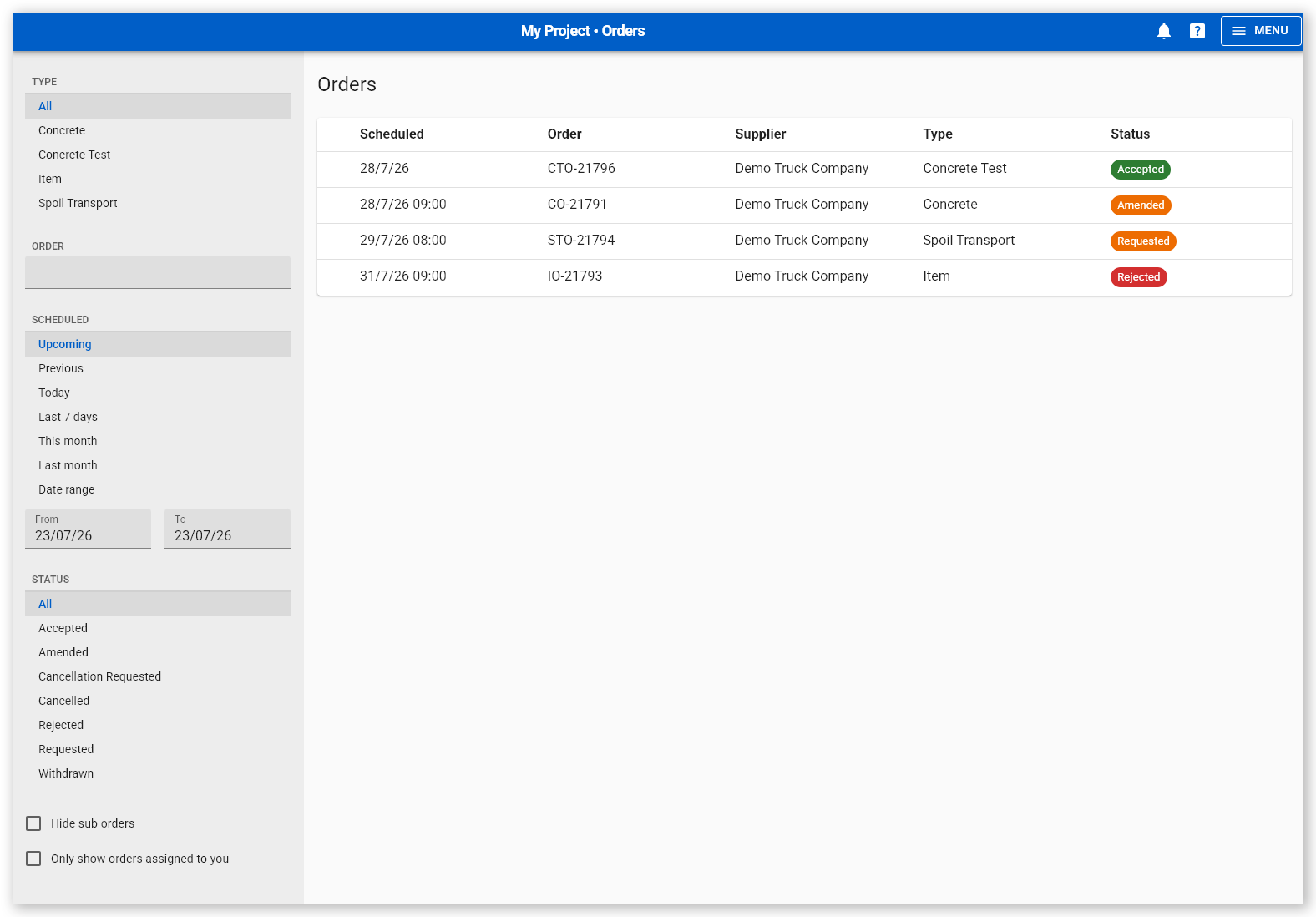
Click Menu > Orders. The Orders page opens.
 Click or tap to expand image
 -
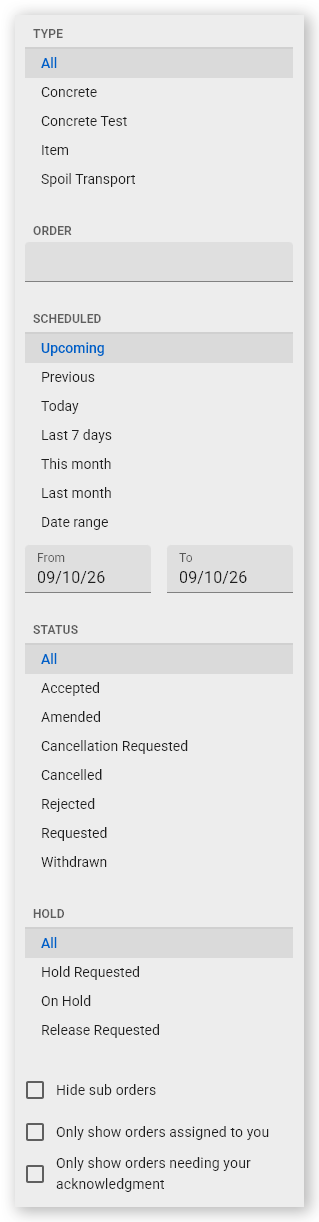
Locate orders using the filter options to the left of the page. You can filter by Order Type, Order Number, Scheduled Date, Order Status, and Hold Status. Suppliers typically work with Requested, Amended and Cancellation Requested order statuses.
 Click or tap to expand image
You can also select Hide sub orders to show only parent orders and hide all concrete test sub-orders, Only show orders assigned to you to show only orders for which you are the assigned supplier contact, or Only show orders needing your acknowledgment to show only orders that are waiting for a response from you.
-
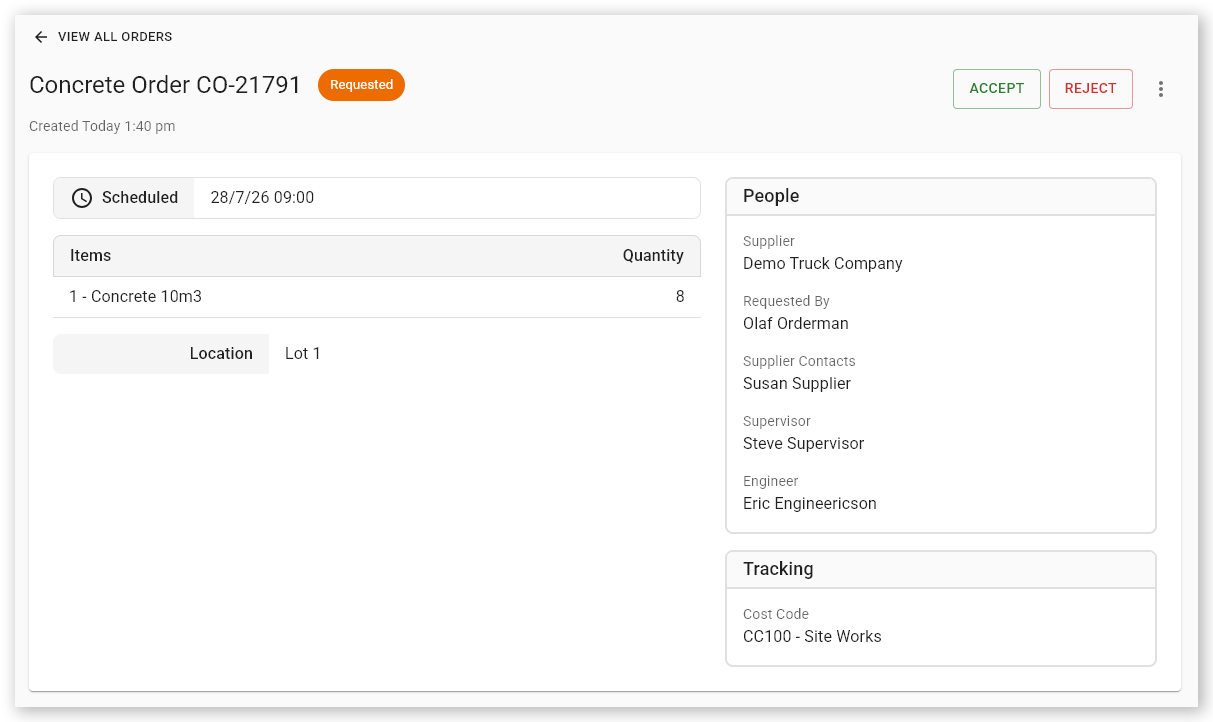
Click an order in the grid. The Order Details page opens.
 Click or tap to expand image
Details shown on this page include the:
- Order number
- Order status
- Order creation date and time last updated
- Reason supplied for the most recent update (when cancelled or withdrawn)
- Scheduled date of the order and scheduled end
- Scheduled start and end times, if a concrete order
- Order location that will be used on the docket
- Order quantity
- Supplier name
- Head contractor who created the order
- Supplier contact used for the order
- Supervisor who will appear on the docket
- Engineer who will appear on the docket
- Cost code that the order will be charged against
- External order number
- Notes supplied by the supplier
- Choose whether to Accept or Reject the order, confirm an order cancellation, or manage order hold and release requests.
Accept an order
To accept an order:
-
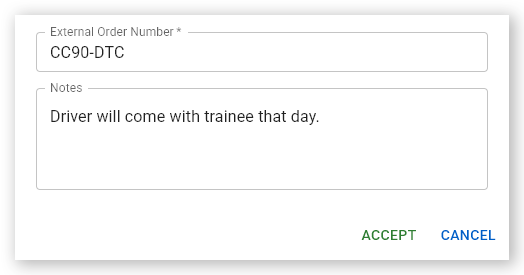
Click Accept. The Accept Order dialog opens.
 Click or tap to expand image
 - Type an order number into the External Order Number field. This identifier is used by the supplier's internal order tracking tool and is required.
- Type any relevant notes about the order into the Notes field.
-
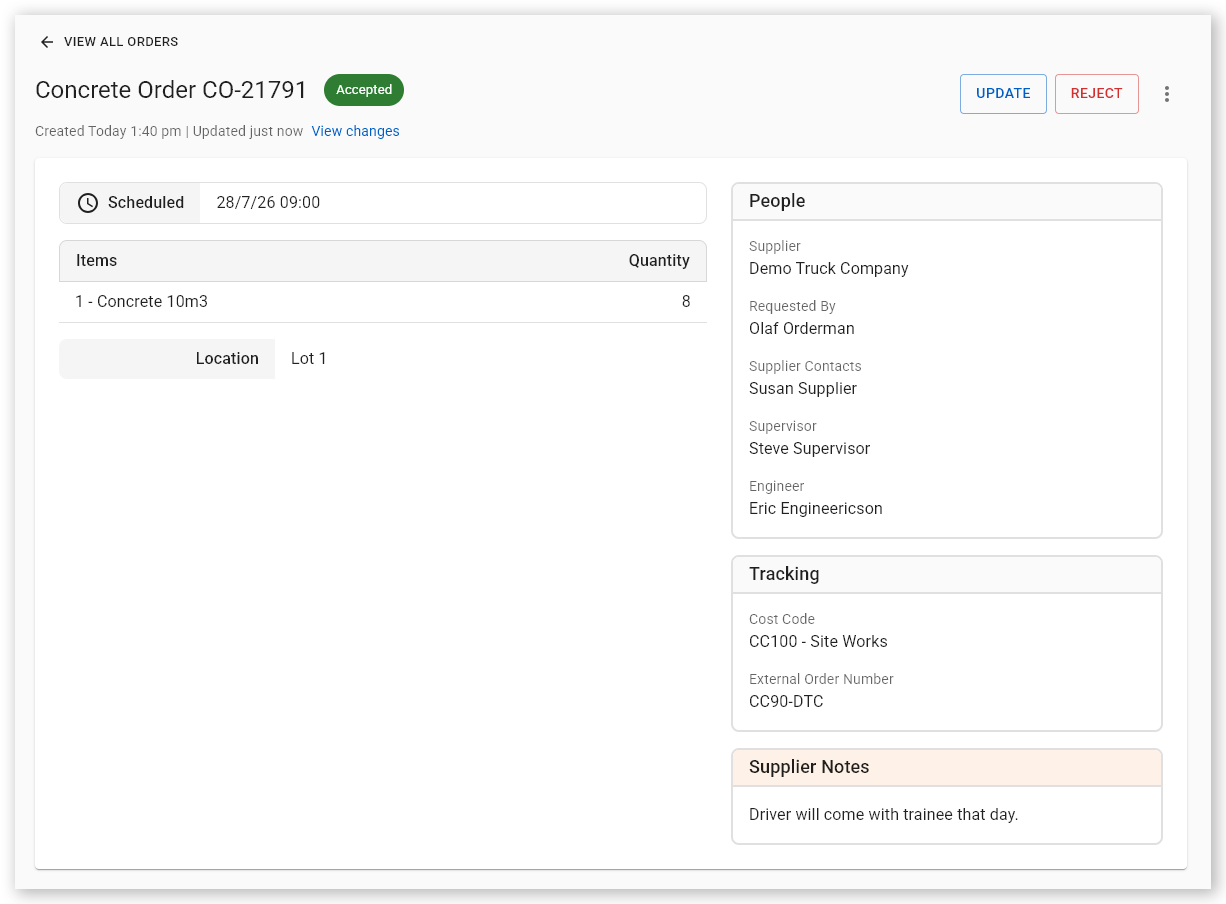
Click Accept. The status of the order is updated from Requested to Accepted on the Orders page and an email notification is sent to the head contractor notifying them that the order was accepted. Any informational text written in the Notes field is visible to the head contractor.
 Click or tap to expand image
When an order is accepted, its note text can be updated by clicking Update. Only the most recent note is shown on the order summary, but all previous notes are recorded in the order history (View changes link).
The order can still be rejected at any time by clicking Reject which changes its status to Rejected.
If an order has been accepted and is then edited by a head contractor, its status changes to Amended. The supplier must then accept or reject any changes.
If an order has been accepted and is then cancelled by a head contractor, the supplier must confirm the cancellation by clicking Confirm Cancellation. This updates the order status from Cancellation Requested to Cancelled.
Reject an order
To reject an order:
-
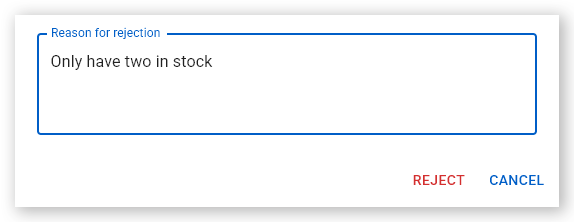
Click Reject. The Reject Order dialog opens.
 Click or tap to expand image
 - Type a reason for your rejection in the Reason for rejection field.
-
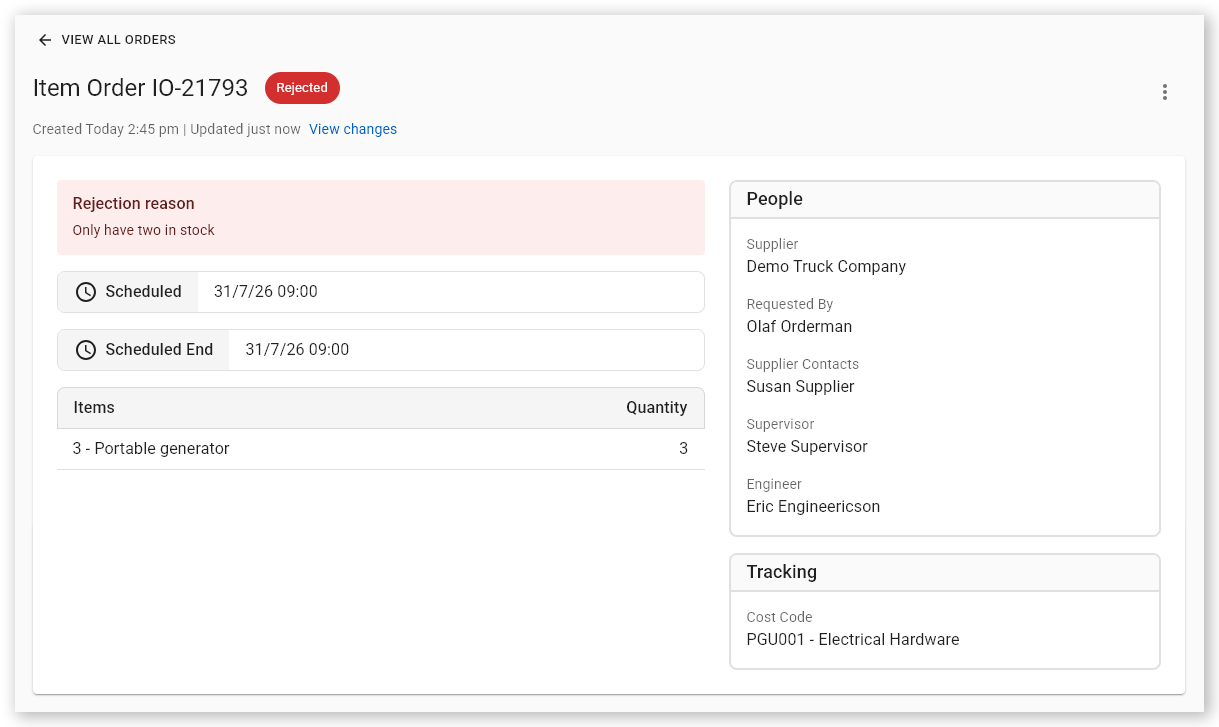
Click Reject. The order status changes to Rejected on the Orders page and an email is sent to the head contractor notifying them that the order was rejected.
 Click or tap to expand image
When an order is rejected, the head contractor can Cancel the order, or Update the order by modifying it (for example, by changing load types, quantities or the date of the order).
If an order is updated, its status changes to Requested and the review process resets. If it is cancelled, the order's status changes to Cancelled immediately.
Confirm cancellation of an order
If a head contractor wants to cancel an order that was previously accepted by a supplier, the supplier must confirm the cancellation request.
To confirm the cancellation of an order:
- Sign in to Virtual Superintendent.
- Click Menu > Orders. The Orders page opens.
- Filter the order requests by clicking the Cancellation Requested link in the filters column. The order grid updates.
- Click an order in the grid. The Order Details page opens, showing the details of the order.
- Click Confirm Cancellation. The order status changes to Cancelled and the head contractor is notified.
Note: Cancelled orders cannot be edited or reactivated.
Manage order hold requests
Head contractors can ask to place Item Orders and Spoil Transport Orders on hold if the order has an Accepted or Amended status and is no longer required at the scheduled time. The order can then be resumed later when work is ready to proceed.
When a hold request is submitted, the order is assigned a hold status of Hold Requested and the supplier is notified. The supplier can either acknowledge the request, changing the hold status to On Hold, or cancel the order.
When the head contractor is ready to resume the order, they can submit a release request. This changes the hold status to Release Requested and notifies the supplier that the order is ready to proceed. The supplier can then acknowledge the release request, which removes the hold status and returns the order to its active state, or cancel the order.
Note: Orders that require your acknowledgment are identified in the Orders list with an orange indicator. To quickly find these orders, select the Only show orders needing your acknowledgment checkbox at the bottom of the filter panel. The orders list is then filtered to display only orders that are awaiting your response or action.
Important: The supplier can reject the order at any stage of the hold workflow by opening the order and clicking Reject Order.
Available order hold statuses are:
| Hold Status | Description |
| Hold Requested |
The head contractor has requested that an accepted order be placed on hold. The supplier must acknowledge the request before the order is placed on hold.
|
| On Hold |
The supplier has acknowledged the hold request, and the order is temporarily paused until the head contractor requests to resume it.
|
| Release Requested |
The head contractor has requested that an order with an On Hold status be reactivated. The supplier must acknowledge the request before the order can proceed.
If the supplier accepts the release request, the order's hold status is removed and the order returns to its active status so it can continue as planned. |
To manage an order hold request when you received an order hold email notification from a head contractor:
- Sign in to Virtual Superintendent.
- Click Menu > Orders. The Orders page opens.
- Locate the order the head contractor has asked to place on hold. You can filter the orders list to show only orders with pause requests by selecting the Hold Requested filter option.
- Click the order. The Order Details panel opens.
- Read the reason for the order hold provided by the head administrator. This is displayed at the top of the order details. This reason is also included in the notification email you received.
-
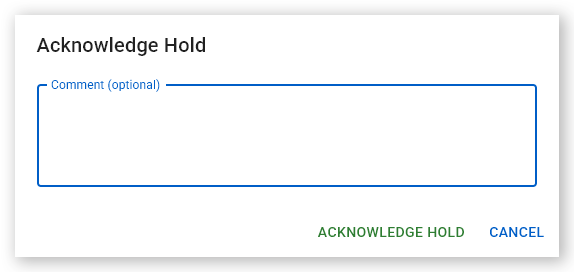
Click Acknowledge Hold. The Acknowledge Hold dialog opens.
 Click or tap to expand image
 -
Enter comments in the Comments (optional) field, then click Acknowledge Hold. The order's hold status changes from Hold Requested to On Hold, your comments are added to the top of the order details, and an email notification is sent to the head contractor.
 Click or tap to expand image
To manage an order release request when you received an order release email notification from a head contractor:
- Sign in to Virtual Superintendent.
- Click Menu > Orders. The Orders page opens.
- Locate the paused order the head contractor has asked to reactivate. You can filter the orders list to show only orders with release requests by selecting the Release Requested filter option.
- Click the order. The Order Details panel opens.
- Read the reason for the order release request provided by the head administrator. This is displayed at the top of the order details. This reason is also included in the notification email you received.
-
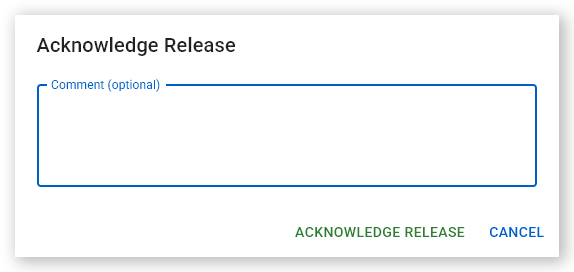
Click Acknowledge Release. The Acknowledge Release dialog opens.
 Click or tap to expand image
 -
Enter comments in the Comments (optional) field, then click Acknowledge Release. The order's hold status of Release Requested removed, your comments are added to the top of the order details, and an email notification is sent to the head contractor. You can now fulfil the order.
 Click or tap to expand image
Additional order actions
Use the More actions menu to access additional order options. To open this menu, click the hamburger menu icon (three vertical dots) in the upper-right corner of the Order Details page.
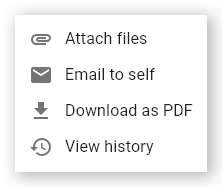
| Menu Item | Description |
| Attach Files | Click to upload and attach files to the order, including PDF files, images, and spreadsheets. |
| Email to Self | Email a summary of the order to the email associated with your user account. Also available for read-only users. |
| Download as PDF | Download a PDF summary of the order to your computer. |
| View History | Open the History dialog showing a timeline of order changes, including status changes, updates made to the content of the order, and the people who made the changes. The History panel can also be opened by clicking View changes under the order title at the top of the page. |