
Bulk Edit Dockets
If you work with large numbers of dockets that need the same edits, Virtual Superintendent allows multiple dockets to be edited at once using a bulk editing tool.
Note: Available fields and actions vary based on the user’s role and the current state of the selected dockets.
In this article
Permissions
To edit multiple dockets using the Bulk Edit option under the Bulk Actions menu on Dockets pages (for example, Menu > Dockets), you must have the following permission:
- Dockets Bulk Edit
Note: The Dockets Bulk Edit permission cannot be assigned to Subcontractor Administrator users.
Fields Roles Can Edit
Docket fields that can be edited in bulk vary by role:
Note: Admin Manager users cannot change docket states.
| Admin | Supervisor | Engineer | Senior project engineer | Super user | |
| Invoice number | ✔ | ✔ | ✔ | ✔ | ✔ |
| Engineer |
|
✔ | ✔ | ✔ | ✔ |
| Supervisor |
|
✔ |
|
✔ | ✔ |
| Location | ✔ | ✔ | ✔ | ✔ | ✔ |
| Cost code |
|
✔ | ✔ | ✔ | ✔ |
| Item code |
|
|
|
|
✔ |
| Labels | ✔ | ✔ | ✔ | ✔ | ✔ |
Bulk Actions by Role
Docket actions that can be performed in bulk also vary by role:
| Admin | Supervisor | Engineer | Senior project engineer | Super user | |
| Save | ✔ | ✔ | ✔ | ✔ | ✔ |
| Accept |
|
✔ |
|
|
✔ |
| Reject |
|
✔ |
|
|
✔ |
| Approve |
|
|
✔ | ✔ | ✔ |
| Decline |
|
|
✔ | ✔ | ✔ |
Available actions are:
| Action | Description |
| Save | Saves the changes without updating the docket state. |
| Accept | Saves the changes and updates the state to Accepted. |
| Reject | Saves the changes and updates the state to Rejected. |
| Approve | Saves the changes and updates the state to Approved. |
| Decline | Saves the changes and updates the state to Declined. |
Additional roles capabilities
Some roles have additional capabilities when performing bulk edits.
- Senior project engineers can edit dockets assigned to other engineers.
- Super users can bulk edit dockets with different states, such as Accepted and Submitted.
Note: Super users have automatic access to the bulk edit workflow so do not typically need Dockets Bulk Edit permission.
Bulk Edit Dockets
To edit multiple dockets at the same time:
- Sign in to Virtual Superintendent.
- Click Menu > Dockets. The Dockets page opens.
- Locate the required dockets in the list. Use the filters to locate dockets by name or status.
- Select the checkbox beside each docket you want to edit.
- Click Bulk Actions. A contextual menu opens.
- Click Bulk Edit. The Bulk Editing dialog opens.
- Locate the field you want to update.
- Select the value you want to replace in the first dropdown,
- Select the replacement value in the second dropdown,
- Click Save to save the change without updating the docket state or click Save & Accept to save the change and update the docket state to Accepted.
Validation warnings
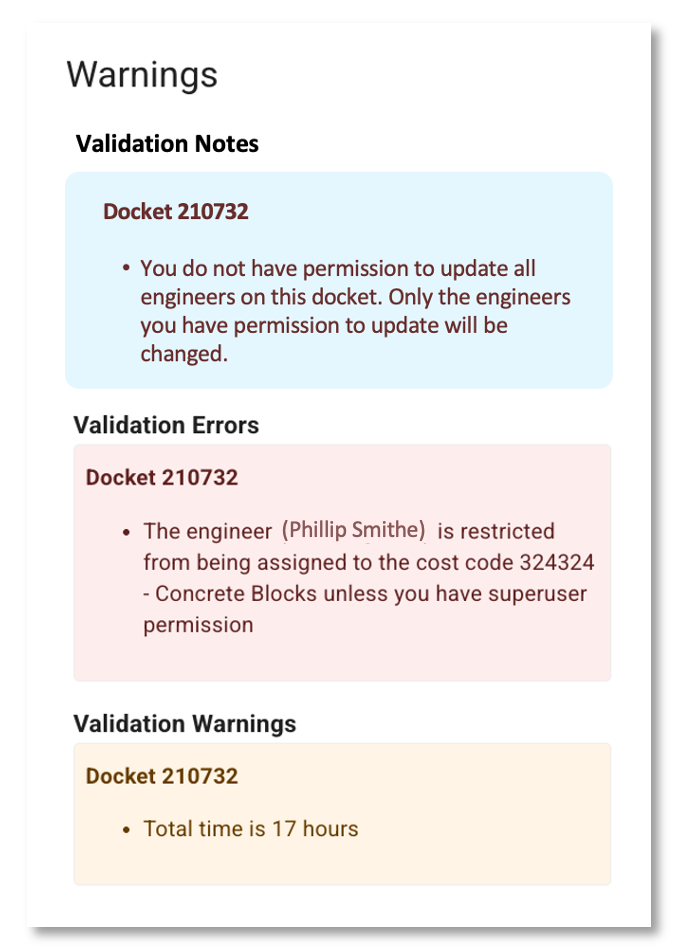
The Warnings panel displays validation messages in a bulleted list. Each message includes the affected docket number.
- Validation notes are shown in blue. These are informational messages and do not prevent bulk edit actions.
- Validation warnings are shown in yellow. These prevent most users from changing the docket state but allow users to save other changes. Warnings do not affect super users, who can still perform bulk actions.
- Validation errors are shown in red. These prevent most users from saving changes or updating the docket state. Super users can save changes but cannot update the docket state when an error is detected. Other users can save changes only to Invoice number and Labels.
Processing Tasks panel
When bulk editing begins, the Processing Tasks panel appears on the right side of the Dockets page.
Processing time depends on the number of dockets selected. Large batches might take several minutes. You can navigate away from the Dockets page while processing continues.
When processing finishes, a tick icon appears over the Processing Tasks icon beside the menu button. Click the notification to view the results of the completed bulk edit.
Video Guide
The following video demonstration shows a supervisor using bulk edit to replace values in the Location and Cost Code fields, and then Accepting the selected dockets.