
Export Dockets for Invoicing
As a head contractor administrator, you should carefully validate subcontractor invoices against their dockets in Virtual Superintendent before reconciling them.
Before you begin, make sure you have received a supplier invoice and a Virtual Superintendent CSV export from the subcontractor administrator.
Note: Subcontractor administrators must process their dockets for invoicing before sending an invoice and CSV export file to the head contractor. Direct these suppliers to the Invoice Dockets Workflow help article for information about completing their part of the invoicing workflow.
In this article
Permissions
To validate dockets against the invoices lodged by subcontractor administrators, and mark verified dockets as reconciled, you must have one of the following permissions:
- Admin Manager
- Dockets Super User
- Dockets Admin
Check Invoiced Dockets
To compare the invoice and CSV export files provided by a subcontractor administrator with the actual state of their dockets:
- Sign in to Virtual Superintendent.
- Click Menu > Super User or Menu > Admin. The dockets page opens.
- Click the filter at the top of the Supplier column.
- Select the supplier of the invoice. The page updates to show only dockets from the supplier.
- Use the Invoice Number column to locate the dockets in the supplier's invoice and CSV export file.
- Confirm that all dockets included in the invoice have a status of Invoiced in Virtual Superintendent. Subcontractor administrators might sometimes add an invoice number without changing the docket status to Invoiced. If any dockets have the wrong status, ask the subcontractor administrator to correct them before continuing.
- Select the checkboxes beside the dockets you want to verify.
-
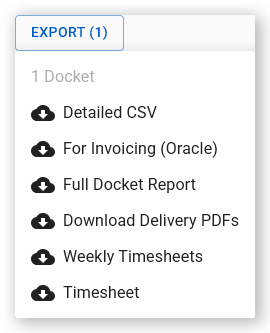
Click Export. A contextual menu opens.
 Click or tap to expand image
 - Select Engineer CSV. Virtual Superintendent downloads the Engineer CSV file to your computer. The file contains the details of the selected approved dockets.
- Compare your CSV export with the CSV file provided by the subcontractor administrator and confirm that the docket information matches the supplier invoice.
Reconcile Invoiced Dockets
If you are happy that the invoice and CSV file provided by the supplier matches your own export file, you can reconcile the dockets:
- Sign in to Virtual Superintendent.
- Click Menu > Super User or Menu > Admin. The dockets page opens.
- Click the filter at the top of the Supplier column.
- Select the supplier of the invoice. The page updates to show only dockets from the supplier.
- Use the Invoice Number column to locate the dockets in the supplier's invoice and CSV export file.
- Select the checkboxes beside the dockets you want to reconcile.
- Click Bulk Actions. A contextual menu opens.
- Select Reconcile. The Bulk Reconcile dialog opens. Note that the Reconcile menu option is only available if all selected dockets have a status of Invoiced.
- Click Reconcile and then click again to confirm the action. The Processing Tasks panel opens and the dockets are marked as Reconciled.
Archive Reconciled Dockets
After reconciling the dockets, you can optionally archive them. Archiving processed dockets hides them from the main Dockets page and can help the page load faster.
To archive the reconciled dockets:
- Select the checkboxes beside the reconciled dockets you want to archive.
- Click Bulk Actions. A contextual menu opens.
- Click Archive. The Archive Dockets dialog opens.
- Click Archive. The Processing Tasks panel opens and the dockets are archive.
You can view archived dockets if required by clicking Display Options and then selecting Show Archived. You can also unarchive them by selecting the checkboxes beside the dockets you want to unarchive, clicking Bulk Actions and then clicking Unarchive.
For more information about archiving dockets, read the Archive and Unarchive Dockets help article.
Video Guides
The following support movies demonstrates the docket reconciling and archiving processes: