
Use the Plant Page Smart Select Feature
The plant page Smart Select feature makes it easier to find and select the right machine in SafeSite. You can use this feature to search for specific machines, scan plant IDs or registration numbers with your phone's camera, save frequently used machines as favorites, and quickly find recently selected machines.
Note: The plant Smart Select feature is automatically available in all new Virtual Superintendent projects. For legacy projects without this feature, contact the Virtual Superintendent support team at support@virtualsuper.com to have this feature enabled.
In this article
Permissions
To access the Dockets Setup page (Menu > Dockets Setup) and enable or disable plant Smart Select on individual items codes through their sign-on profiles, you must have the following permissions:
- Admin Manager
- User Admin
All SafeSite users can use the plant Smart Select feature by default if it has been enabled.
Use the Plant Screen Smart Select Feature
To use the plant Smart Select feature on plant selection screens in SafeSite:
- Open the SafeSite app.
- Tap your name to sign in (Sign-On As [Your Name]).
- Complete any checklists and navigate through the sign-in process until the Plant Selection screen opens.
- Enter the plant ID or registration number into the Search field to locate a machine, or tap the Camera icon and take a photo of the machine's license plate or Plant ID number.
-
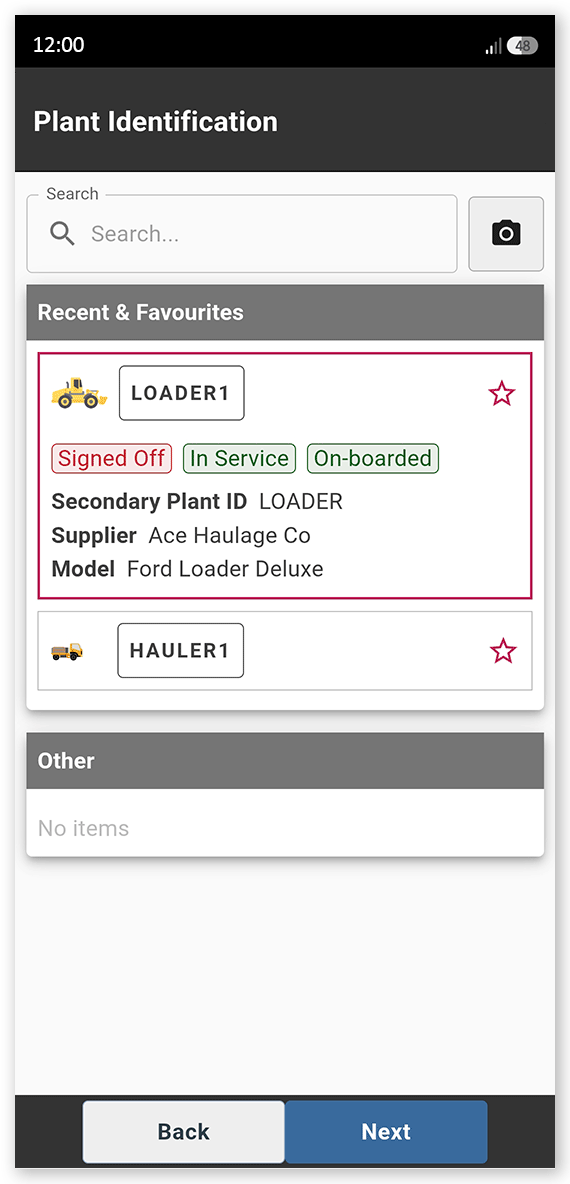
Select the machine from the search results. The machine's details are shown.
 Click or tap to expand image
When you select a machine, the Plant Identification screen displays machine icons to help you identify different plant types. There is a unique icon for every role available in Virtual Superintendent, making machine selection easier.
Selected machines also show the machine's:
- Plant ID
- Service status (In Service or Out of Service)
- On-board status (On-boarded, Provisionally On-boarded or Off-boarded)
- Supplier
- Machine model
If a machine isn't available for use, such as machines marked as Out of Service, a warning appears at the top of the screen and you can't select the machine to complete the docket (select an alternative).
Add a machine as a favorite
To add frequently used machines to your favorites so you can find them quickly when signing on:
- Find the machine on the Plant Identification screen.
- Tap the hollow red star beside the machine name. The star turns solid red.
A solid red star indicates that the machine is a favorite. Machines saved as favorites appear in the Recent & Favorites section at the top of the Plant Identification screen.
Note: In addition to any manually configured favorites, SafeSite also automatically displays your five most recently selected machines in the Recent & Favorites section.
Remove a machine as a favorite:
To remove a machine from your favorites:
- Locate the machine previously saved as a favorite in the Recent & Favorites section.
- Tap the solid red star icon by the machine's name. The star turns hollow red and the machine is removed as a favorite.
Enable the Plant Screen Smart Select Feature
The plant screen Smart Select feature is configured using sign-on profiles. Sign-on profiles are applied to item codes and define the steps that a SafeSite user completes (that is, the pages they see) when signing in.
You could, for example, create a truck sign-on profile with Smart Select enabled and apply it to a truck item code. When a SafeSite user selects that truck chargeable item, the Smart Select feature becomes available on the Plant Identification screen.
Note: For more information about sign-on profiles and how they function, read the Sign-on Profiles Explained help article.
To enable the plant Smart Select feature in a sign-on profile:
- Sign in to Virtual Superintendent.
- Click Menu > Dockets Setup. The Dockets Setup page opens.
- Select the Sign-on Profiles tab.
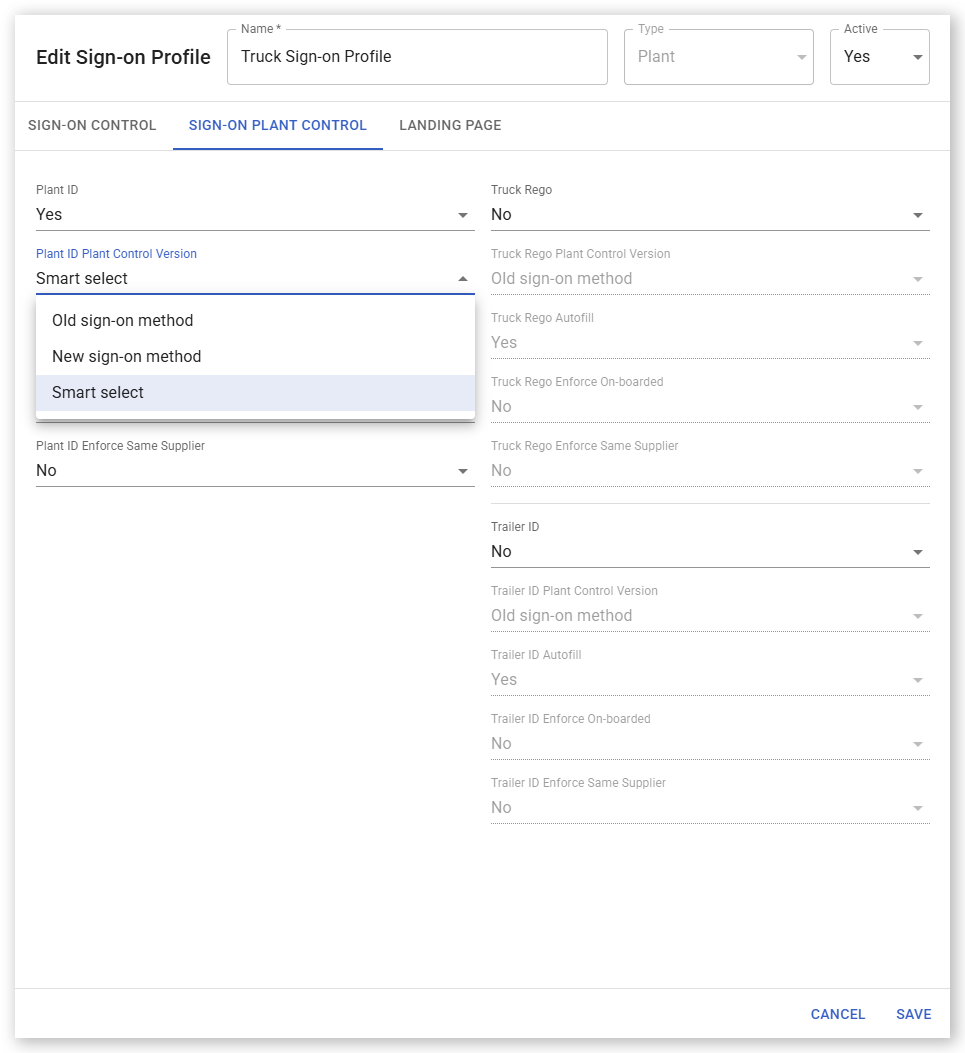
- Click the sign-on profile you want to edit. The Edit Sign-on Profile dialog opens.
- Click the Sign-on Plant Control tab.
-
Open the Plant ID Plant Control Version dropdown and select Smart select.
- Click Save. The configuration changes are saved and the dialog closes. You can now use this sign-on profile with an item code.
