
Read Messages in SafeSite
Head contractors can send messages, site notices, and automated notifications directly to individual SafeSite users, to groups of workers, or to all workers on a project, through the app. These communications can be found in the Messages screen (Menu > Messages).
Note: If you are a head contractor, see the Messaging Page help article for information about sending messages to SafeSite users.
In this article
Understand SafeSite Messages
Project administrators can send three types of communications to SafeSite users:
| Message Type | Description |
| Site Notices | Global messages that provide ongoing information, such as safety reminders, site changes, or upcoming work. |
| Messages | One-off communications sent to individuals or group of users. |
| Notifications | Automated messages that alert users when specific events occur. |
When a SafeSite user is sent a message:
- If the user is signed in to SafeSite, it is delivered immediately. If the app is closed or running in the background, the user receives a push notification.
- If the user is not signed in, it is available the next time they sign in.
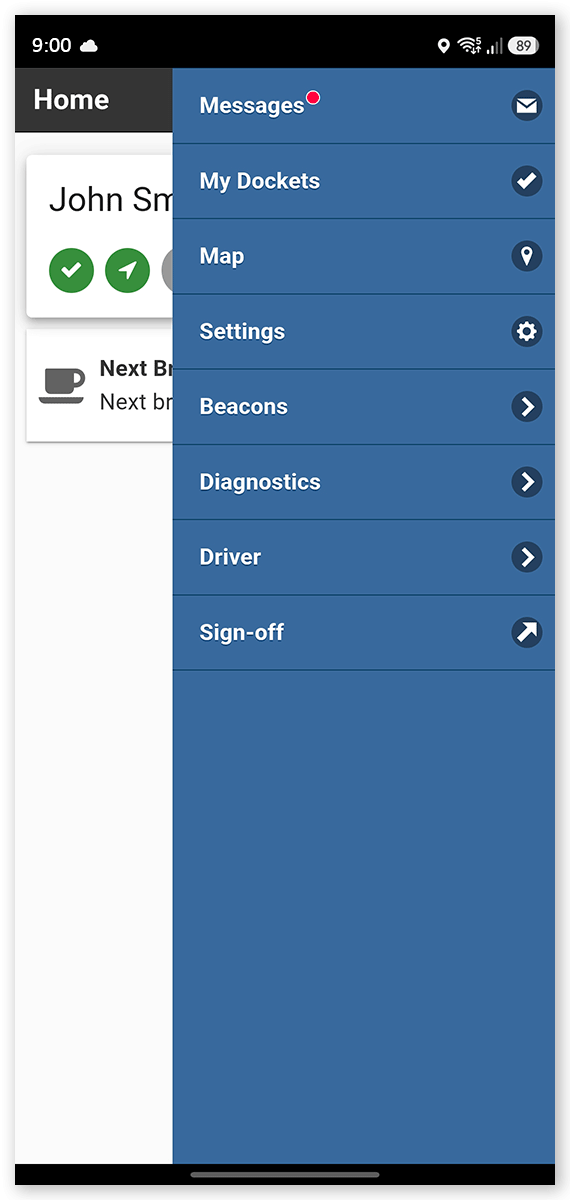
When a user has unread site notices or messages, a red notification dot appears on the Menu icon and beside Messages in the menu. The notification dot is removed after all unread site notices and messages have been read.
Read Messages
To read a site notice, message or notification in the SafeSite app:
- Open the SafeSite app and sign in. If you have unread messages, a red dot is shown on the menu button in the upper-right corner of the screen.
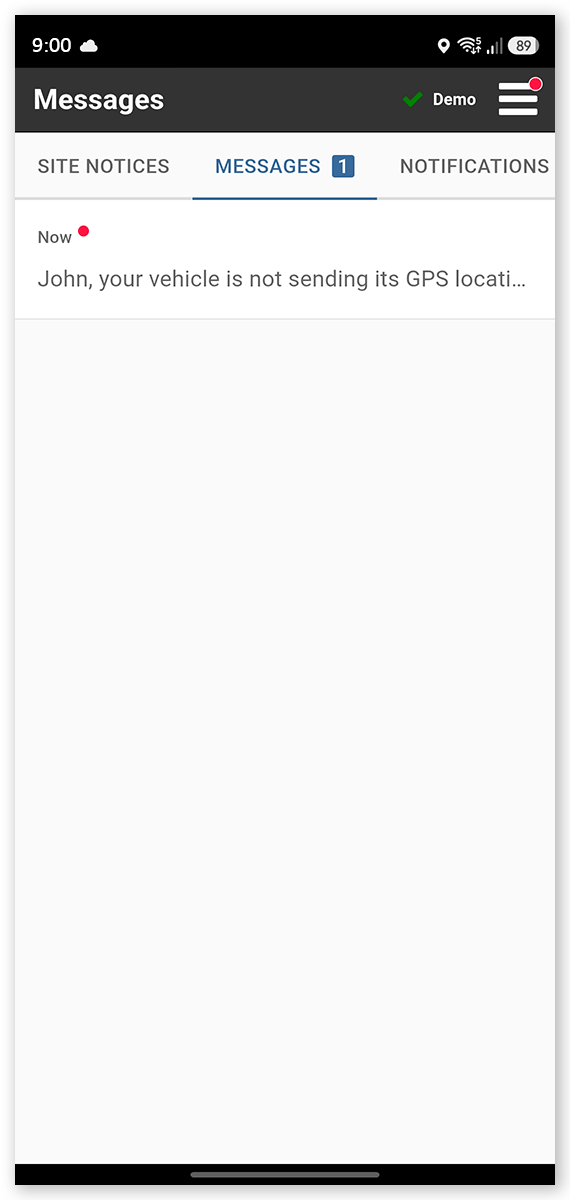
- Tap Menu > Messages. The Messages screen opens.
- Tap the Site Notices, Messages or Notifications tab. The number of unread messages is indicated on the tab.
- Tap a site notice or message to open it.
After you read all unread site notices, messages and notifications, the notification dot is removed.
Note: If you registered your SafeSite account after a site notice was created, you can still read it while it remains active. You cannot reply to messages.
Read Attachments
Some site notices and messages include attachments, such as maps, photos, or documents.
To open an attachment:
- Open the required site notice or message.
- Tap the attachment. The attachment opens on your device using the appropriate app.