
Create and Use Crew Dockets
Crew Dockets allow supervisors and leading hands to record work for several people on a single docket, instead of creating individual dockets for each worker.
This feature is designed to reduce administration time while maintaining accurate cost tracking, approval processes, and invoicing.
Crew Dockets are used when a team of workers completes similar work for the same supplier during the same shift.
Note: Crew Dockets are created in the SafeSite mobile app, not in Virtual Superintendent. Contact Virtual Superintendent support to enable the Crew Dockets feature in your project.
In this article
Permissions
Crew Dockets can be created by supervisors and leading hands. To create Crew Dockets, you must must have the following permissions:
- Docket Contractor
- Docket Leading Hand or Docket Supervisor
How Crew Dockets Work
A Crew Docket represents a single shift or work period but contains multiple line items, one for each crew member.
Key characteristics of these dockets are:
- One docket per shift
- Multiple crew members added to the same docket
- Each crew member appears as a separate line item
- Each line item has one chargeable item
- Item Codes for Crew Dockets are assigned based on the people selected, not chosen manually
- Each crew member’s time and cost remain individually traceable
Once created, a Crew Docket follows the standard docket lifecycle.
Crew Selection Rules
When creating a Crew Docket:
- All crew members must be configured as docket contractors and belong to the same supplier
- Standard docket validation rules, cost codes, and permissions still apply
Create a Crew Docket
To create a Crew Docket:
- Sign in to the SafeSite mobile app as a Supervisor or Leading Hand.
- Open the My Dockets screen (Menu > My Dockets).
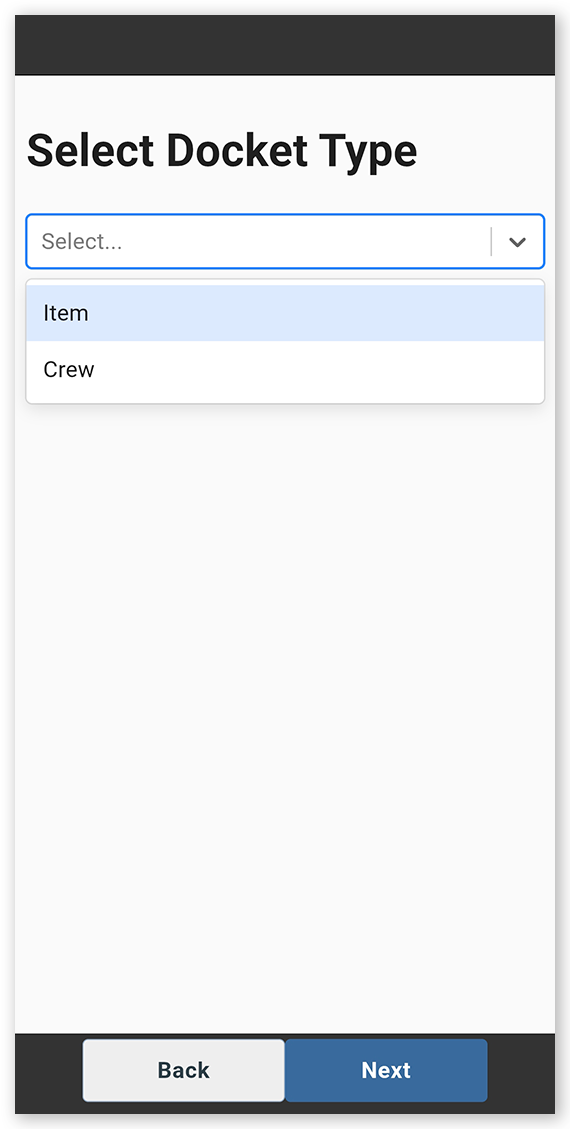
- Tap Add Docket to open the Select Docket Type screen.
-
Open the docket type list and select Crew then tap Next. The Date screen opens.
 Click or tap to expand image
 -
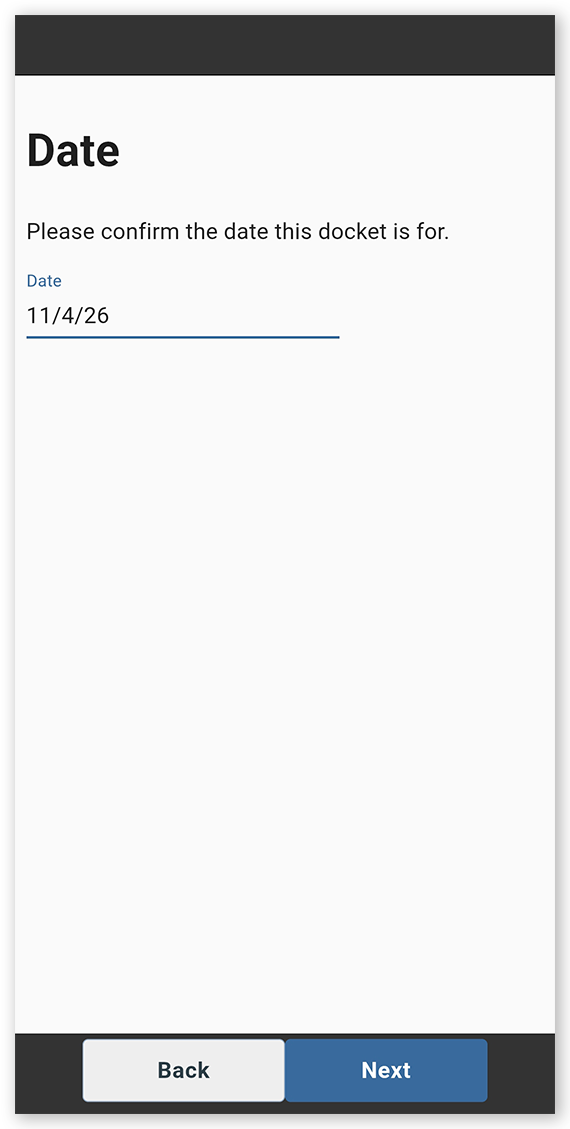
Select the docket date then tap Next. If you are a leading hand, the People screen opens. If you are Docket Supervisor, the Supervisor screen opens. Select a supervisor from the list then tap Next.
 Click or tap to expand image
 -
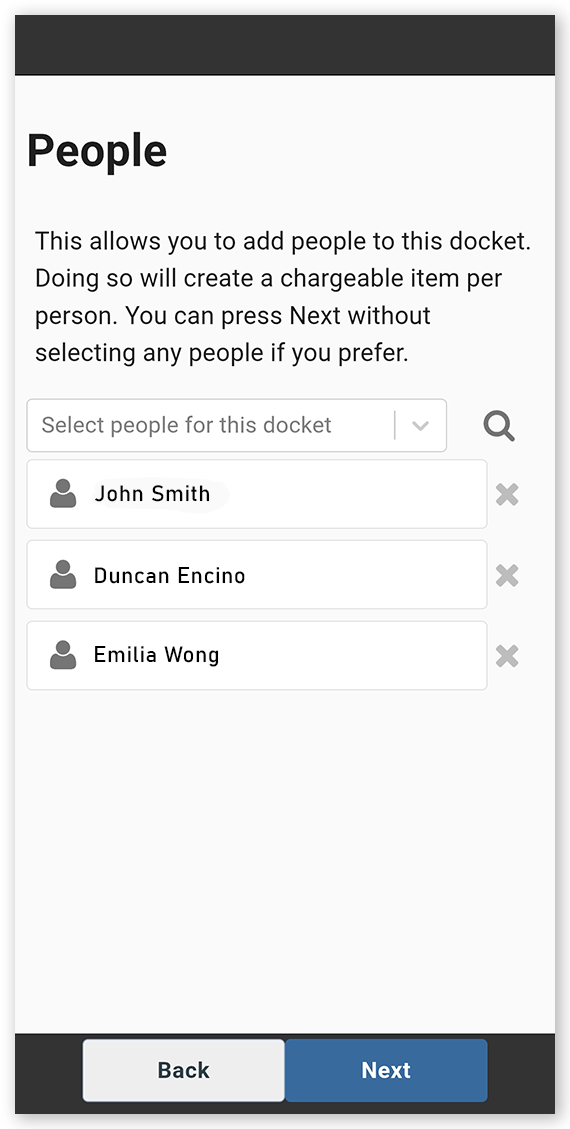
Open the list and select the people who will form the crew. Use the search field to find names and remove any accidentally selected crew members by tapping the X icon next to their name.
 Click or tap to expand image
 -
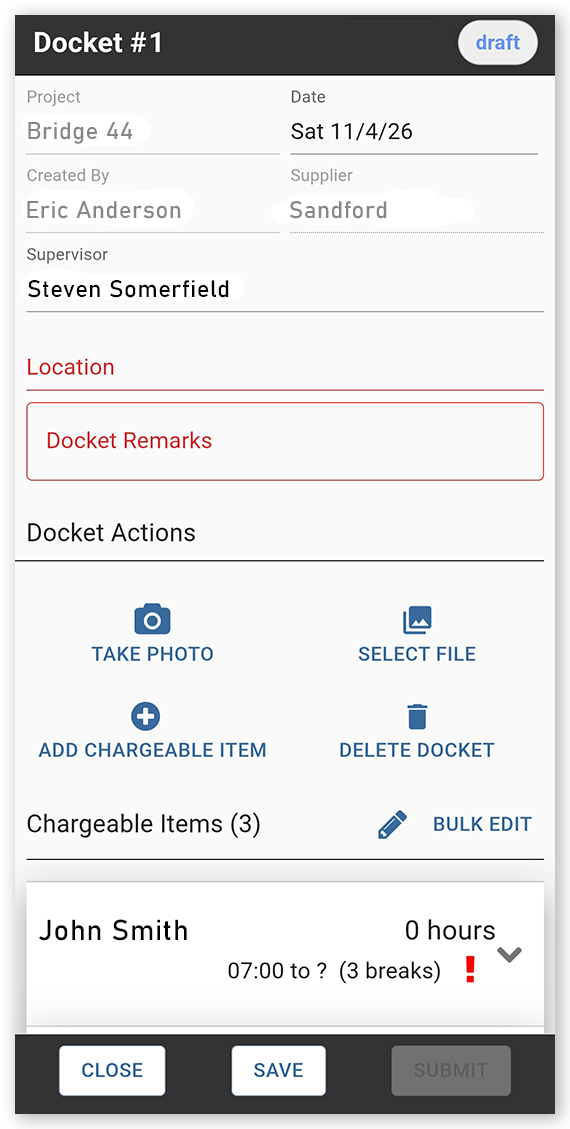
Tap Next to create the Crew Docket.
 Click or tap to expand image
 - Specify the work location, add any docket remarks, and enter the finish time for each crew member at the end of the workday.
- Review the docket and submit it when complete for approval by the assigned supervisor.
When the Crew Docket is created:
- You are automatically assigned as the supervisor on the docket if you are a leading hand.
- Each crew member appears as a separate line item in the Chargeable Items section.
- Only one item code can be used for each crew member.
Item Code behavior in crew dockets
Item codes are applied based on each crew member’s SafeSite user configuration:
- If a crew member has one item code assigned, it is automatically applied to them in the docket.
-
If a crew member has multiple item codes assigned:
- Specify their default item code. Do this by opening Virtual Superintendent and navigating to the Users page (Menu > Users) and selecting the SafeSite App Users tab. Select the user from the grid to edit their details. In the editor dialog, tap the gray chevron next to an item code to turn it solid gray. This sets the code as the user's default.
- If no default item code is selected, no item code is added for that crew member. You can, however, manually assign an item code by tapping the Change Item button on the new docket and choosing an appropriate code.
This ensures accurate charging while still allowing flexibility when crew roles change.