
View and Edit Dockets in SafeSite Without Signing in
You can access existing dockets in SafeSite without signing in. This is useful when you need to complete a docket at the end of your shift or, as a supervisor, review dockets assigned to you.
Note: To create new dockets, you must sign in.
In this article
View Your Dockets
- Open the SafeSite app on your mobile device.
-
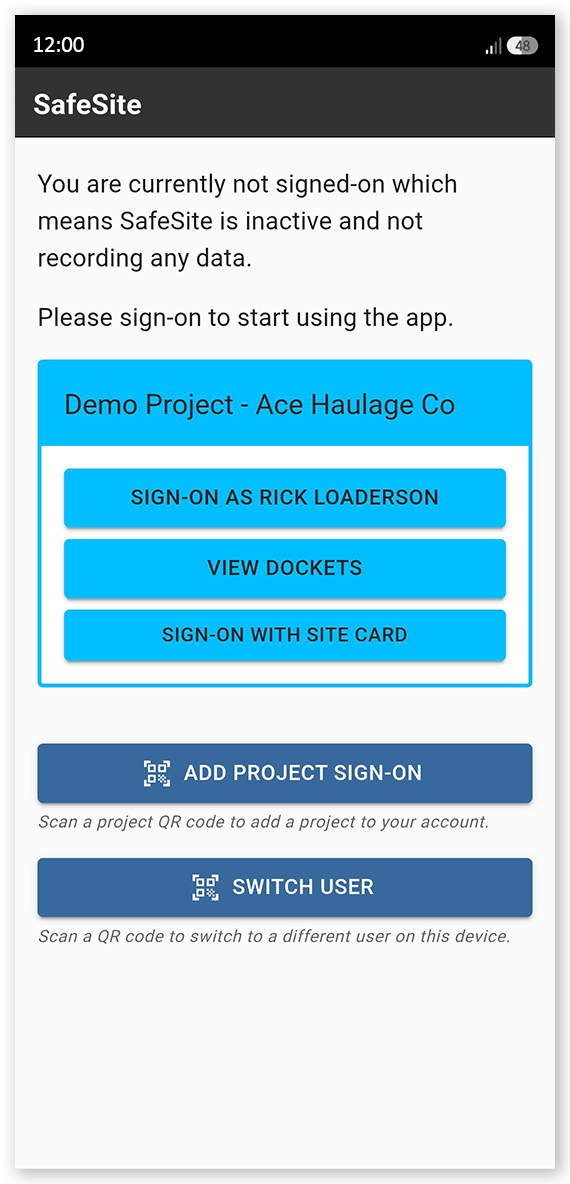
Tap View Dockets. SafeSite opens the appropriate docket screen based on your user permissions.
 Click or tap to expand image
- If you're a subcontractor, the My Dockets screen opens. From here, you can view, edit, and submit your dockets.
- If you're a supervisor, the Supervisor Dockets screen opens. From here, you can review, cost code, and accept dockets assigned to you. You can also go to My Dockets to view, edit, and submit your own dockets.
Create a New Docket
If you opened SafeSite to view dockets (using the View Dockets button) you cannot create new dockets until you sign in. To create a new docket:
- Open the My Dockets screen (Menu > My Dockets).
- Tap Sign-on and Add Docket at the bottom of the screen.
- Answer each of the Fit For Work questions with a Yes or No. These questions are used to indicate whether you are physically and mentally fit to work safely today.
- Select an item code that matches the work you will be doing today.
- Complete the plant checklist if prompted, recording the condition of each item listed by tapping Yes to indicate the item is in good condition. If an item is faulty, tap No then Take Photo and take a photo of the issue. Add a note describing the fault in the Notes field. When the checklist is complete, tap Next.
- Enter the required docket details and submit the docket.