
Assign Material Types to Site Loads as a Machine Operator
As a loader operator, you can specify a default load material type on your shift after you sign in. After setting this default material type, when you create new dockets the material you selected is automatically added to the docket, saving time.
In this article
Assign a Material Type to Loads
To sign in as an operator and configure a default loading material type:
- Open the SafeSite app.
-
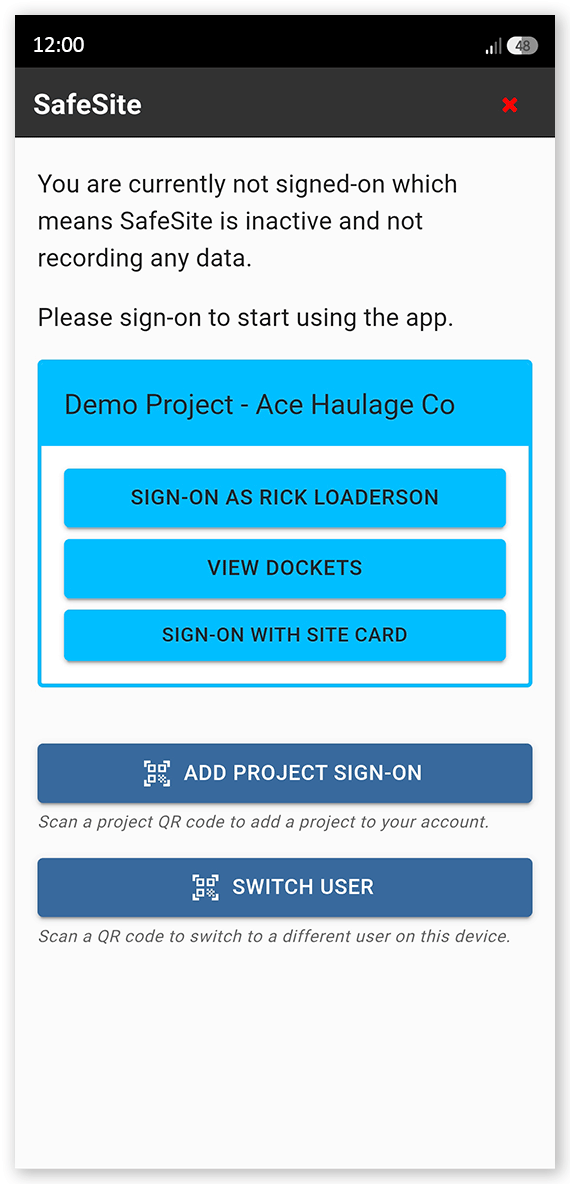
Tap your name to sign in (Sign-On As [Your Name]). The Fit For Work screen opens.
 Click or tap to expand image
 -
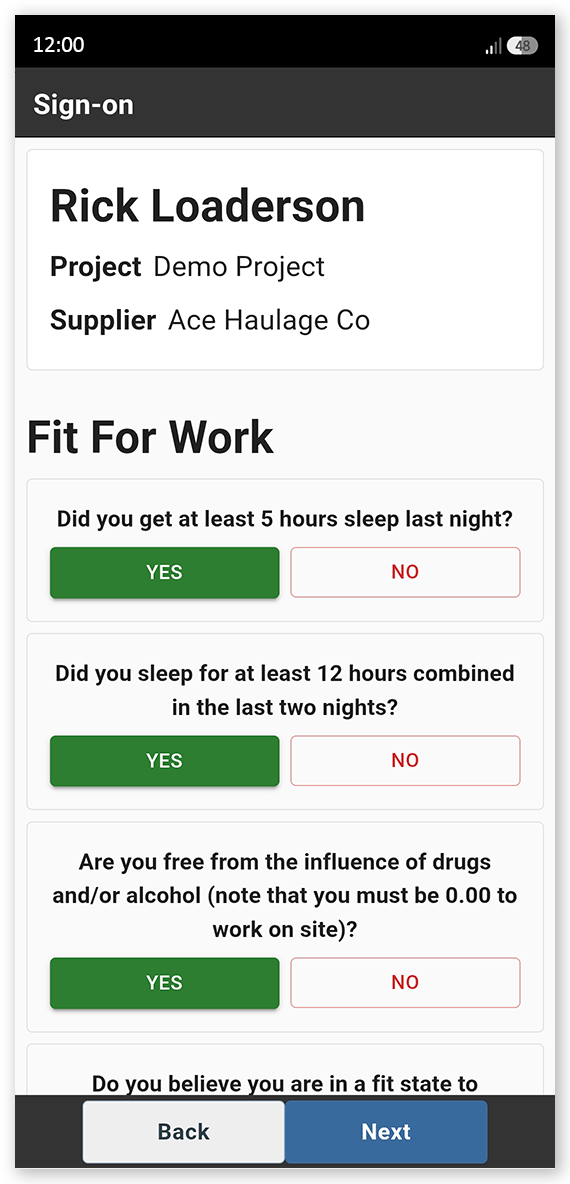
Answer each of the Fit For Work questions with a Yes or No, then tap Next. These questions are used to indicate physical and mental fitness to work safely. The Item screen opens.
 Click or tap to expand image
 -
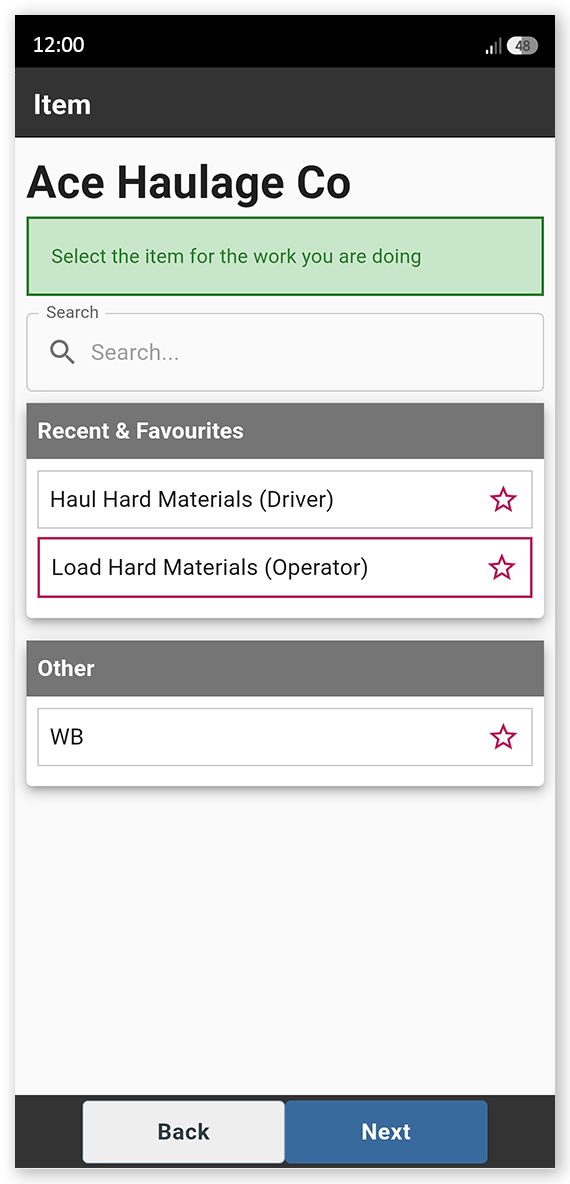
Select a loader operator item code that matches the work you will be doing today, then tap Next. Item codes are the individual chargeable items that describe the type of work you will be performing, and what home page you can access. The Plant Identification screen opens.
 Click or tap to expand image
 -
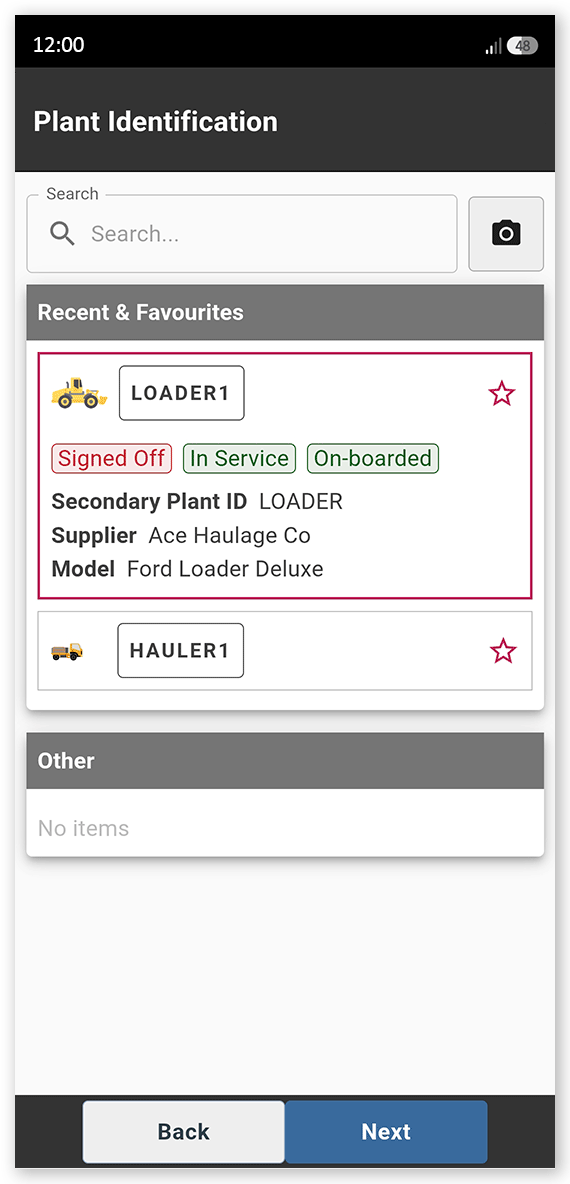
Select the loader plant you will be operating on your shift from those listed, then tap Next. The Create Docket screen opens.
 Click or tap to expand image
 -
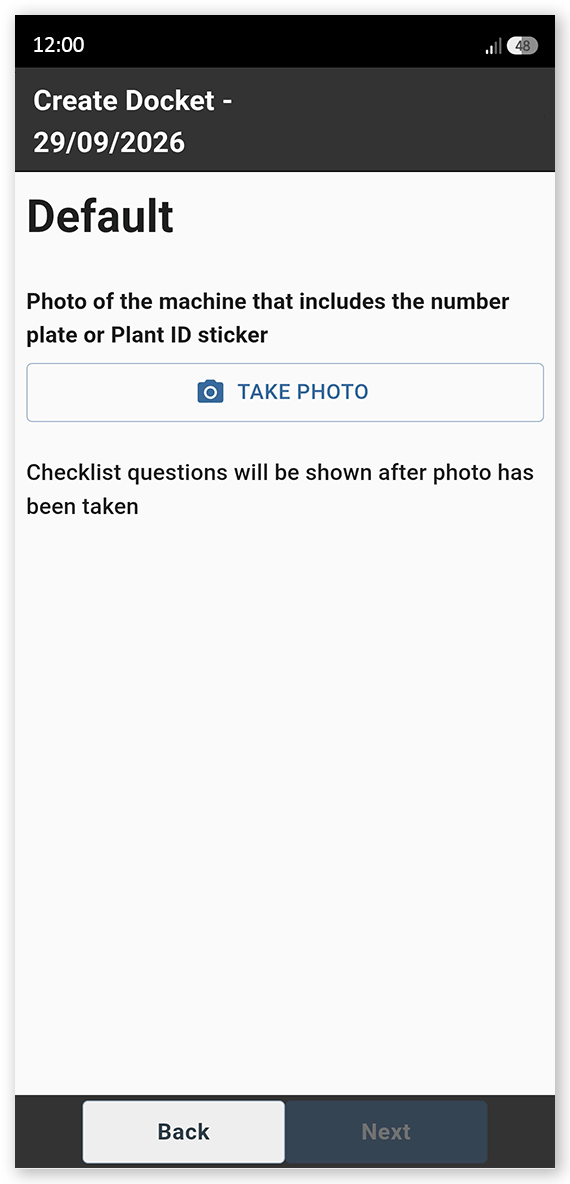
Tap Take Photo and take a picture of your plant equipment, making sure that its Plant ID sticker or license plate number are visible, then tap Next. The Plant Checklist loads.
 Click or tap to expand image
 -
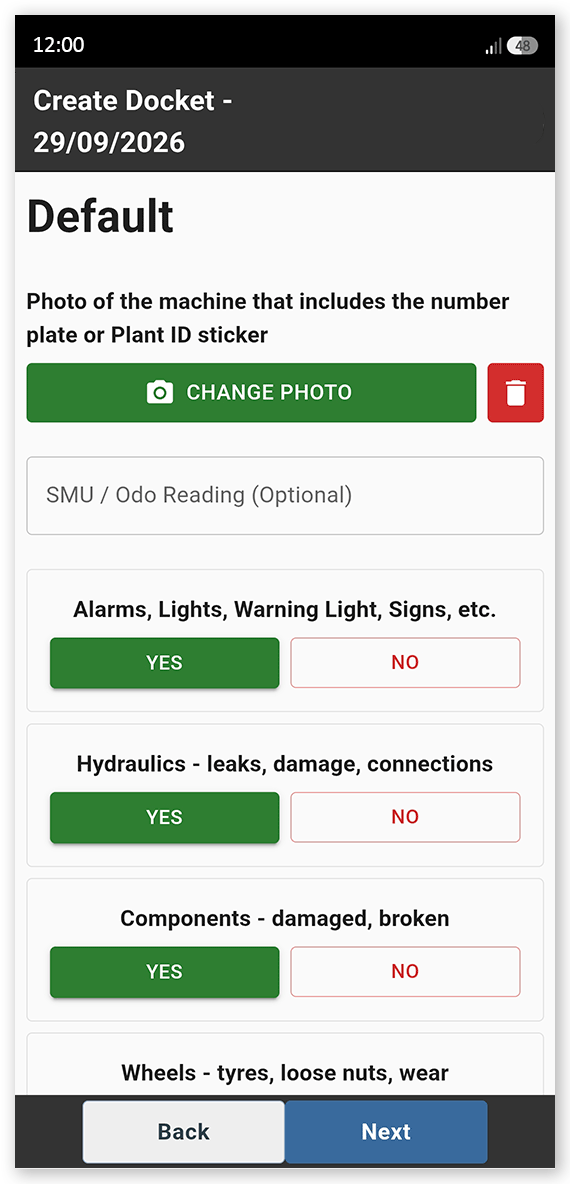
Complete the plant checklist, recording the condition of each item listed by tapping Yes to indicate the item is in good condition. If an item is faulty, tap No then Take Photo and take a photo of the issue. Add a note describing the fault in the Notes field. When the checklist is complete, tap Next. The Date screen opens.
 Click or tap to expand image
 -
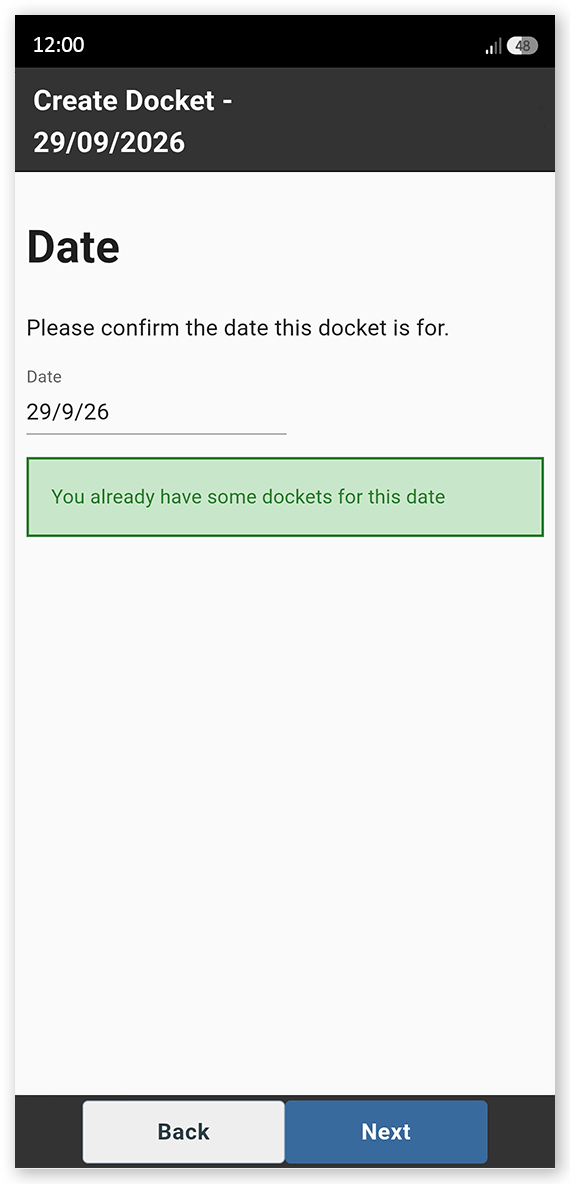
Check that the docket date shown is correct. Tap the date and correct if needed, then tap Next. The Supervisor screen opens.
 Click or tap to expand image
 -
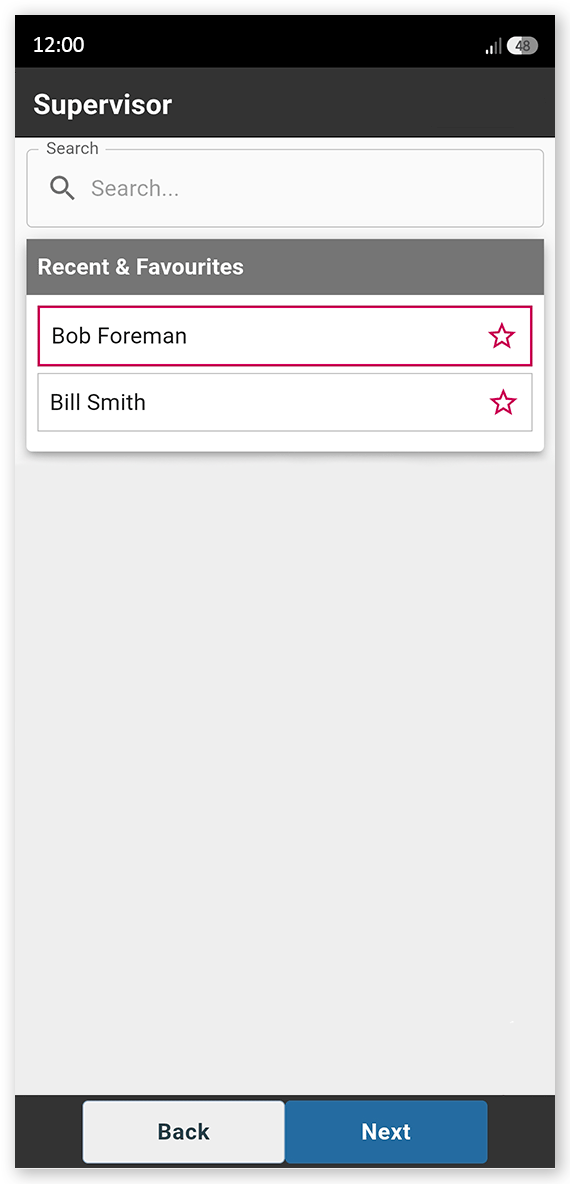
Select your supervisor from the list, then tap Next. The Location screen opens.
 Click or tap to expand image
 -
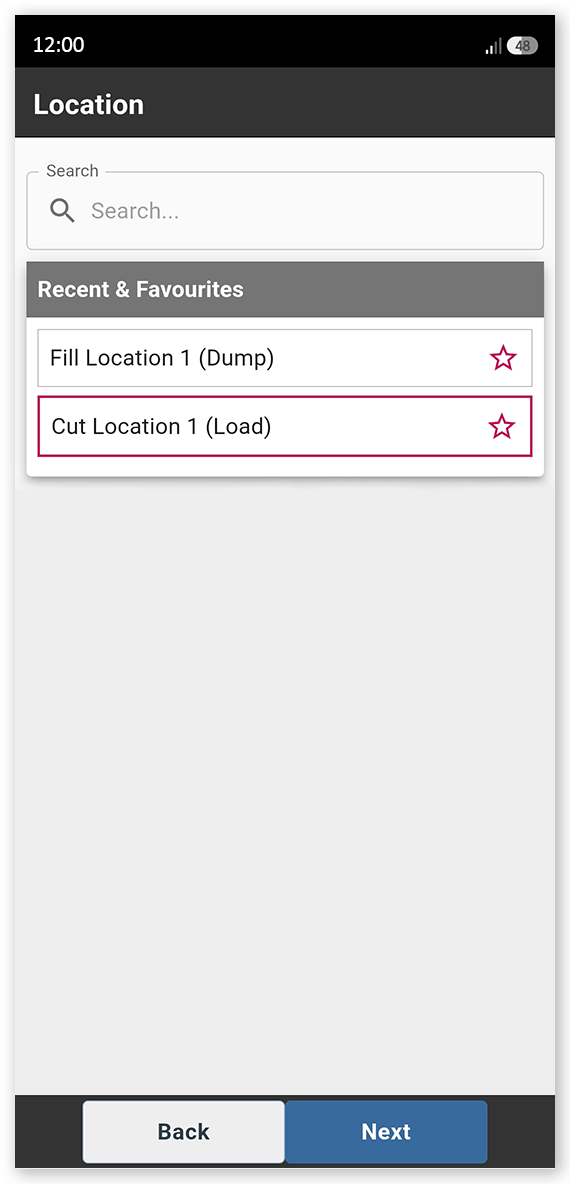
Select the loading location from those listed, then tap Next. The Docket Summary screen opens.
 Click or tap to expand image
 - Tap Save and then Close to close the docket summary.
-
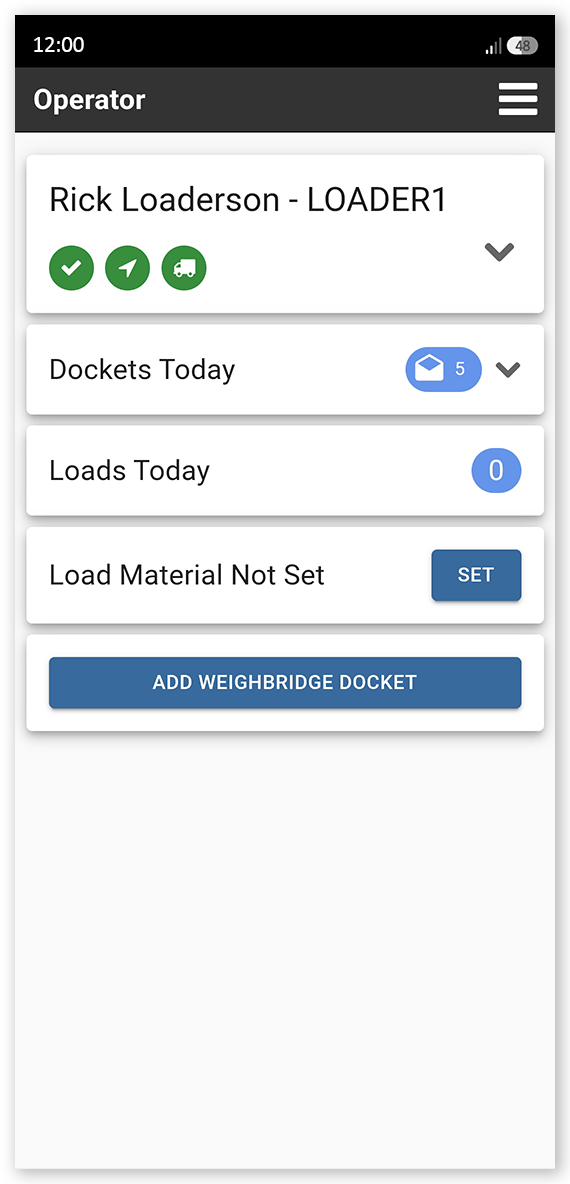
Open the menu in the upper-right corner and select Operator. The Operator home page opens, showing your sign-in, checklist and device connection details, the number of dockets you have created today, the number of loads completed, and the material type that you are loading (this is not yet set, and should be specified next).
 Click or tap to expand image
 -
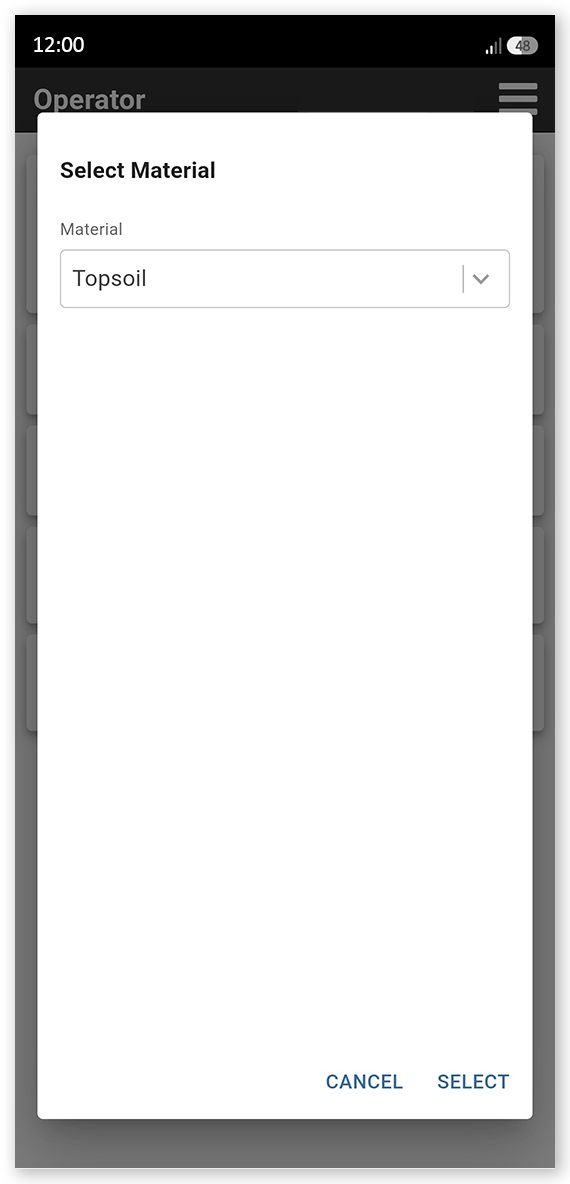
Tap Set next to Load Material Not Set. The Select Material dialog opens.
 Click or tap to expand image
 - Open the dropdown list and select the default material that you will be loading today, if you know, then tap Select. The Operator home page updates with the material selected. You are now ready to begin loading. When you create new loads, the material type configured is automatically selected for you.
Important: Do not tap Add Weighbridge Docket. SafeSite automatically detects loads and assigns the selected material.
Cheatsheet
The image below visually demonstrates the steps described in this help article:
