
Understand Virtual Weighbridge Dockets
Virtual Superintendent can be used for creating, assigning, and tracking virtual weighbridge (VWB) dockets created by loader operators that are assigned to hauler drivers to transport material from a loading site to a disposal site (for example, from a cut area to a fill location on a construction site, or to an off-site disposal location).
In this article
- Permissions
- Virtual weighbridge project configuration
- Understand virtual weighbridge item codes
- Configure item codes for operators and drivers
- Configure suppliers to support loading and hauling
- Configure plant equipment for loading and hauling
- Sign into SafeSite as a loader
- Sign into SafeSite as a hauler
Permissions
To access the Plant page (Menu > Plant) and edit plant, access the Suppliers page (Menu > Suppliers) and edit suppliers, and access the Dockets Setup page (Menu > Dockets Setup) and manage item codes and sign-on profiles, you must have the following permissions:
- Admin Manager
- User Admin
Note: Item codes and sign-on profiles can also be managed by users with the Dockets Super User permission.
Virtual Weighbridge Project Configuration
To use the loader and hauler virtual weighbridge workflow in Virtual Superintendent and SafeSite, your project must first be configured by Virtual Superintendent support.
To update your project with this functionality, contact support@virtualsuper.com.
Once configured, your project will include:
- A default Weighbridge item code type called "Default Weighbridge Item" with a sign-on profile of WB, assigned to a test supplier named "Default Weighbridge Supplier". This item code should not be used directly, but the WB sign-on profile can be configured to specify different hauler and loader rules.
- Default sign-on profiles of Hauler and Loader that can be assigned to Plant item codes. These automatically direct SafeSite users who select item codes using these sign-on profiles to either the Driver home page (after selecting items codes using the Hauler sign-on profile) or the Operator home page (after selecting item codes using the Loader sign-on profile.
- Plant configuration options that allow you to configure plant as loaders, haulers, or placers.
Together, these options allow you to:
- Configure and assign item codes to loaders (operators) and haulers (drivers) so they are automatically directed to the correct SafeSite home page after signing in.
- Configure plant equipment to be assigned loader, hauler (or placer) roles in weighbridge dockets.
- Configure suppliers to allow loading or hauling roles.
Once configured, loaders at the cut site can create virtual weighbridge dockets and automatically assign these dockets to drivers to haul the load from the loading location (origin) to a disposal location (destination).
These haulage assignments automatically appear on the Driver home page after they are created by a loader from the Operator home page.
Note: The SafeSite users acting as loaders and haulers must not have the Docket Supervisor permission as the default Approve Dockets home page used by supervisors can interfere with the default home pages used for virtual weighbridge roles.
Understand Virtual Weighbridge Item Codes
Three item code types are required when working with virtual weighbridge dockets:
- A Weighbridge item code with a type of Weighbridge and a sign-on profile of WB. This is created for you automatically, but we recommend that you check it exists and has been correctly configured with the required sign-on profile.
- A Hauler item code with a type of Plant and a sign-on profile with a default home page of Driver.
- A Loader item code with a type of Plant and a sign-on profile with a default home page of Operator.
You cannot create additional virtual weighbridge item codes in Virtual Superintendent. To add new weighbridge item codes, please contact support@virtualsuper.com.
To create additional item codes to be used by loader operators or hauler drivers, see the section immediately below.
Configure Item Codes for Operators and Drivers
The Operator and Driver home pages in SafeSite are only available when an item code with a suitable sign-in profile is selected when signing into SafeSite.
To configure the item codes to load the correct default page after a user sign in, and to enable access to either the Operator or Driver menu options and home pages in SafeSite:
- Sign in to Virtual Superintendent.
- Click Menu > Dockets Setup. The Dockets Setup page opens.
-
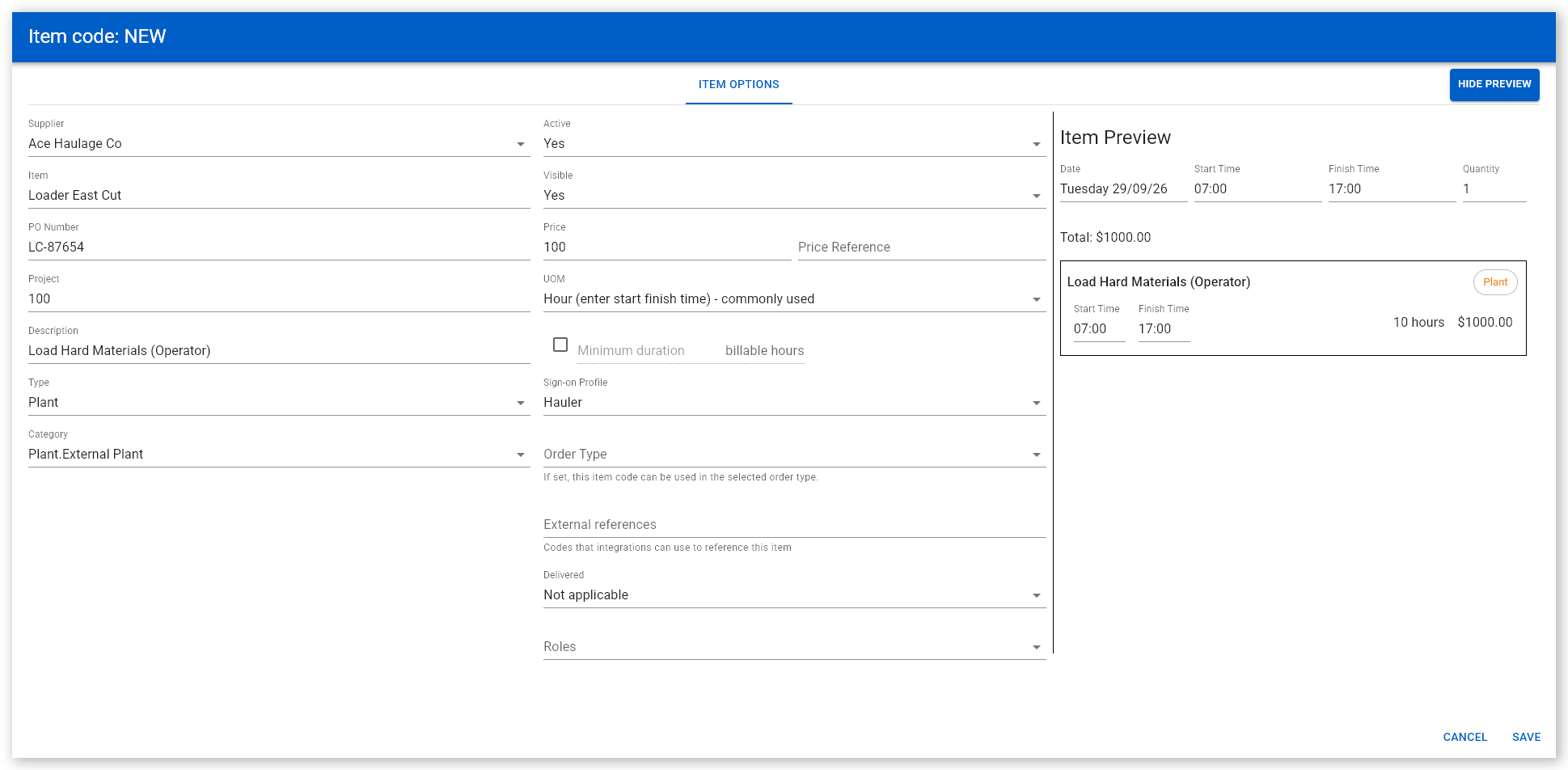
Select the Item Codes tab and click Add Item to create a new item code or select an existing item code from the grid. The Item Code: NEW dialog opens.
 Click or tap to expand image
 - Open the Supplier dropdown and select the supplier (the supplier also needs to be configured to allow loading and hauling).
- Open the Type dropdown and select Plant.
- Open the Sign-on Profile dropdown and select the Loader or Hauler sign-on profiles included in your project.
- Click Save.
You should create one item code for loading (using the Loader sign-in profile, defaulting to the Operator home page), and one for hauling (using the Hauler sign-in profile, defaulting to the Driver home page).
Create new loader and hauler sign-on profiles
If needed, you can also create your own sign-on profiles for loaders and haulers, with their own sign-on rules.
To create new loader or hauler sign-on profiles:
- Sign in to Virtual Superintendent.
- Click Menu > Dockets Setup. The Dockets Setup page opens.
- Select the Sign-on Profiles tab.
-
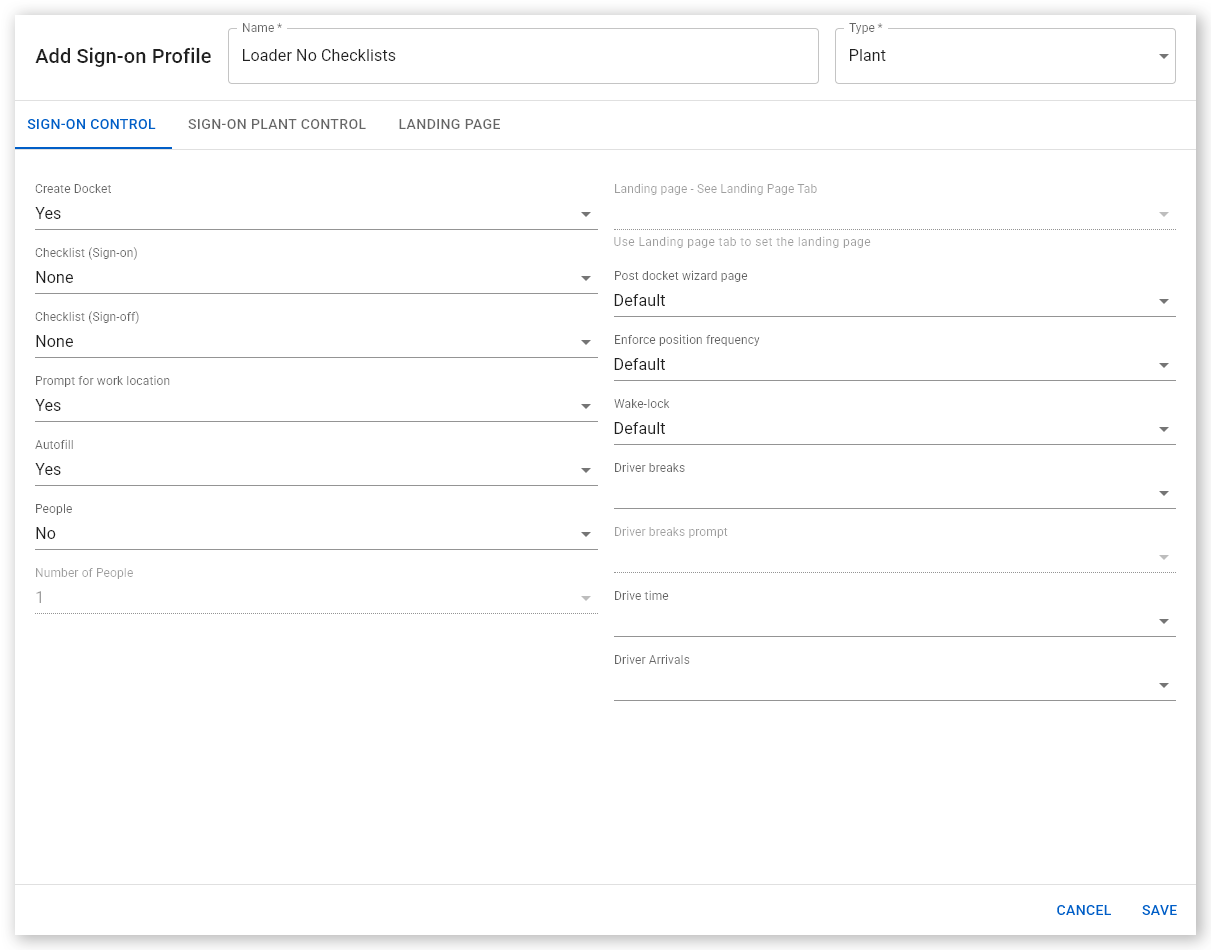
Click Add Sign-on Profile. The Add Sign-on Profile dialog opens.
 Click or tap to expand image
 - Open the Type dropdown and select Plant.
- Type a profile name into the Name field. For example, "Loader No Checklists" or "Hauler High Position Frequency".
-
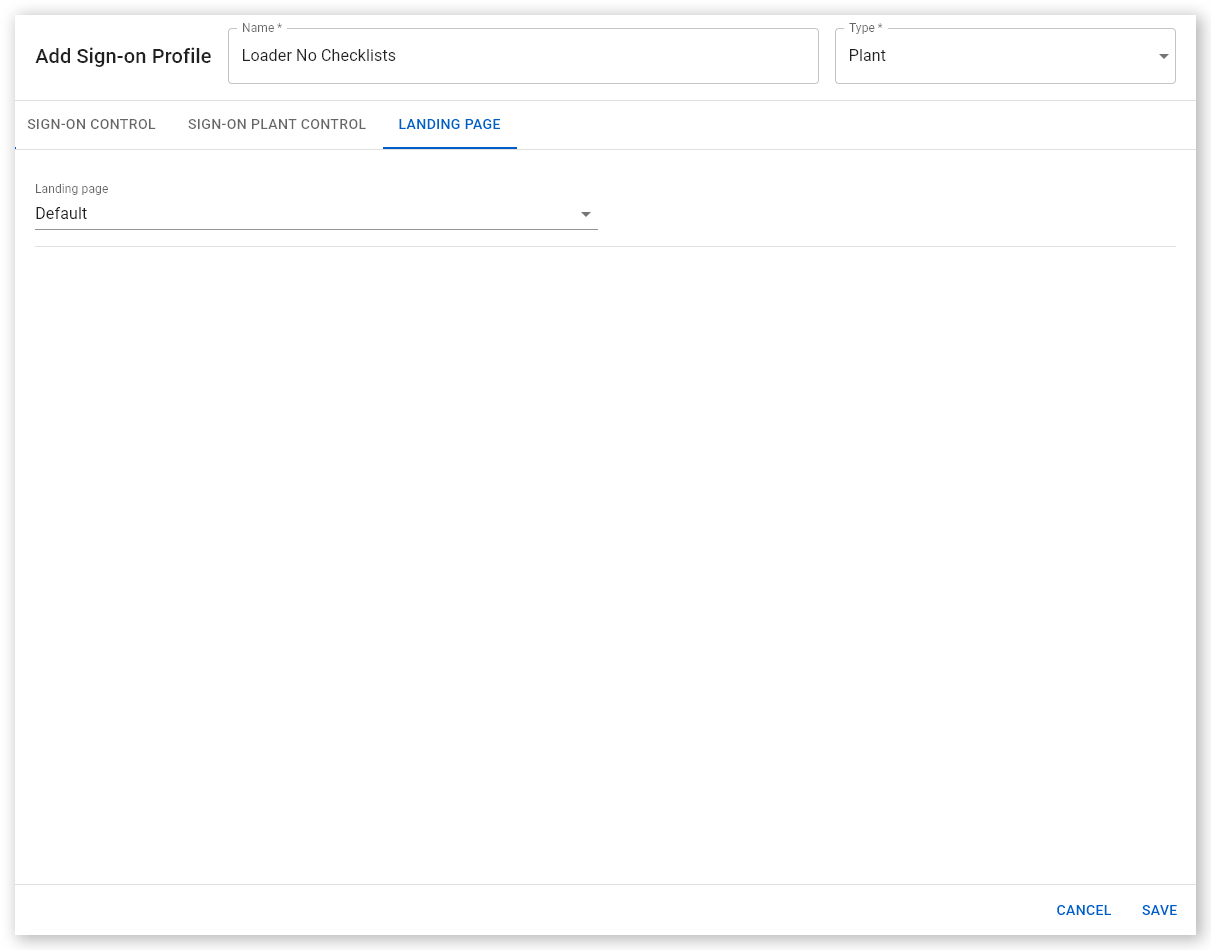
Click the Landing Page tab.
 Click or tap to expand image
 -
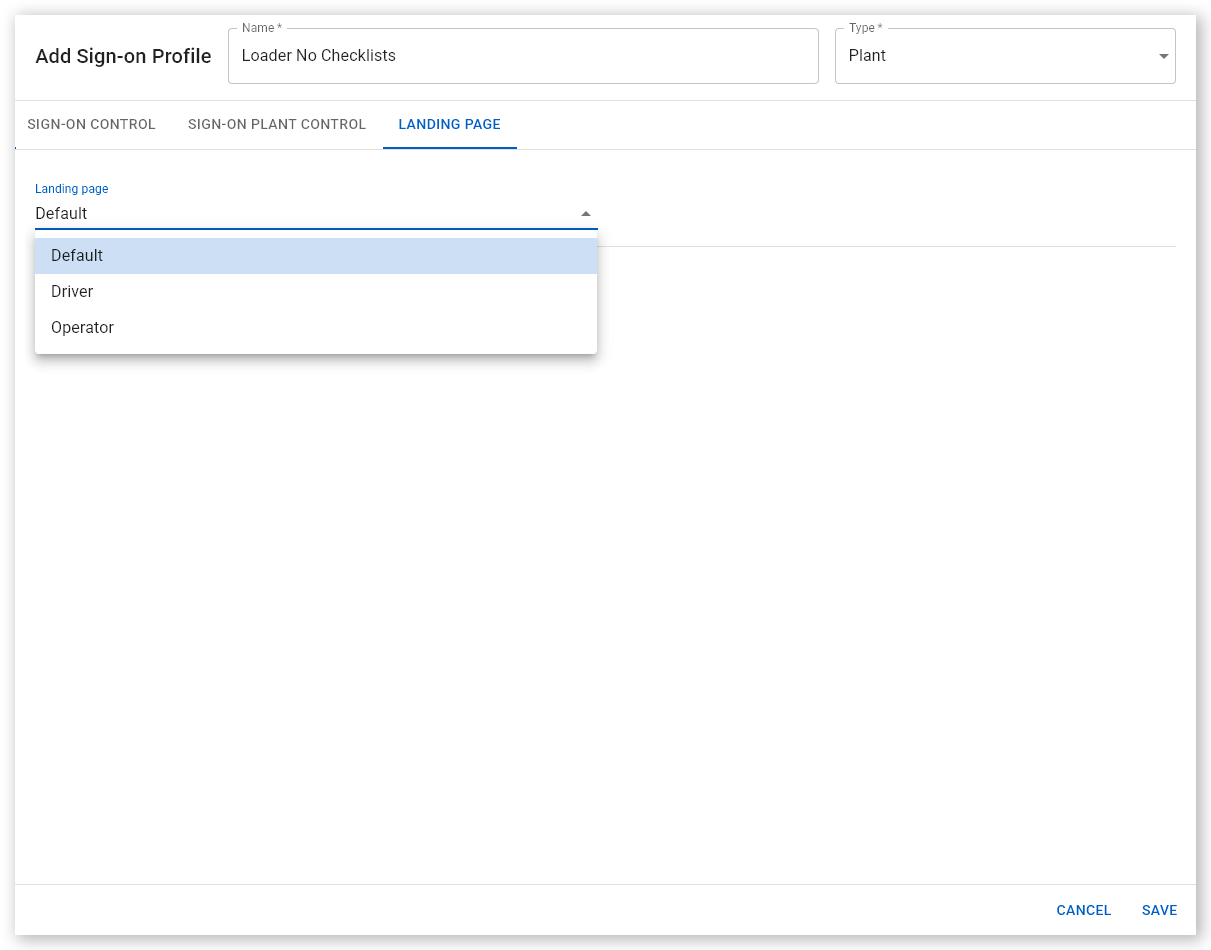
Open the Landing Page dropdown and select Driver or Operator. If you select Driver, the SafeSite user selecting an item code using this sign-on profile will be directed to the Driver home page in SafeSite after signing in and will see the Driver menu option in SafeSite. If you select Operators, the SafeSite user will be directed to the Operator home page in SafeSite after signing in and will see the Operator menu option in SafeSite.
 Click or tap to expand image
 - Click Save. The sign-on profile is now ready to be configured in an item code.
Using the virtual weighbridge sign-in profile
You can control the configuration of your virtual weighbridge docket creation and assignment workflow using options included in the virtual weighbridge sign-in profile.
To configure a virtual weighbridge sign-on profile:
- Sign in to Virtual Superintendent.
- Click Menu > Dockets Setup. The Dockets Setup page opens.
- Select the Sign-on Profiles tab.
- Click Select at the top of the Type column. A contextual menu opens.
- Select Weighbridge. The grid updates to show only virtual weighbridge sign-on profiles.
-
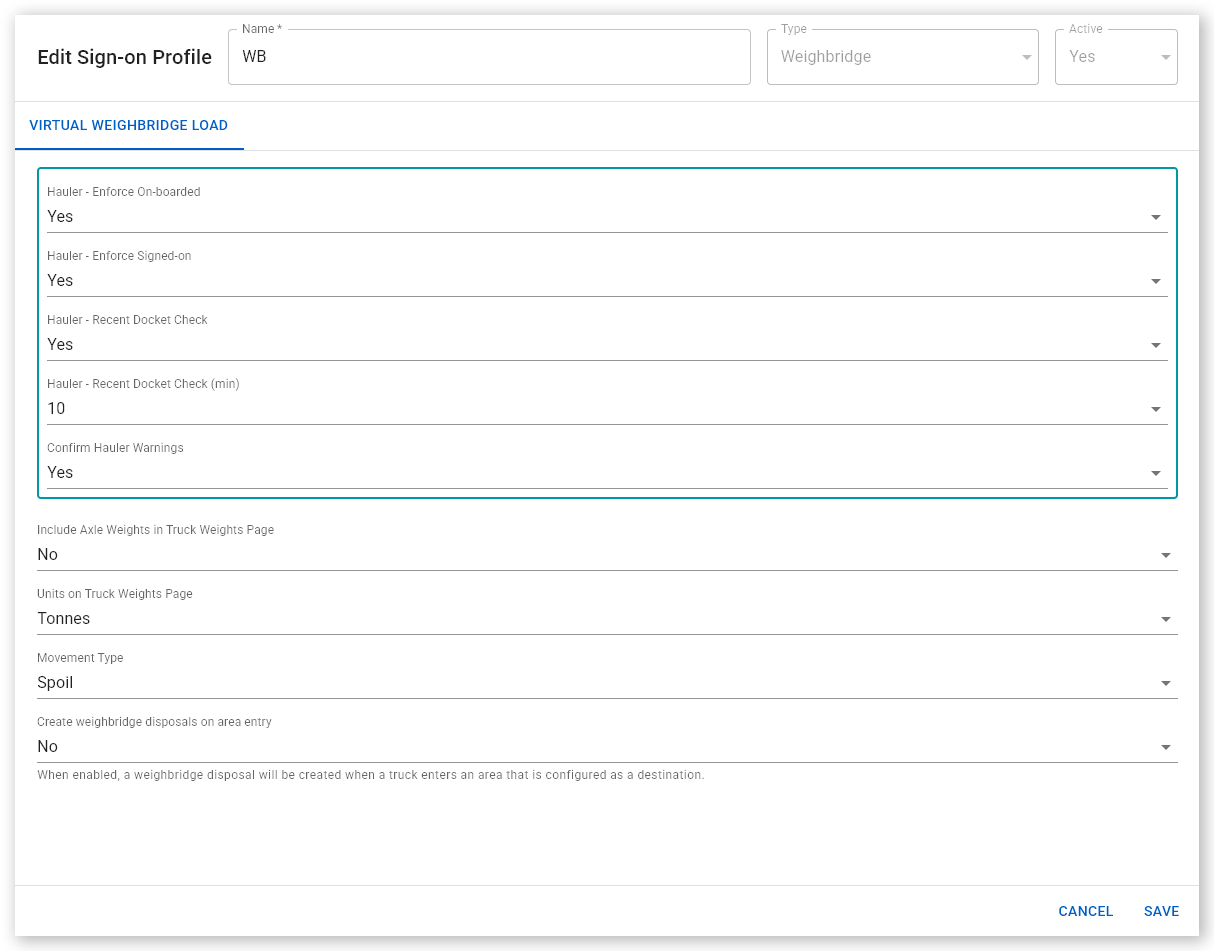
Click the sign-on profile you want to edit. The Edit Sign-on Profile dialog opens showing the Virtual Weighbridge Load tab.
 Click or tap to expand image
 - Select the configuration options you want to use for your loaders and haulers (these are described below).
- Click Save. The configuration changes are saved and the dialog closes.
Virtual weighbridge sign-on configuration
The following configuration options are available for virtual weighbridge sign-on profiles:
| Option | Description |
| Hauler - Enforce On-boarded | Controls whether haulers selected by loaders must be on-boarded. Choose Yes, No or Warning. If Yes, the haulers that are not on-boarded cannot be selected, if No, haulers that are not on-boarded can be selected, if Warning a "Hauler is not on-boarded" alert is shown when the selected hauler is not on-boarded, but can still be selected. |
| Hauler - Enforce Signed-on | Controls whether haulers selected by loaders must be signed on. Choose Yes, No or Warning. If Yes, haulers that are not sign into SafeSIte cannot be selected, if No, haulers that are not signed in can be selected, if Warning a "Hauler is not signed on" alert is shown when the selected hauler is not signed in, but can still be selected. |
| Hauler - Recent Docket Check | Controls whether SafeSite warns when the loader recently created a VWB docket for the selected hauler (within the duration specified in the Hauler - Recent Docket Check (min) field). Choose Yes, No or Warning. If Yes, a check is made after selection and selection of the hauler prevented if the follow-up VWB is within the specified timeframe, if No, no check is made, if Warning a "Docket recently created" alert is shown if a VWB docket was recently created for the selected hauler within the specified timeframe, but the hauler can still be chosen. This feature is used to prevent accidentally assigning the same load more than once (only one docket can be created for each load). |
| Hauler - Recent Docket Check (min) | Duration in minutes since the last VWB docket was assigned to a hauler. Further docket assignments made to the hauler within this duration can be prevented or trigger a warning message. Values are between 5 and 30 minutes in 5-minute increments. Used when the Hauler - Recent Docket Check setting is either Yes or Warning. Only one docket can be created for each load. |
| Confirm Hauler Warnings | Controls whether the hauler warnings listed above must be acknowledged by the loader when they are displayed (by clicking an OK button). Either Yes or No. |
| Include Axle Weights in Truck Weights Page | Controls whether truck weights pages also ask for the vehicle's axle weights. Either Yes or No. |
| Units on Truck Weights Page | Controls the weight units used on the vehicle and loads weight pages (including axle weights, if used). Either Kilograms or Tonnes. |
| Movement Type | Controls the movement type of the load. Either Spoil or Pre Cast. |
| Create Weighbridge Disposal on Area Entry | Controls whether the hauler's arrival at the destination disposal area causes a weighbridge disposal event to be recorded automatically. Either Yes or No. |
Configure Suppliers to Support Loading and Hauling
Next, the supplier being used to load or haul material must be configured to support the virtual weighbridge workflow.
To configure a supplier:
- Sign in to Virtual Superintendent.
- Click Menu > Suppliers. The Suppliers page opens.
- Locate the supplier you want to configure.
-
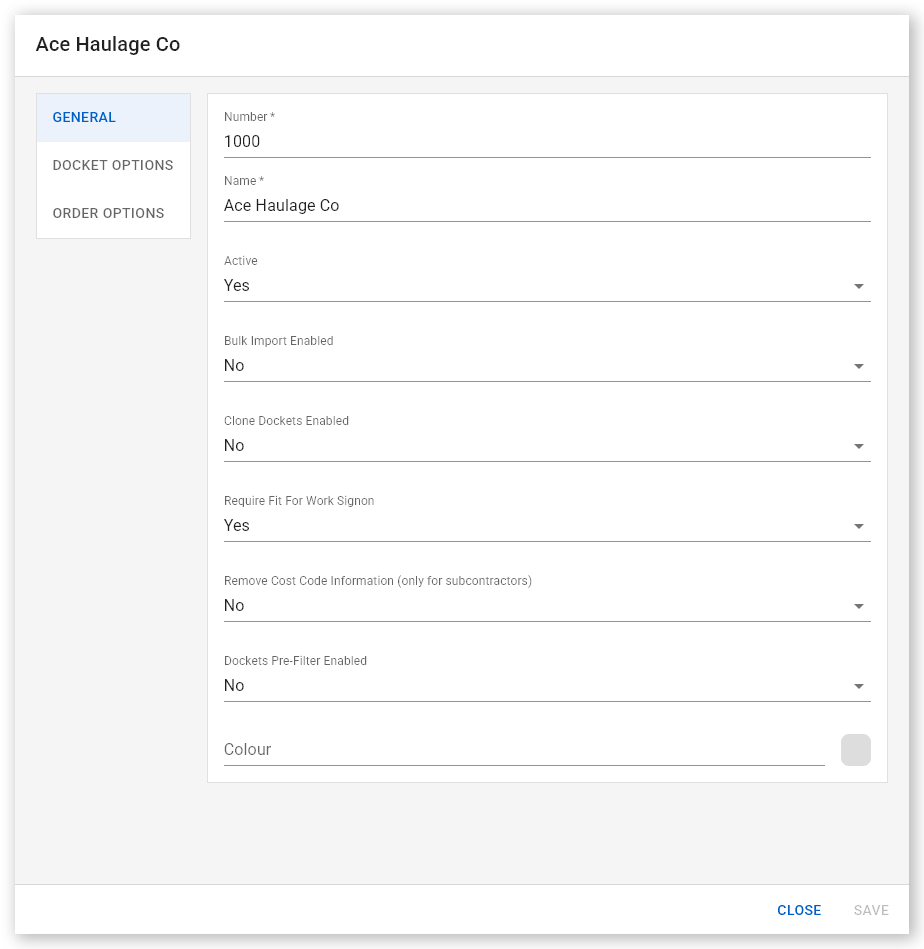
Select the supplier. The Edit Supplier dialog opens.
 Click or tap to expand image
 -
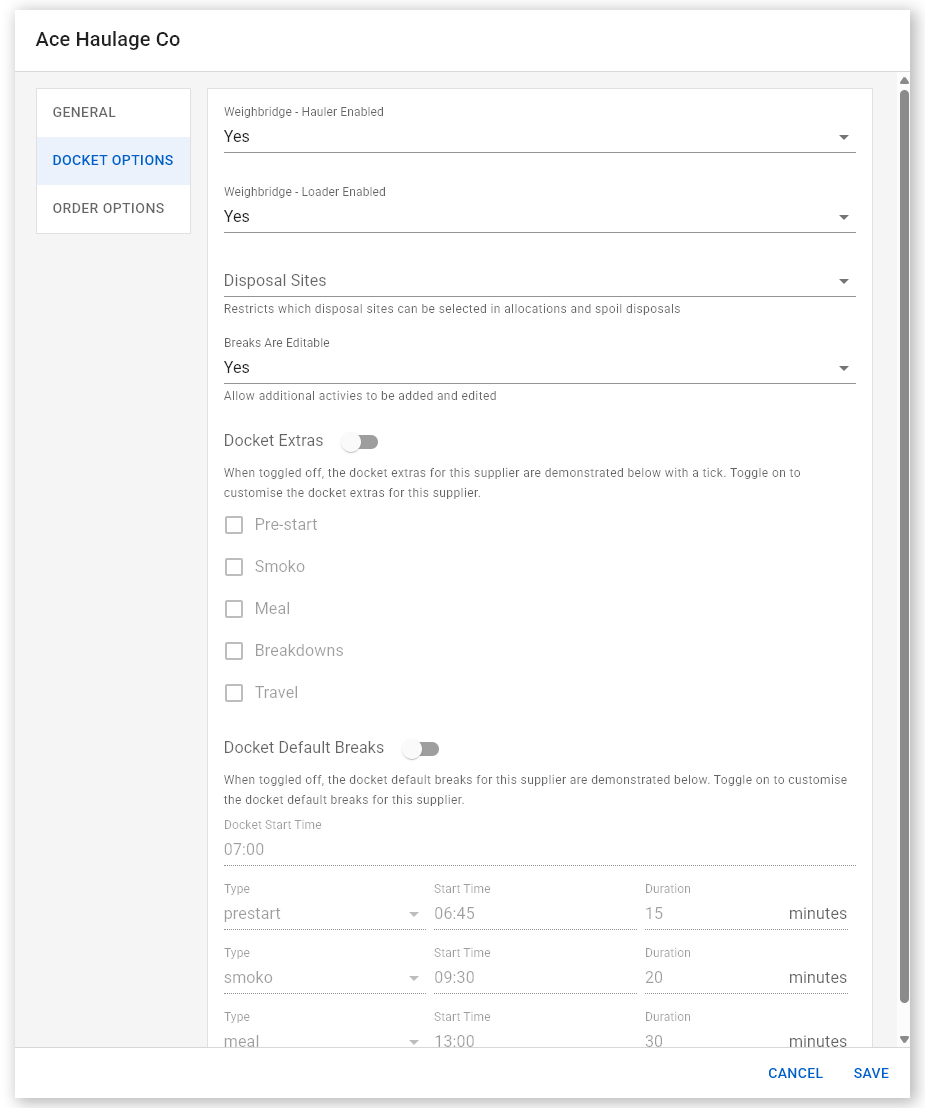
Click the Docket Options tab.
 Click or tap to expand image
 - Open the Weighbridge – Hauler Enabled dropdown and select Yes if you want the supplier to provide haulers. If you select Yes, the Disposal Sites dropdown appears. Use this to restrict the supplier to specific disposal locations or leave empty to leave them unrestricted.
- Open the Weighbridge – Loader Enabled dropdown and select Yes if you want the supplier to provide loaders.
- Click Save.
Note: You can configure more than one supplier to allow loading and hauling or configure one supplier for hauling and another for loading.
Configure Plant Equipment for Loading and Hauling
Next, configure the plant equipment that will be used to load and haul material from the cut site to the disposal location.
To configure plant equipment:
- Sign in to Virtual Superintendent.
- Click Menu > Plant. the Plant page opens.
- Locate the machine you will be using as a loader.
-
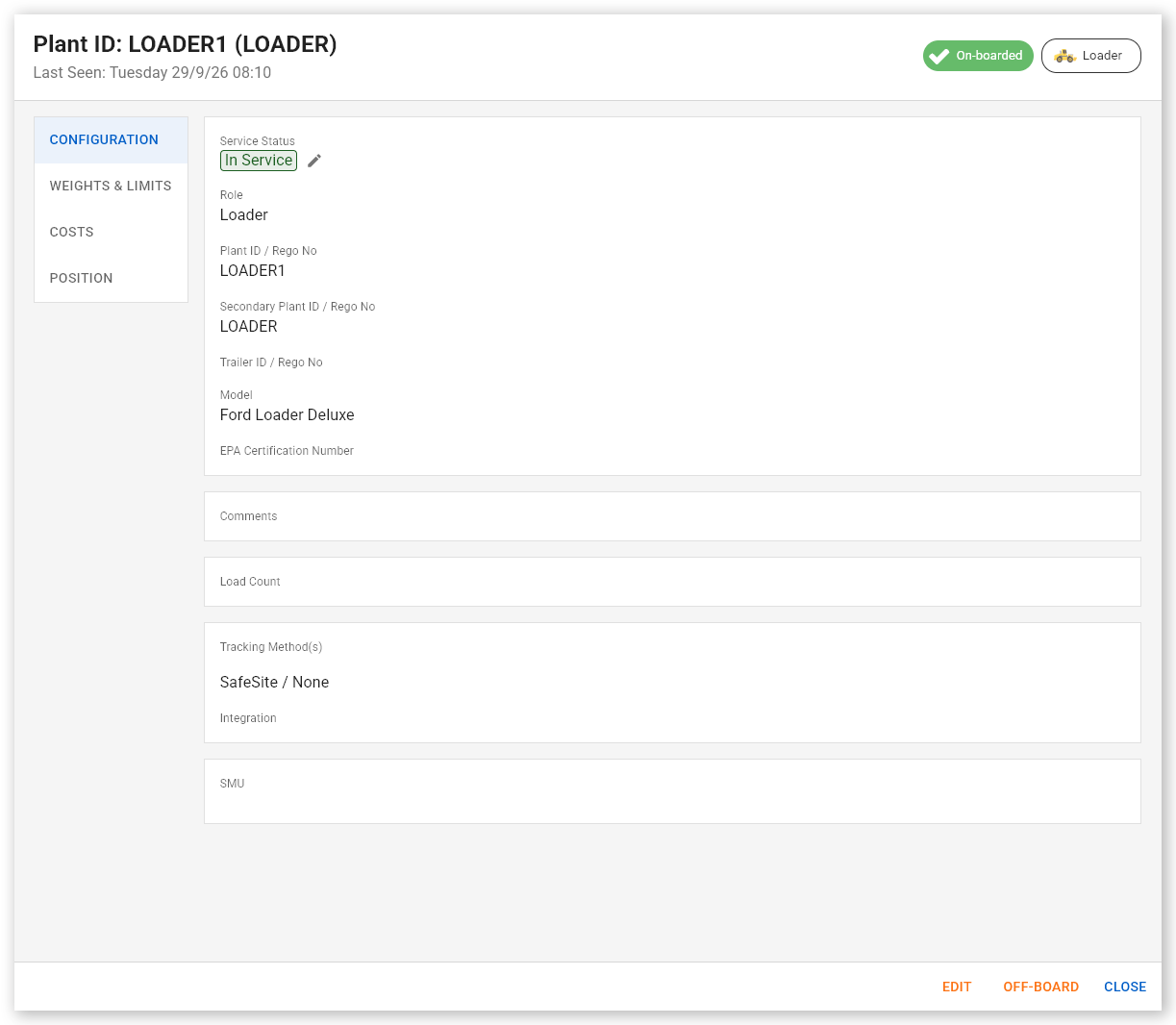
Select the machine. The Edit Plant dialog opens.
 Click or tap to expand image
 -
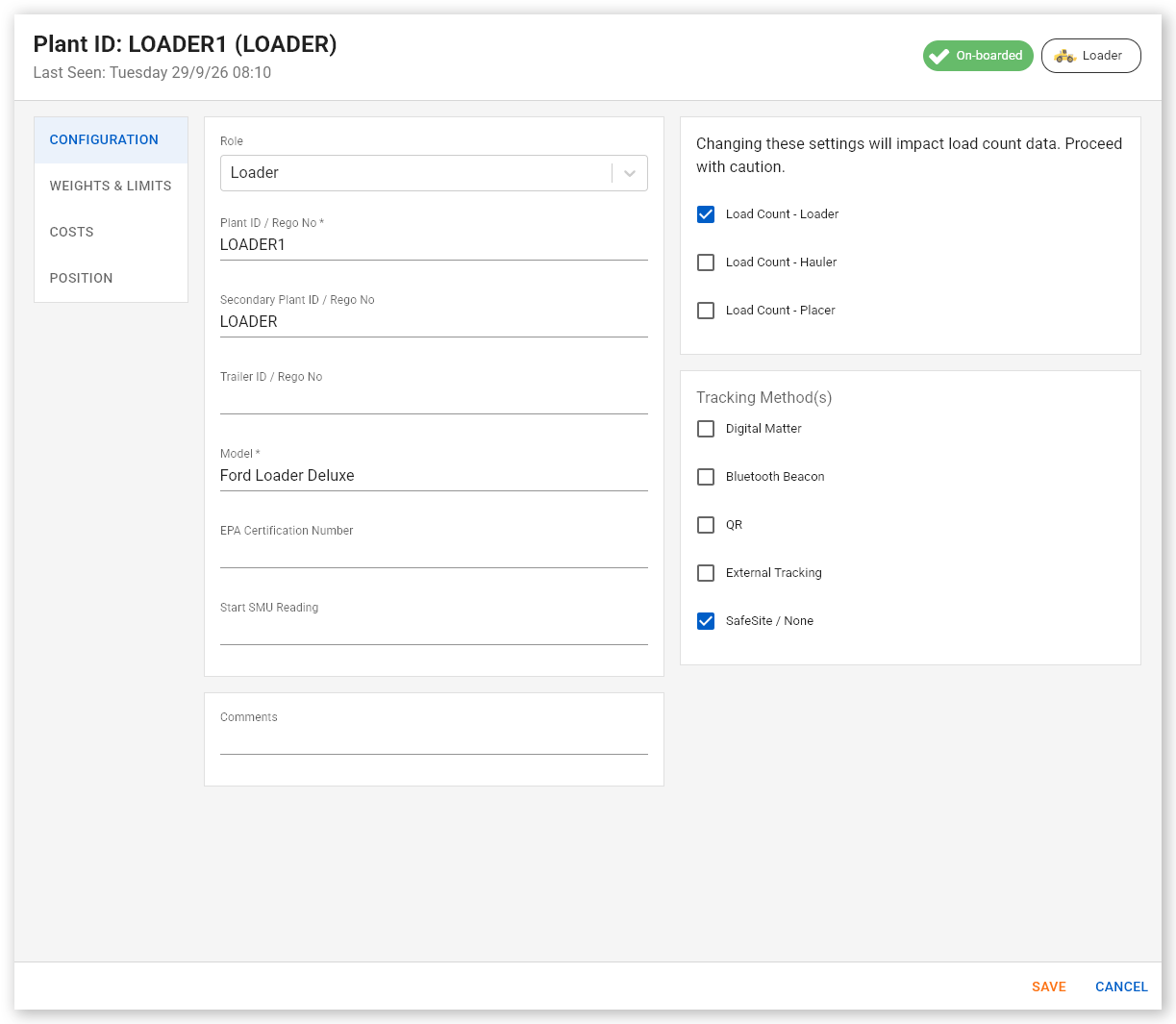
Click the Configuration tab and then Edit.
 Click or tap to expand image
 - Check the Load Count – Loader checkbox.
- Click Save and then Close. The selected plant equipment can now be used as a loader.
- Next, locate the machine you will be using as a hauler.
-
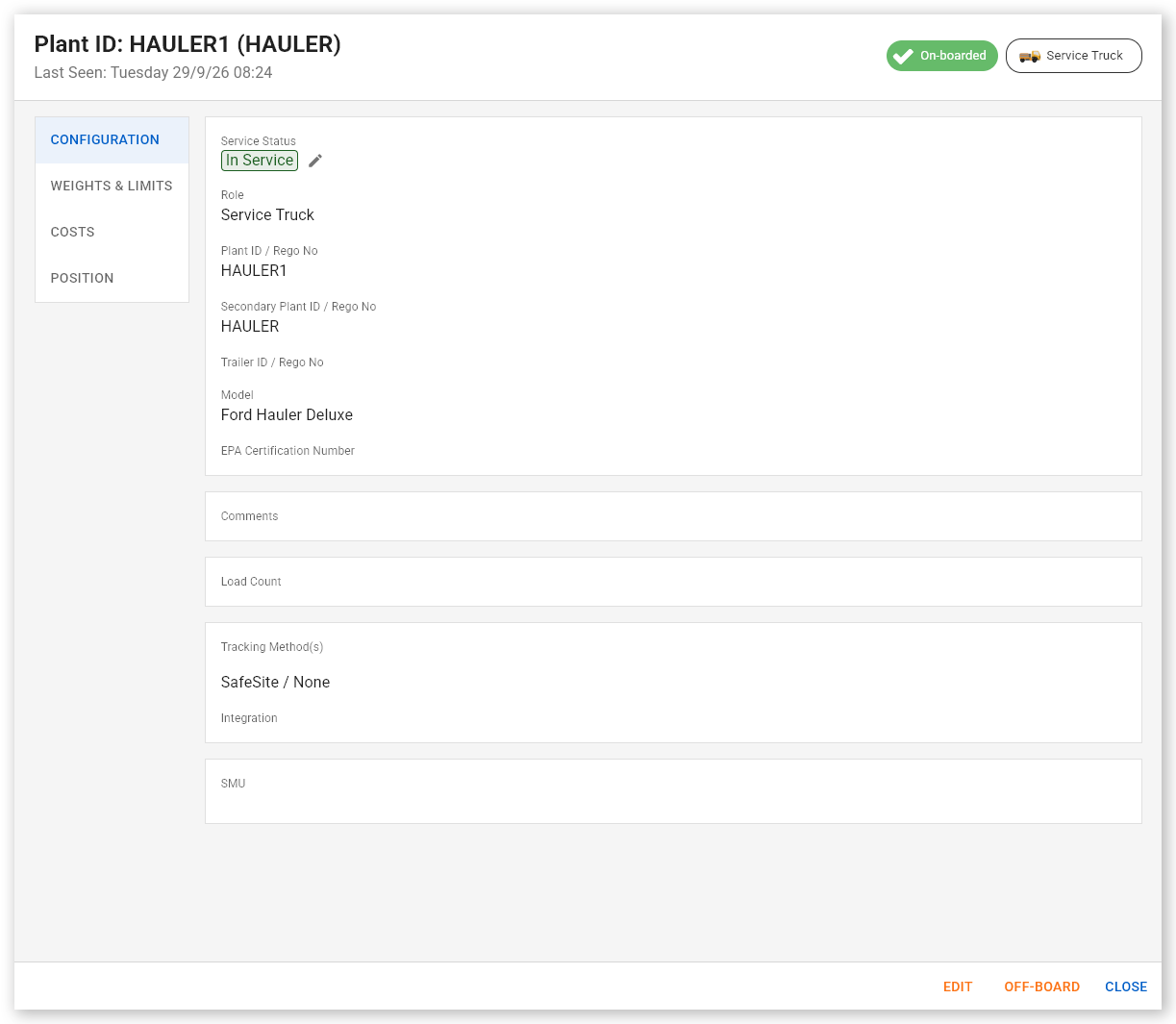
Select the machine. The Edit Plant dialog opens.
 Click or tap to expand image
 -
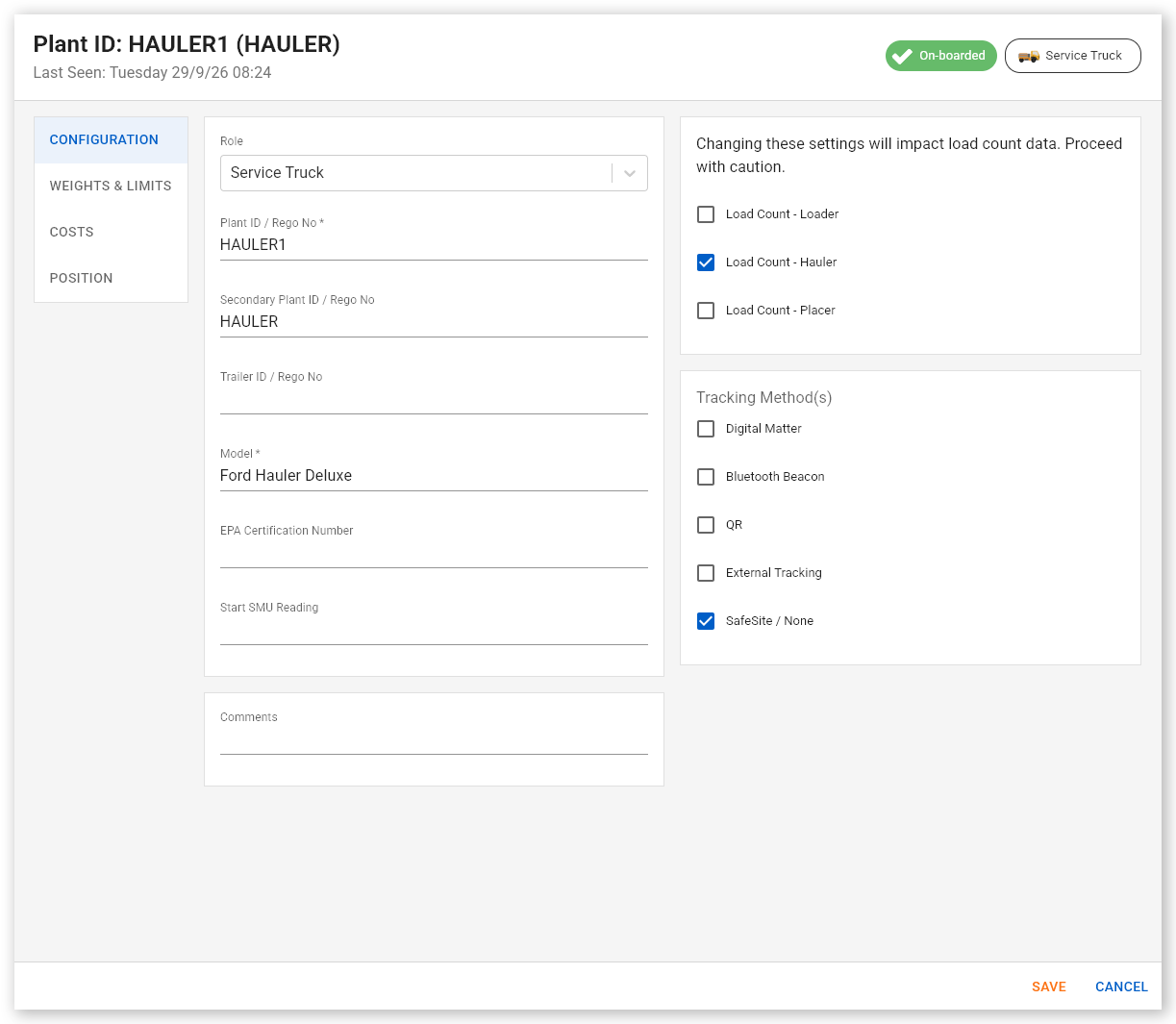
Click the Configuration tab and then click Edit.
 Click or tap to expand image
 - Check the Load Count – Hauler checkbox.
- Click Save and then Close. The selected plant equipment can now be used as a hauler.
Note: You can also configure plant items to be placers or configure a single plant item to have more than one role (for example, as both a loader and a hauler).
Sign into SafeSite as a Loader
The loader operator can now sign into SafeSite and assign a load to a hauler as a virtual weighbridge docket.
Note: The pages shown in the virtual weighbridge wizard can be modified by changing the configuration of your virtual weighbridge and item code sign-on profiles (for example, by showing or hiding sign-on and sign-off checklists, changing vehicle weight page layouts to require axle weights, setting weight units, and enforcing hauler selection rules). The steps demonstrated below might therefore be different to what you see on your device, depending on your configuration.
To sign in as an operator:
- Open the SafeSite app.
-
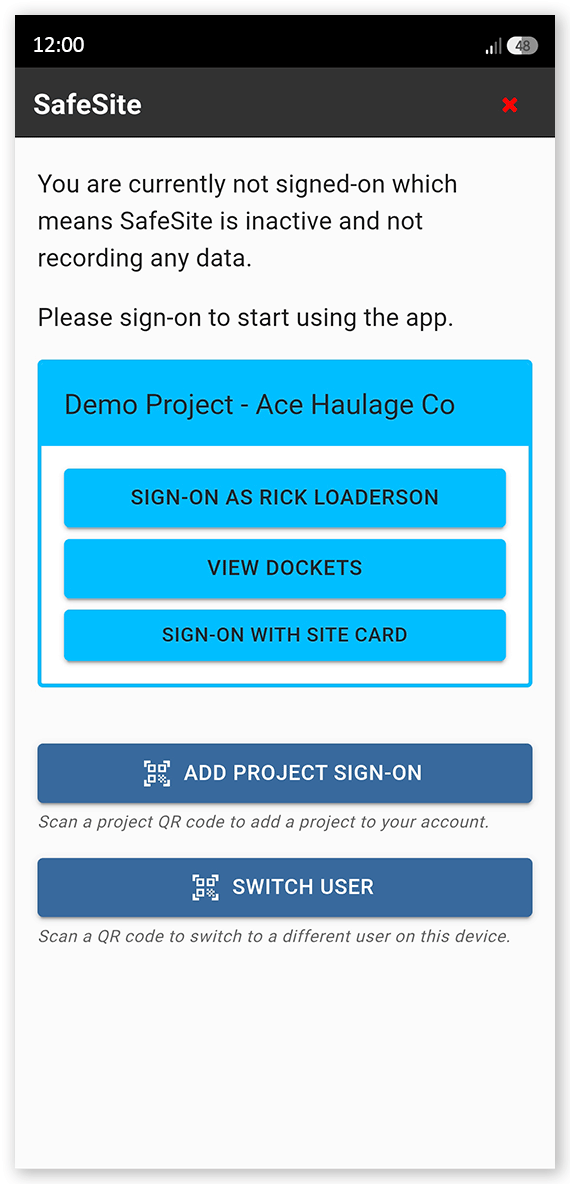
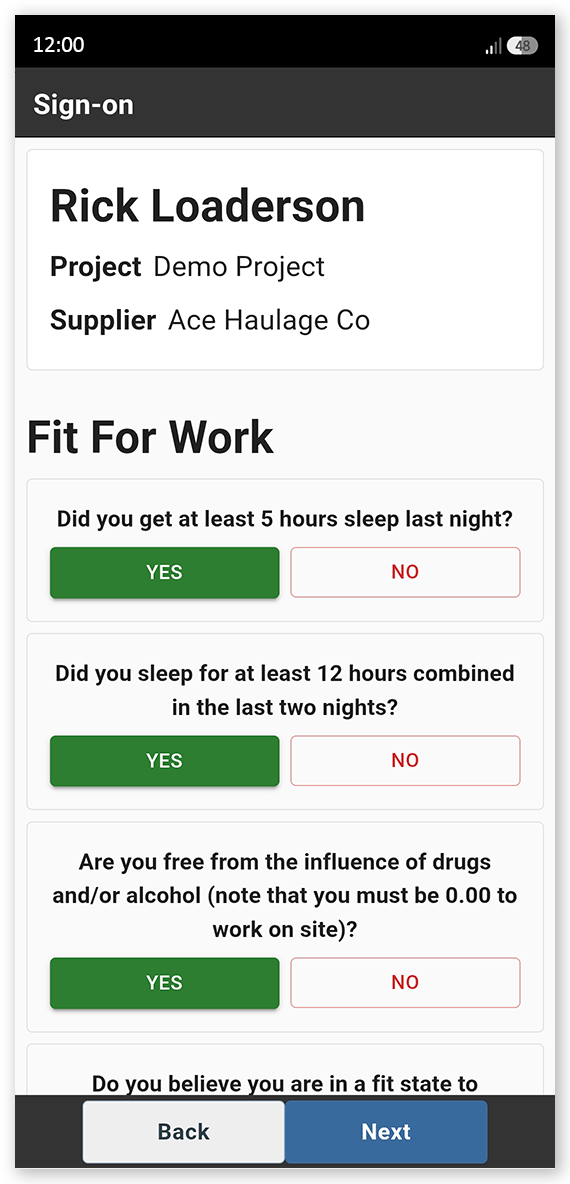
Tap your name to sign in (Sign-On As [Your Name]). The Fit For Work screen opens.
 Click or tap to expand image
 -
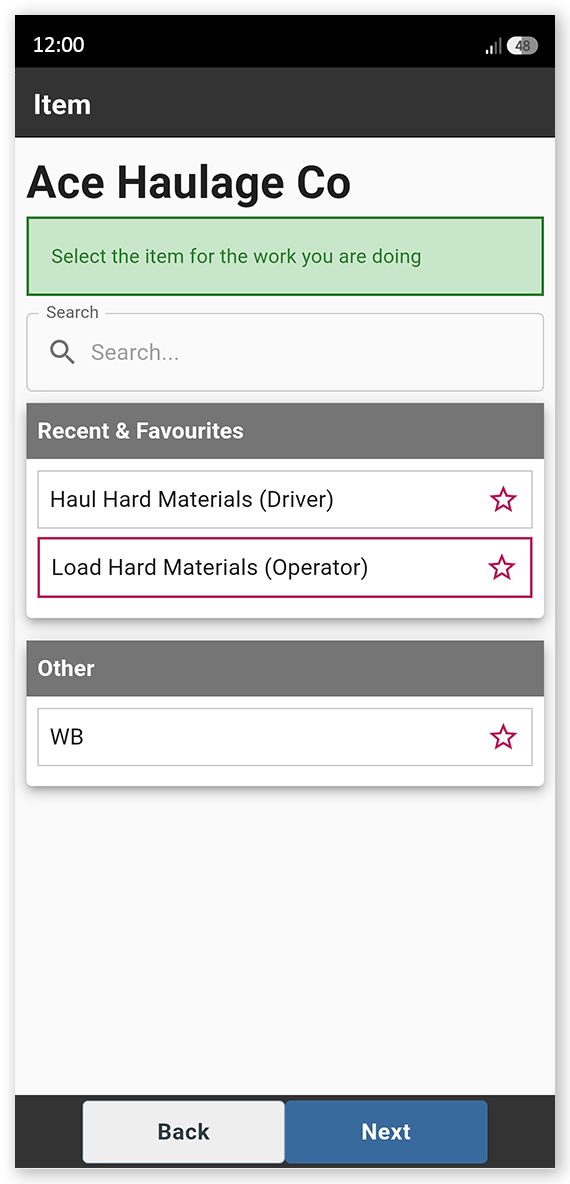
Answer each of the Fit For Work questions with a Yes or No, then tap Next. These questions are used to indicate physical and mental fitness to work safely. The Item screen opens.
 Click or tap to expand image
 -
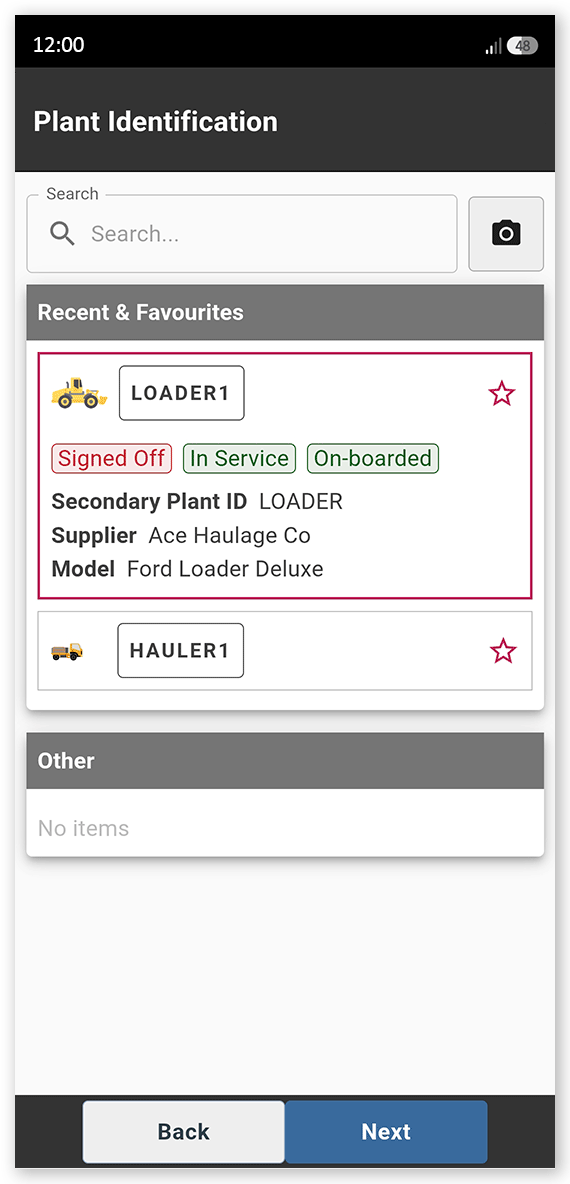
Select a loader operator item code that matches the work you will be doing today, then tap Next. Item codes are the individual chargeable items that describe the type of work you will be performing, and what home page you can access. The Plant Identification screen opens.
 Click or tap to expand image
 -
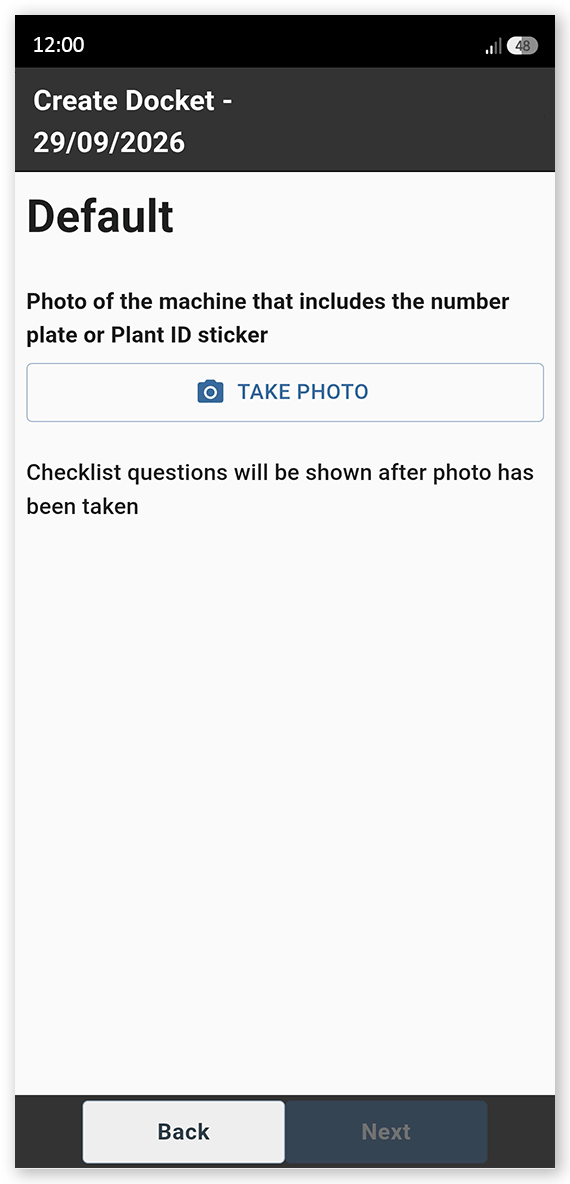
Select the loader plant you will be operating on your shift from those listed, then tap Next. The Create Docket screen opens.
 Click or tap to expand image
 -
Tap Take Photo and take a picture of your plant equipment, making sure that its Plant ID sticker or license plate number are visible, then tap Next. The Plant Checklist loads.
 Click or tap to expand image
 -
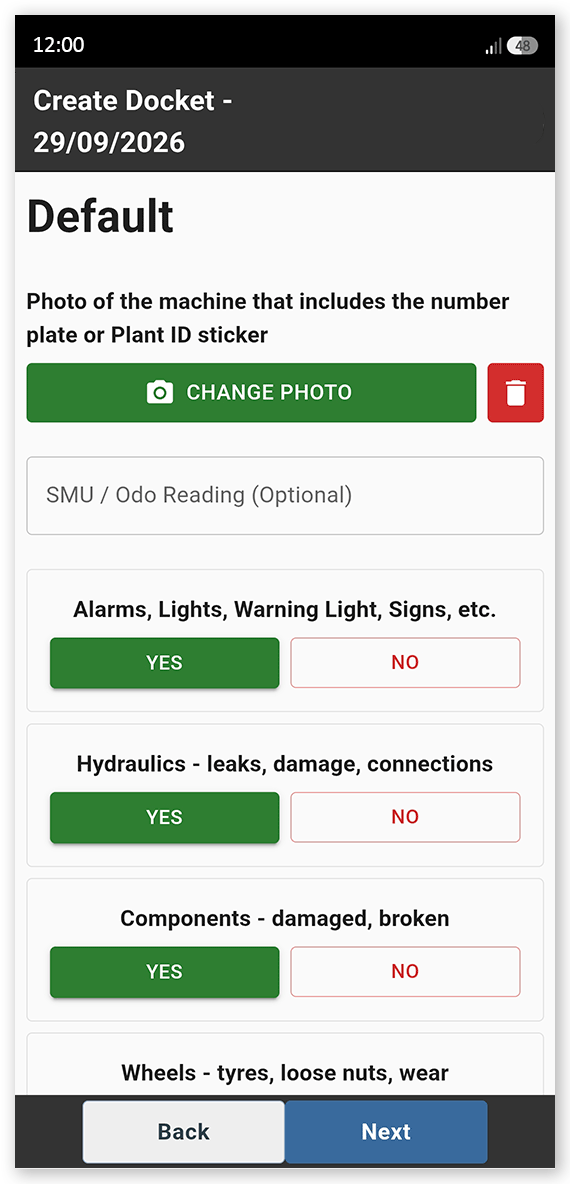
Complete the plant checklist, recording the condition of each item listed by tapping Yes to indicate the item is in good condition. If an item is faulty, tap No then Take Photo and take a photo of the issue. Add a note describing the fault in the Notes field. When the checklist is complete, tap Next. The Date screen opens.
 Click or tap to expand image
 -
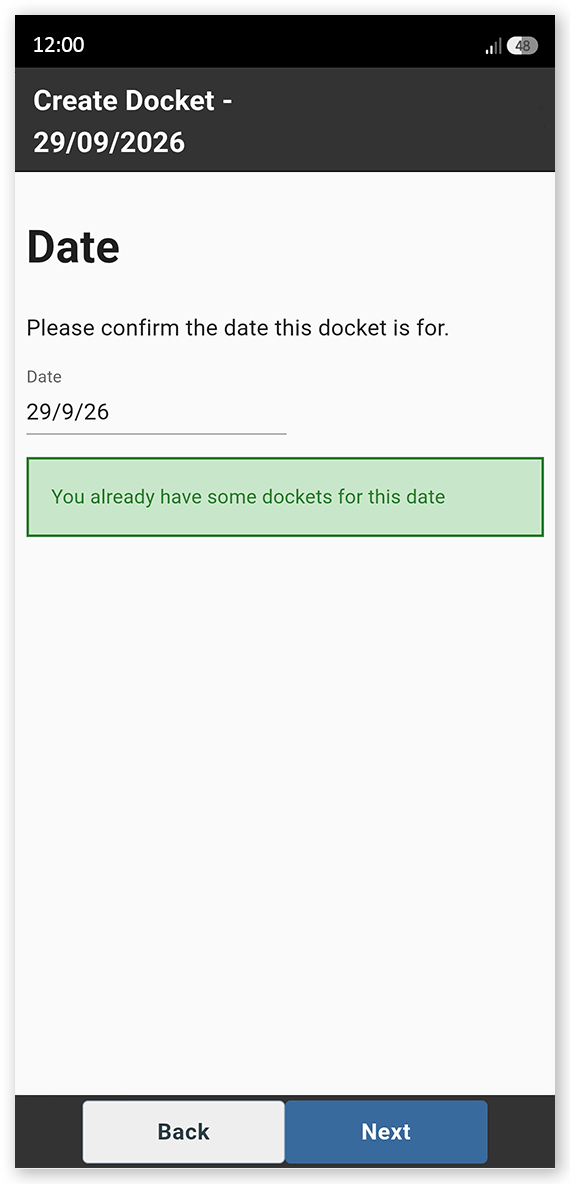
Check that the docket date shown is correct. Tap the date and correct if needed, then tap Next. The Supervisor screen opens.
 Click or tap to expand image
 -
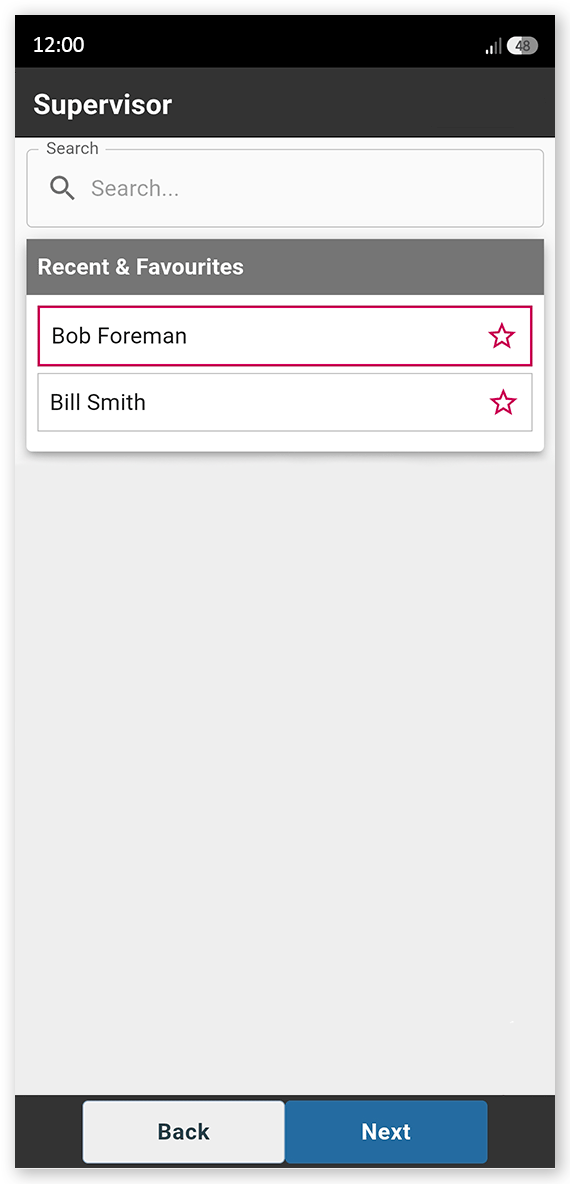
Select your supervisor from the list, then tap Next. The Location screen opens.
 Click or tap to expand image
 -
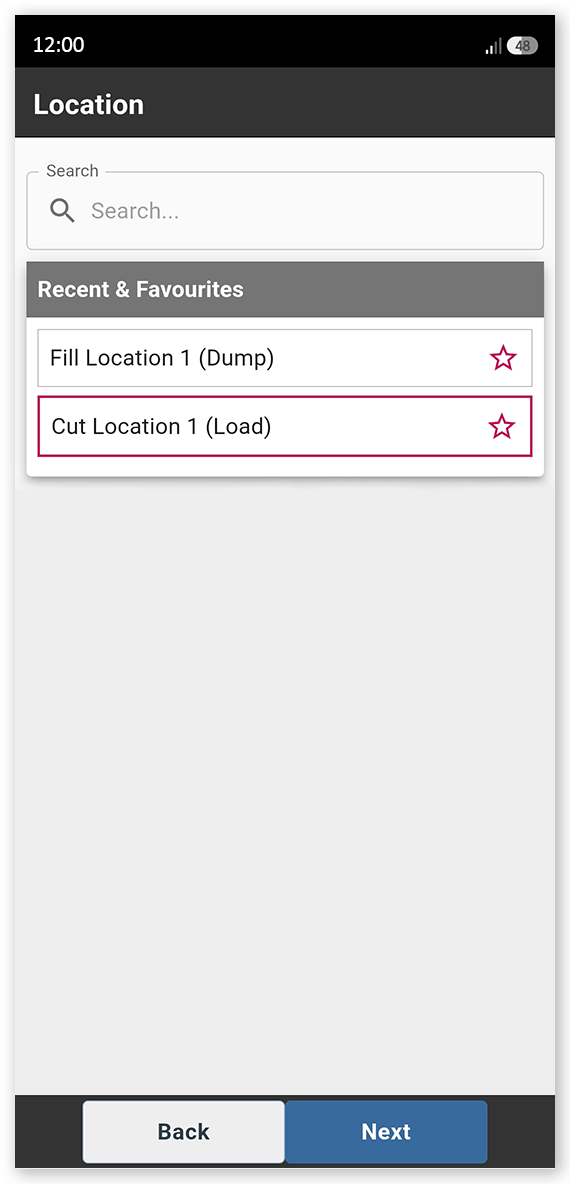
Select the loading location from those listed, then tap Next. The Docket Summary screen opens.
 Click or tap to expand image
 - Tap Save and then Close to close the docket summary.
-
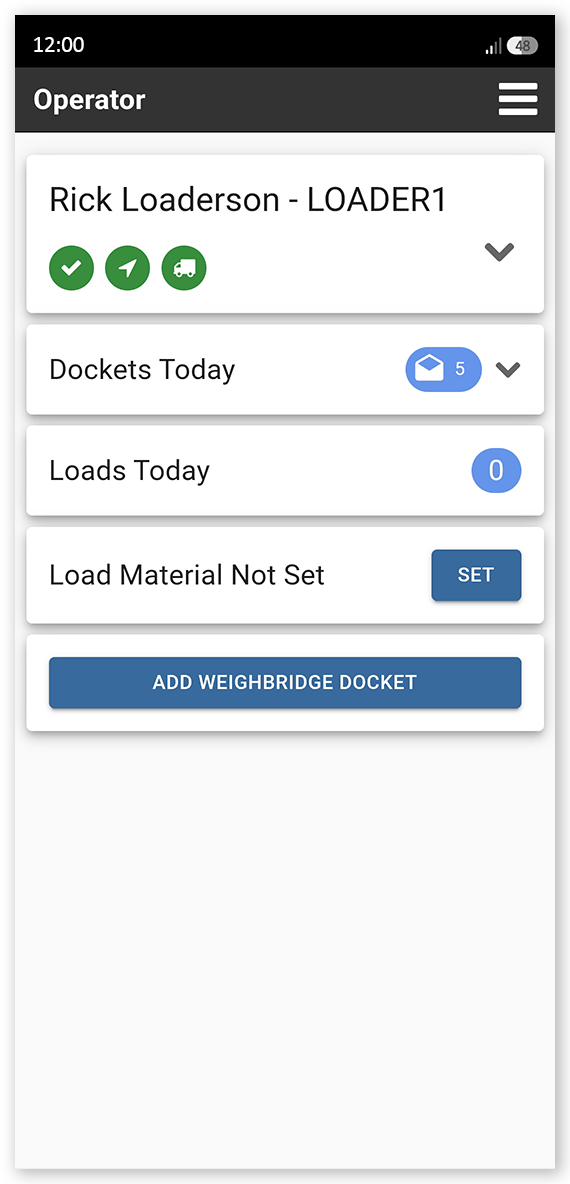
Open the menu in the upper-right corner and select Operator. The Operator home page opens, showing your sign-in, checklist and device connection details, the number of dockets you have created today, the number of loads completed, and the material type that you are loading (this is not yet set, and should be specified next).
 Click or tap to expand image
 -
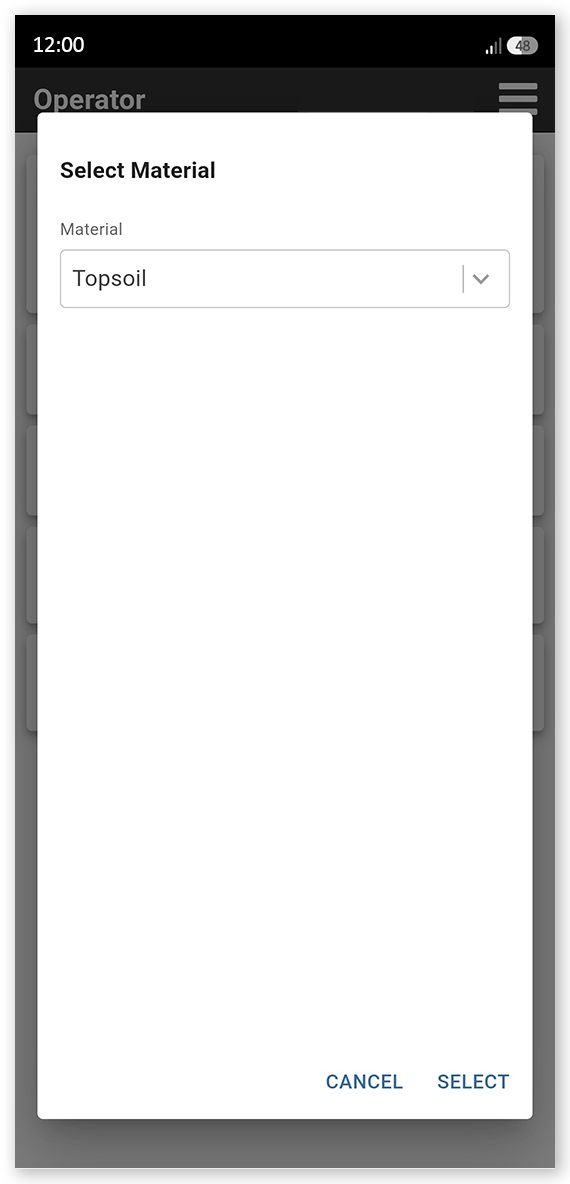
Tap Set next to Load Material Not Set. The Select Material dialog opens.
 Click or tap to expand image
 -
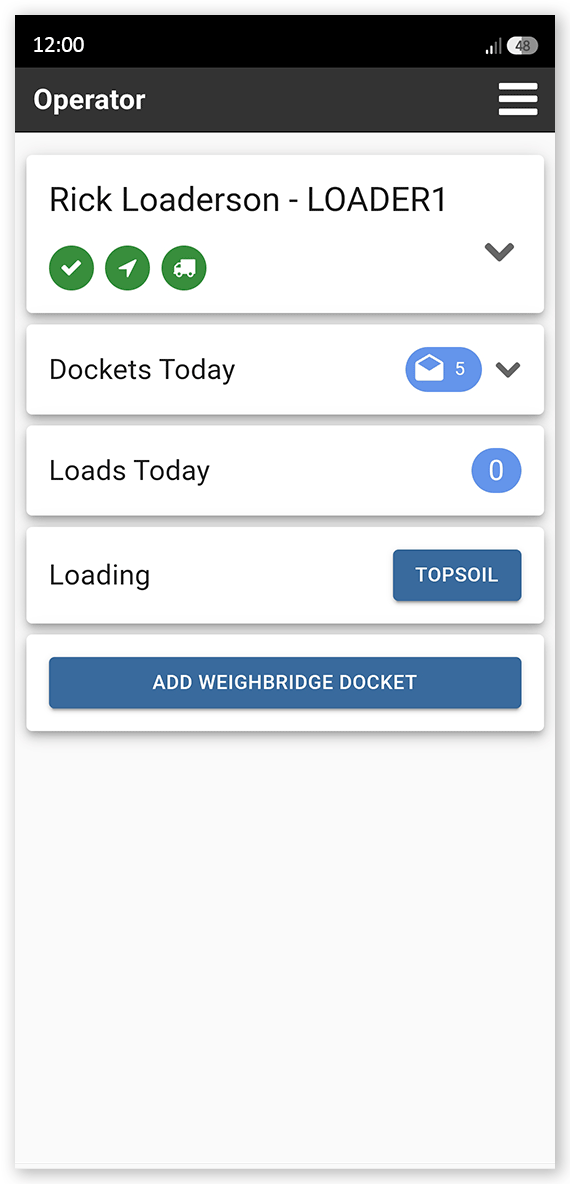
Open the dropdown list and select the default material that you will be loading today, if you know, then tap Select. The Operator home page updates with the material selected. You are now ready to assign a load to a hauler.
 Click or tap to expand image
 -
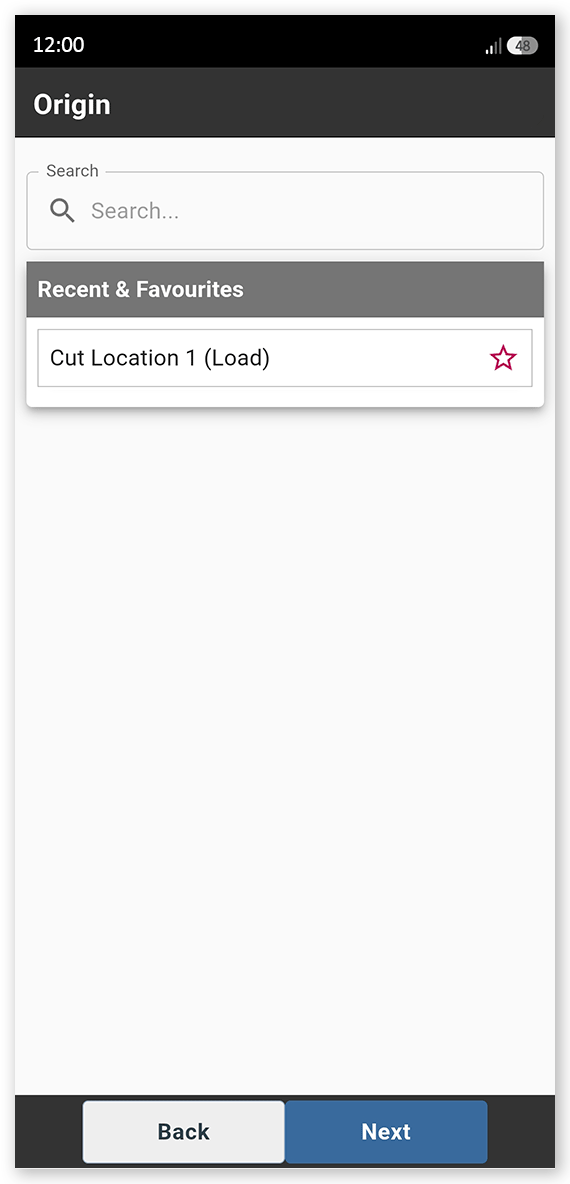
Tap Add Weighbridge Docket to assign a load to a hauler. The Origin screen opens.
 Click or tap to expand image
 -
Select the loading location from those listed, then tap Next. This is the location assigned to the hauler as the load collection point in their docket. The Hauler screen opens.
 Click or tap to expand image
 -
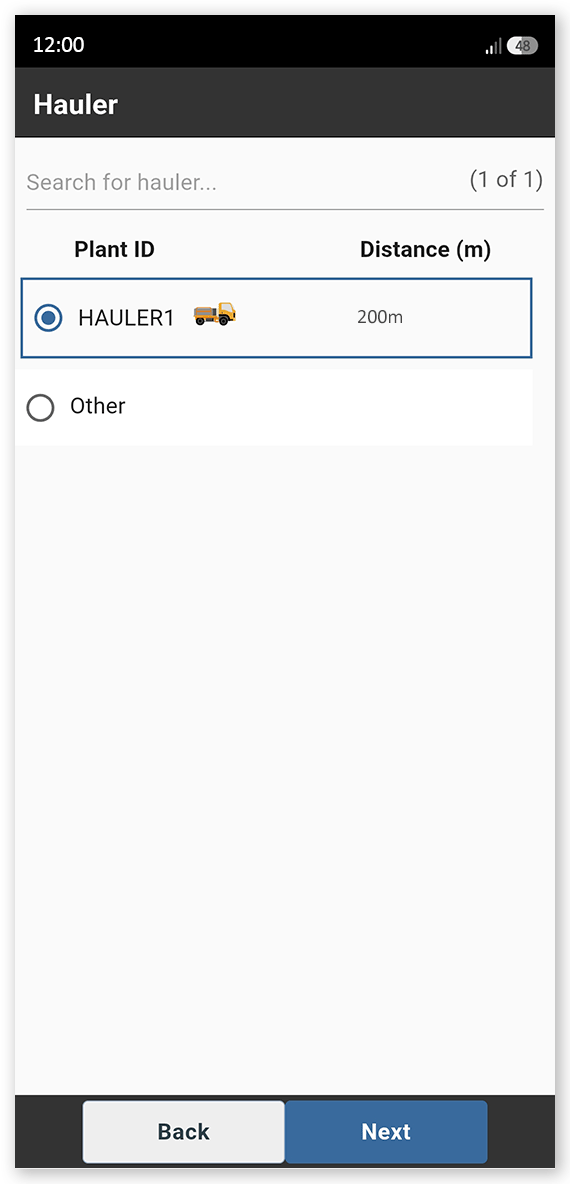
Select the nearest hauler, then tap Next. To be shown on this page, haulers must be signed into SafeSite and be at the load site. If the required hauler is not shown, enter their Plant ID or license plate number into the search field. Select of haulers not currently signed in might be prohibited, depending on the virtual weighbridge sign-on profile configuration being used. The Weight screen opens.
 Click or tap to expand image
 -
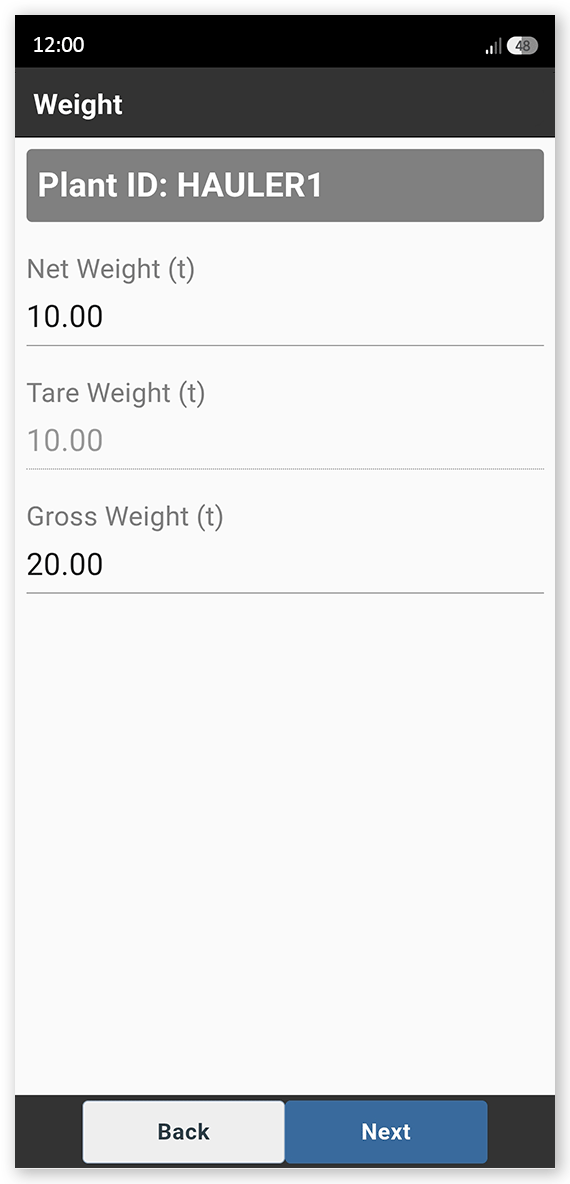
Type the weight of the load being carried by the hauler into the Net Weight field, and the tare weight of the hauler (the weight of the vehicle when empty, also known as curb weight) into the Tare field. The gross weight (the combined weight of the vehicle and its load) automatically populates in the Gross Weight field. You can edit the Net Weight and Gross Weight fields after you have entered values, and the other fields will automatically calculate new weights. You might also be asked to provide the vehicle's axle weights, depending on the virtual weighbridge sign-on profile configuration being used. The weight unit used (Tonnes or Kilograms) is also determined by this profile. Tap Next. The Material Type screen opens.
 Click or tap to expand image
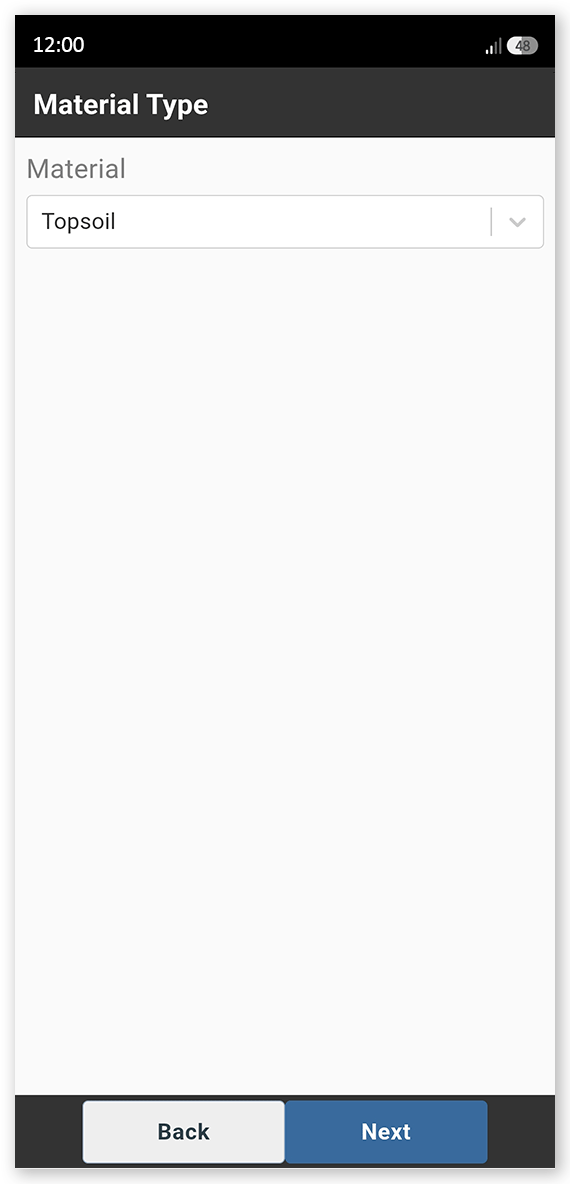
 - Select the material type being hauled from the dropdown, then tap Next. The material selected defaults to the material configured on the Operator home page but can be manually edited. The Operator home page opens. A Virtual Weighbridge docket is assigned to the hauler and appears on their Driver home page.
Note: The docket can now be viewed in Virtual Superintendent Dockets pages, with a Weighbridge chargeable item containing only load information.
Sign into SafeSite as a Hauler
The driver can now sign into SafeSite to see and complete their assigned weighbridge hauling tasks.
To sign in as a hauler:
Note: Loader operators can only see and select haulers that are currently signed in (although selection behavior can be modified depending on the virtual weighbridge sign-on profile configuration being used). Both haulers and loaders should therefore be signed in at the same time to ensure assignments can be made.
- Open the SafeSite app.
-
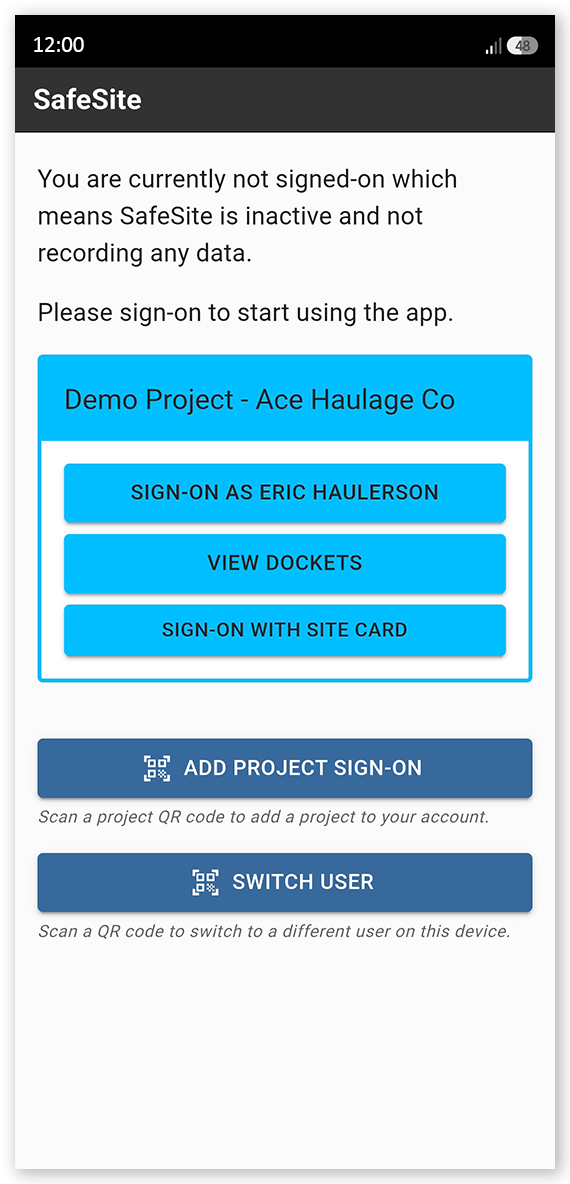
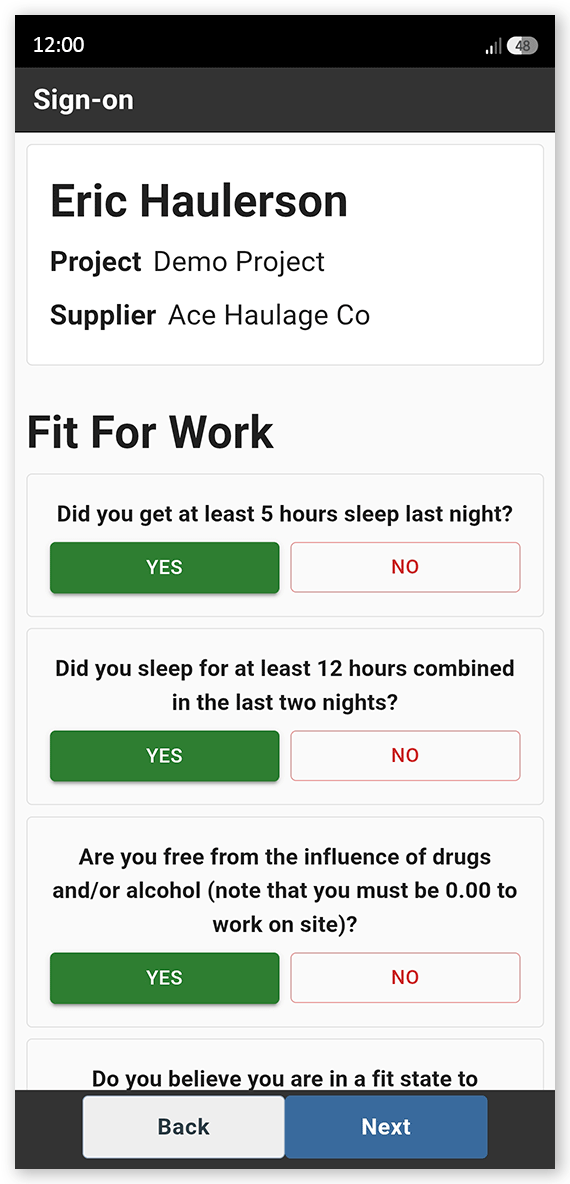
Tap your name to sign in (Sign-On As [Your Name]). The Fit For Work screen opens.
 Click or tap to expand image
 -
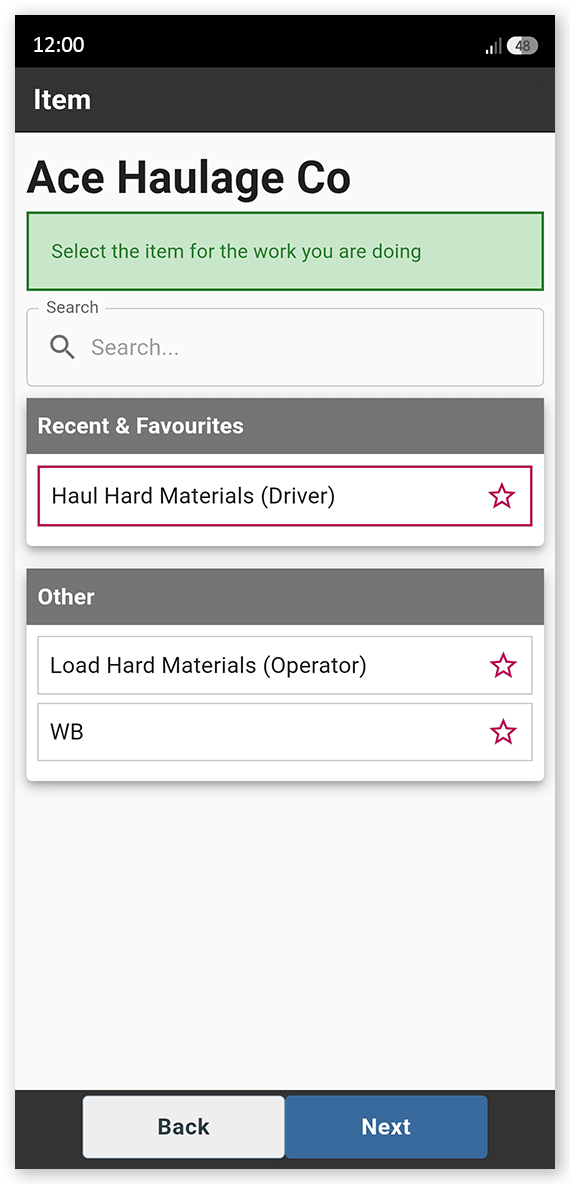
Answer each of the Fit For Work questions with a Yes or No, then tap Next. These questions are used to indicate physical and mental fitness to work safely. The Item screen opens.
 Click or tap to expand image
 -
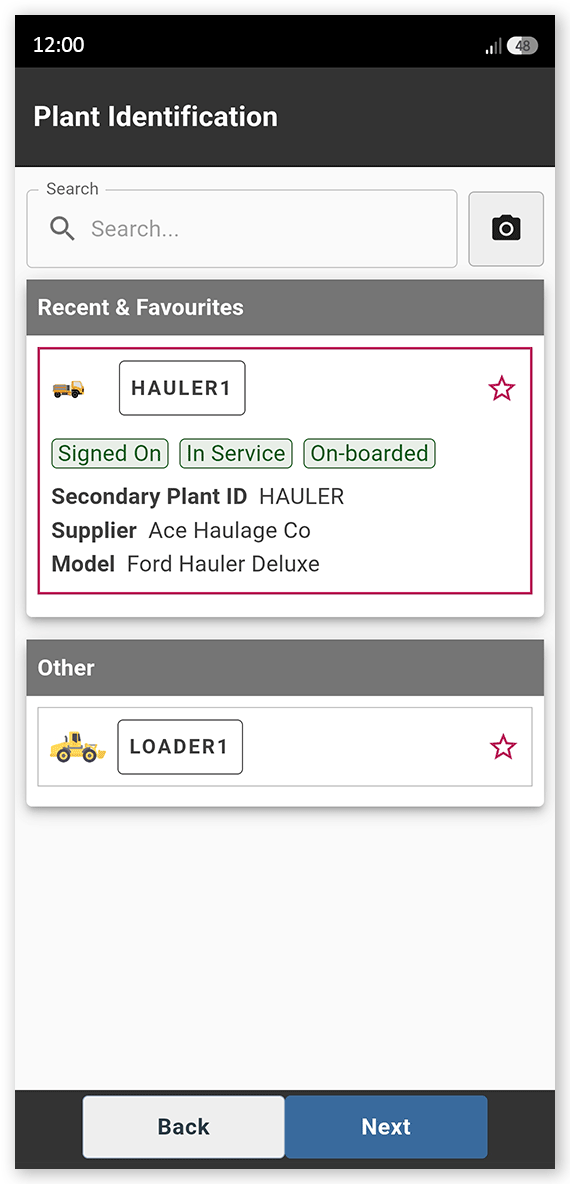
Select a hauler driver item code that matches the work you will be doing today, then tap Next. Item codes are the individual chargeable items that describe the type of work you will be performing, and what home page you can access. The Plant Identification screen opens.
 Click or tap to expand image
 -
Select the hauler plant you will be operating on your shift from those listed, then tap Next. The Create Docket screen opens.
 Click or tap to expand image
 -
Tap Take Photo and take a picture of your plant equipment, making sure that its Plant ID sticker or license plate number are visible, then tap Next. The Plant Checklist loads.
Click or tap to expand image -
Complete the plant checklist, recording the condition of each item listed by tapping Yes to indicate the item is in good condition. If an item is faulty, tap No then Take Photo and take a photo of the issue. Add a note describing the fault in the Notes field. When the checklist is complete, tap Next. The Date screen opens.
Click or tap to expand image -
Check that the docket date shown is correct. Tap the date and correct if needed, then tap Next. The Supervisor screen opens.
Click or tap to expand image -
Select your supervisor from the list, then tap Next. The Location screen opens.
Click or tap to expand image -
Select your location from those listed, then tap Next. The Docket Summary screen opens.
Click or tap to expand image - Tap Save and then Close to close the docket summary.
-
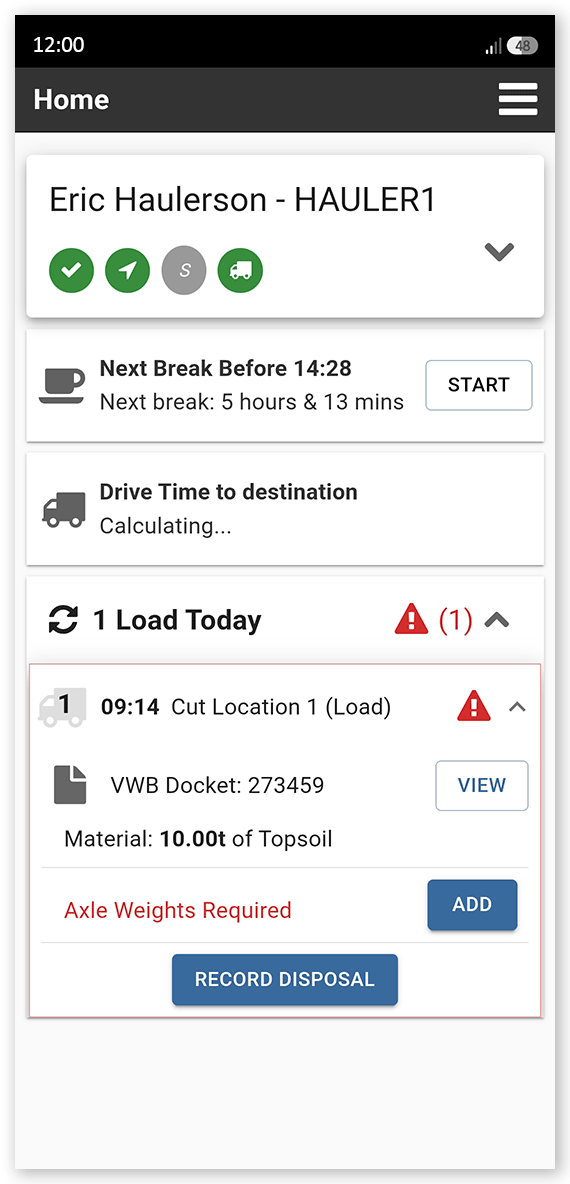
Open the menu in the upper-right corner and select Driver. The Driver home page opens, showing your sign-in, checklist and device connection details, your next break, the driving time to the disposal location (you need to specify this destination before this can be calculated), and the number of loads you have completed today. At the bottom of the screen, you will see any hauling requests that have been made by loader operators to haul material from their loading locations to a disposal location (each request summary includes the collection location, material type, and load weight). Tap View to view the full details of the weighbridge dockets assigned to you. Tap Start to begin a break when your break window begins.
 Click or tap to expand image
 - Tap Add next to the Axle Weights Required warning, if shown, and enter your vehicle’s axle weights.
-
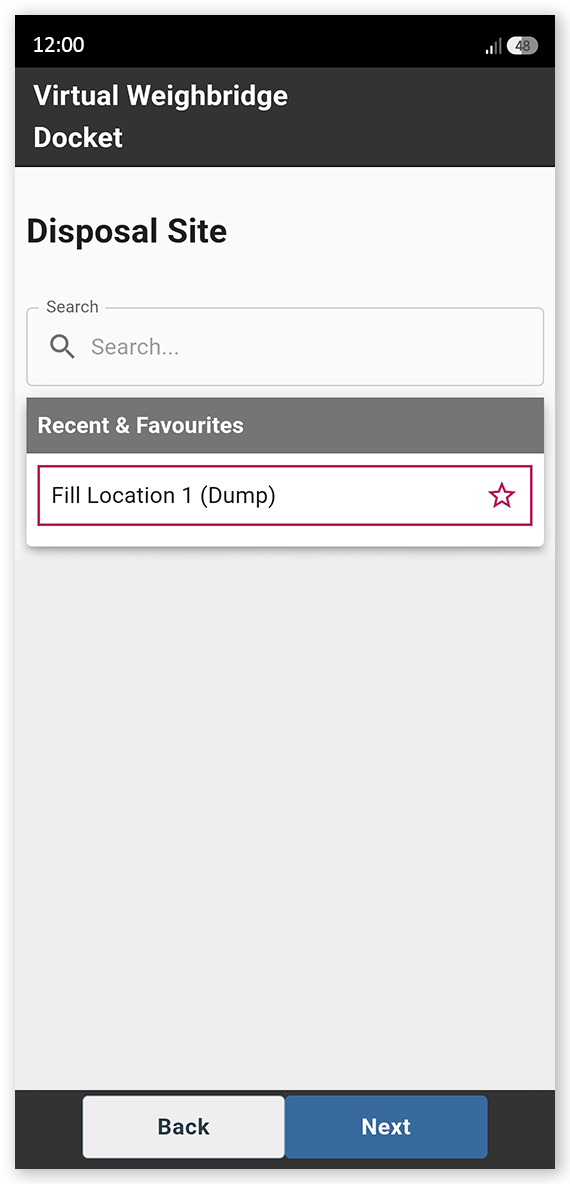
Tap Record Disposal to record the details of your disposal. The Disposal Site screen opens.
 Click or tap to expand image
 -
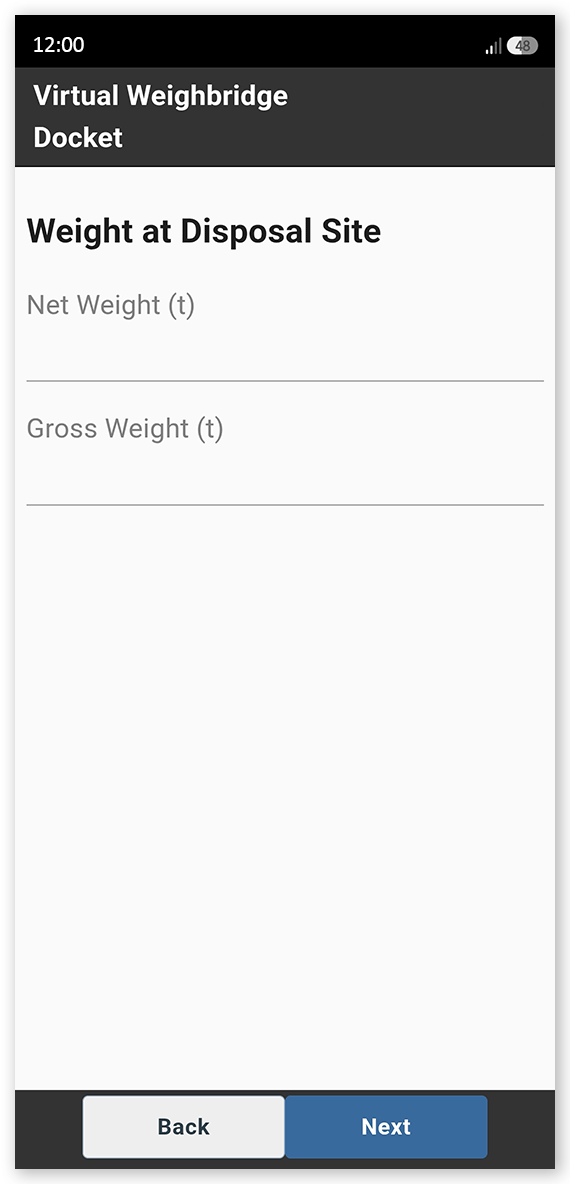
Select the disposal site of the load, then tap Next. The Weight at Disposal Site screen opens.
 Click or tap to expand image
 -
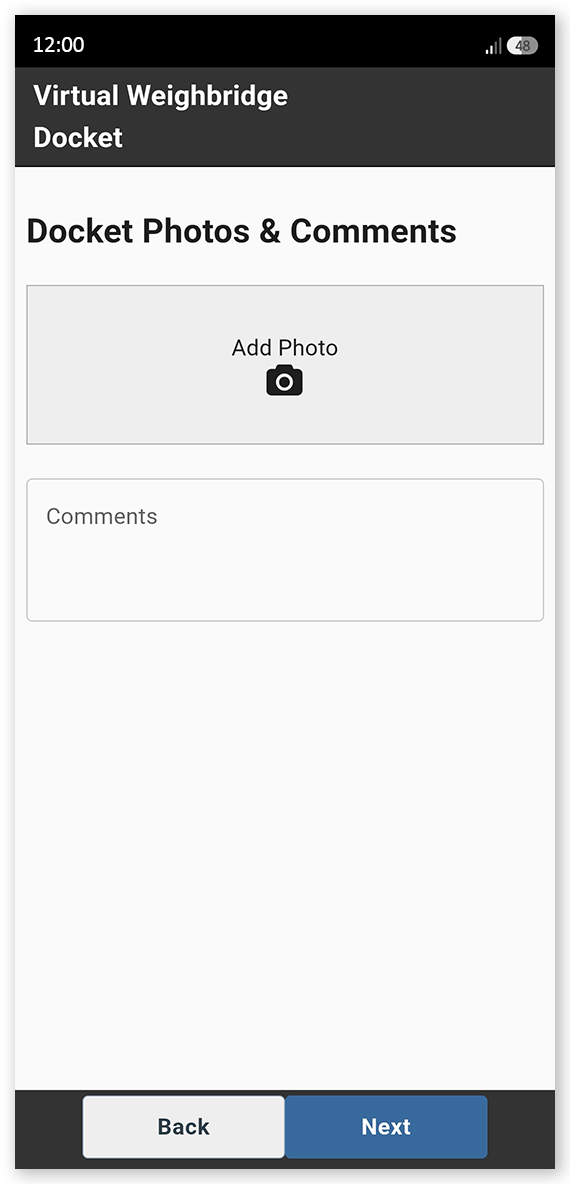
Enter the net weight of the dumped load into the Net Weight field, or the gross weight of the load and the vehicle after dumping into the Gross Weight field, then tap Next. The Docket Photo & Comments screen opens. The weight unit used (Tonnes or Kilograms) is determined by the virtual weighbridge sign-on profile configuration being used.
 Click or tap to expand image
 -
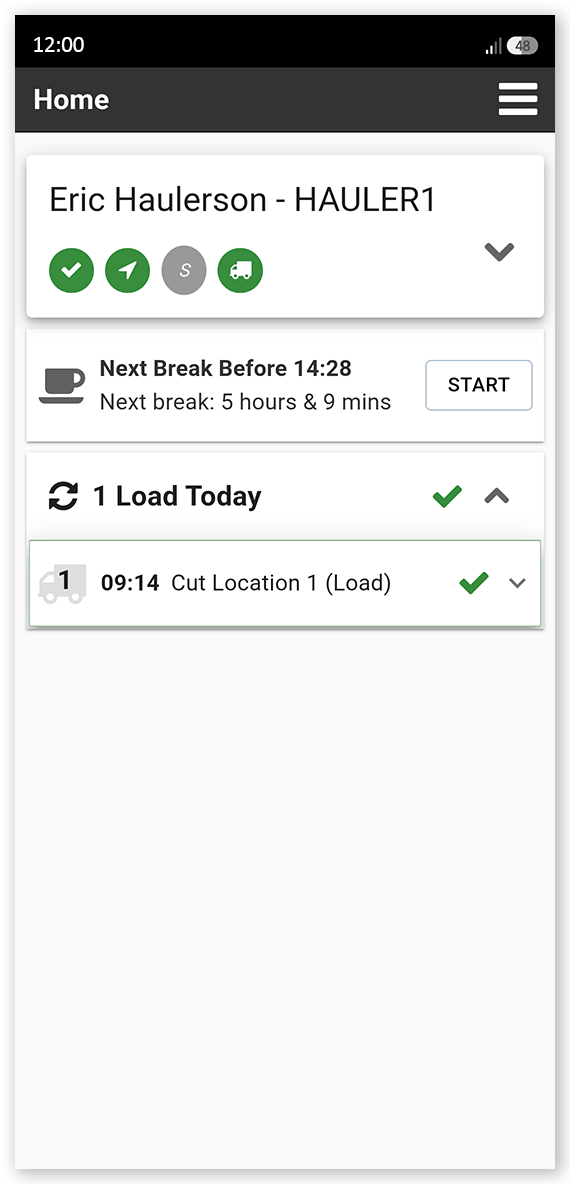
Tap Add Photo and take a picture of the physical docket given to you by the weighbridge operator at the disposal location, add any notes needed, then tap Next. The job is completed and the Driver home page opens. The weighbridge docket details on this screen are updated to show the actual destination arrival and disposal time and the net weight dumped at that location. The load count for the day increases by one.
 Click or tap to expand image
If needed, you can edit your weighbridge dockets by tapping a docket to expand its summary, then tapping Update next to Disposal Details Provided.
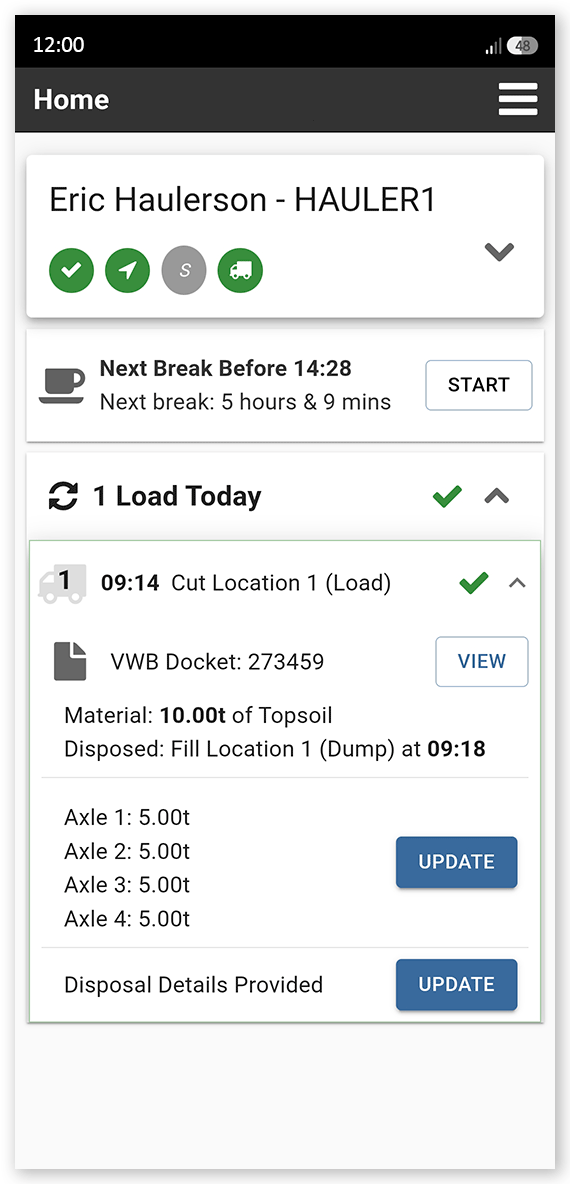
This reopens the virtual weighbridge wizard and lets you update the disposal location, the weight of the load dumped at the disposal site, and the weighbridge docket photo and comments you entered earlier.
Note: The virtual weighbridge docket can now be viewed in Virtual Superintendent Dockets pages, with a Weighbridge chargeable item containing both load and disposal information.