
Manually Record Loads and Disposals in SafeSite
Haulers can manually record load and disposal events from the Driver home screen when the Item Code and plant equipment they select during SafeSite sign-on have been suitably configured.
Manually recorded events are processed by the Virtual Superintendent load count engine and appear on the Events page (Menu > Events) as Manual Load and Manual Disposal events. They are also included in Load Count reports and used for load count calculations.
This article explains how to enable manual load event recording and provides step-by-step instructions for haulers to record manual load and disposal events in SafeSite.
In this article
Permissions
To access the Plant page (Menu > Plant) and edit plant configurations, and access the Dockets Setup page (Menu > Dockets Setup) and manage item codes and sign-on profiles, you must have the following permissions:
- Admin Manager
- User Admin
Note: SafeSite drivers do not need special account configuration or permissions to use the manual load and disposal event recording feature but must select the correct Item Code and plant when signing on.
Manual Load and Disposal Configuration
To allow a hauler to record manual load and disposal events from the Driver home screen, the following configuration is required:
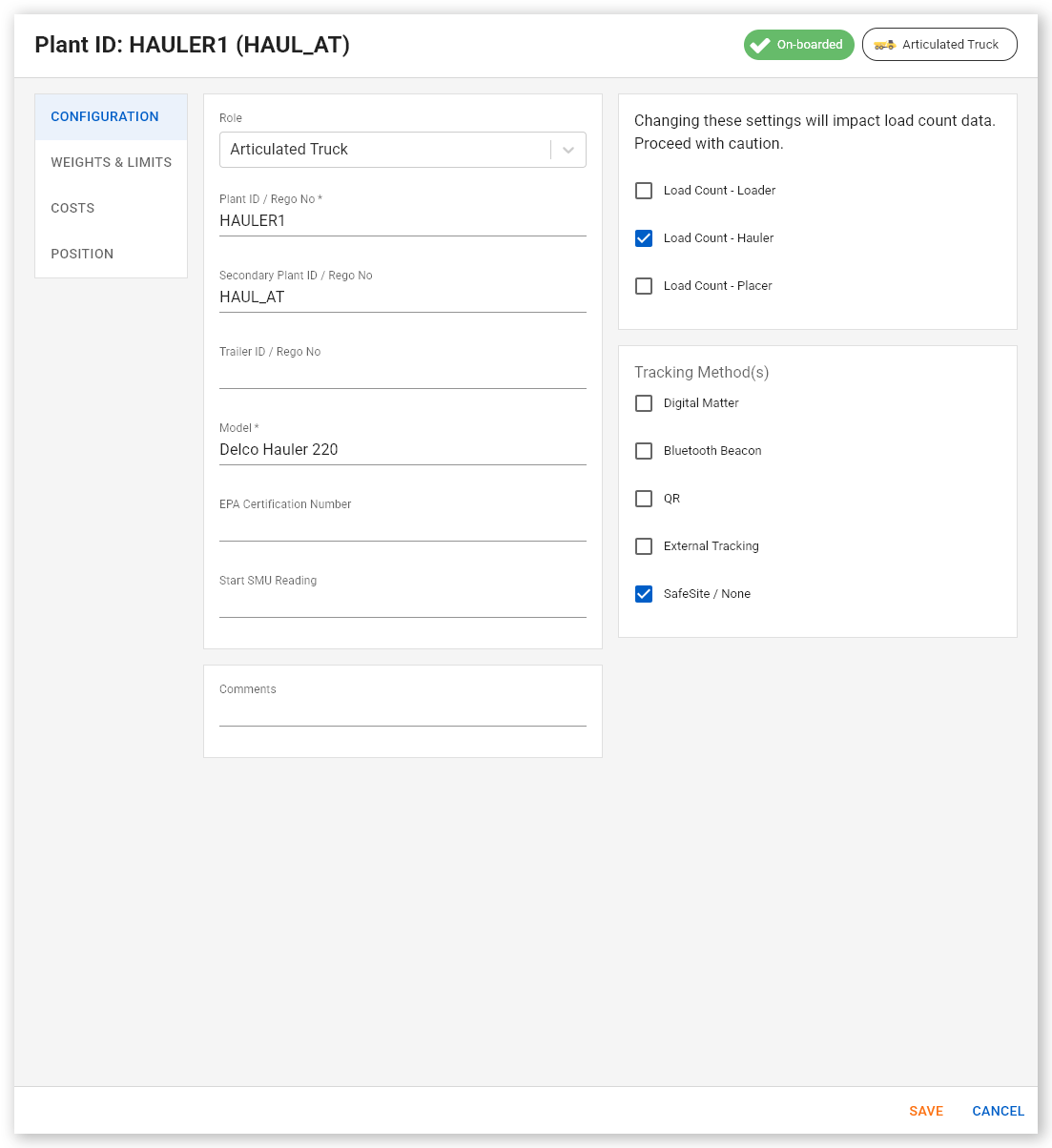
- The selected plant must have the Load Count - Hauler plant option enabled.
- The driver must select an item code that uses a sign-on profile configured to open the Driver landing page after sign-on, with the Manual Load and Disposal option set to Yes.
When these settings are configured, the Manual Load and Manual Disposal panels are displayed on the Driver home screen.
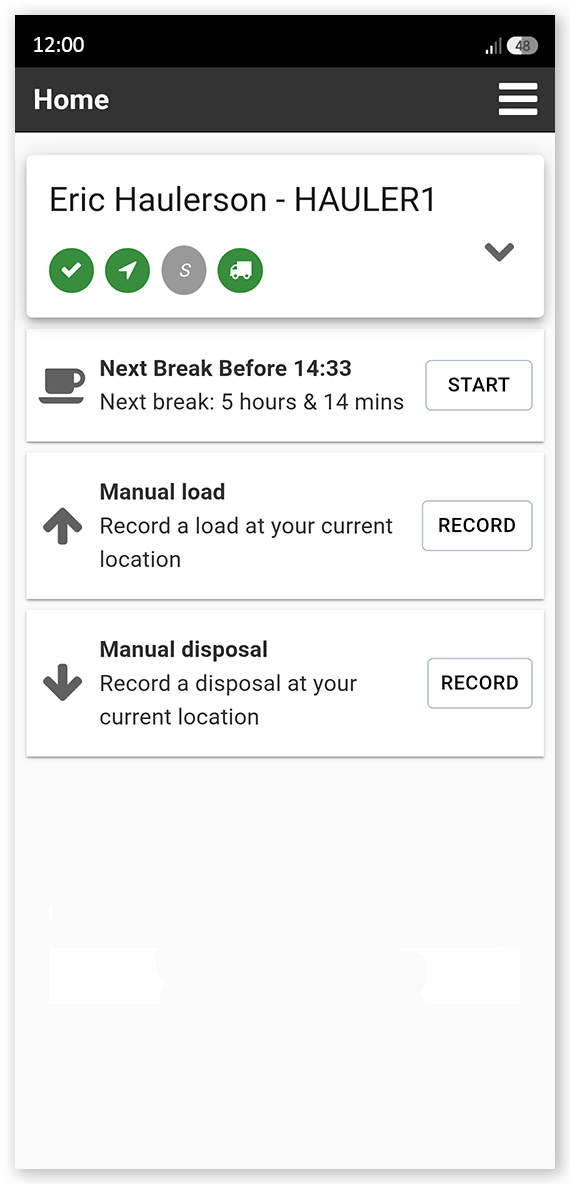
Each panel includes a Record button that creates a single load or disposal event and records the event's location and timestamp. The Manual Load and Manual Disposal buttons are always available, and SafeSite does not require events to be recorded in a specific order. For example, you do not need to record a load event before recording a disposal event.
Recorded events are processed by the Virtual Superintendent load count engine and included in load count calculations, reports, and event history.
Plant configuration
To configure hauler plant machinery (such as concrete tipper trucks and tandem trucks) to allow manual recording of loading and disposal events:
- Sign in to Virtual Superintendent.
- Click Menu > Plant. the Plant page opens.
- Locate the machine to be used as a hauler. You can find equipment by Plant ID, Supplier, or Type using the filters at the top of each column.
-
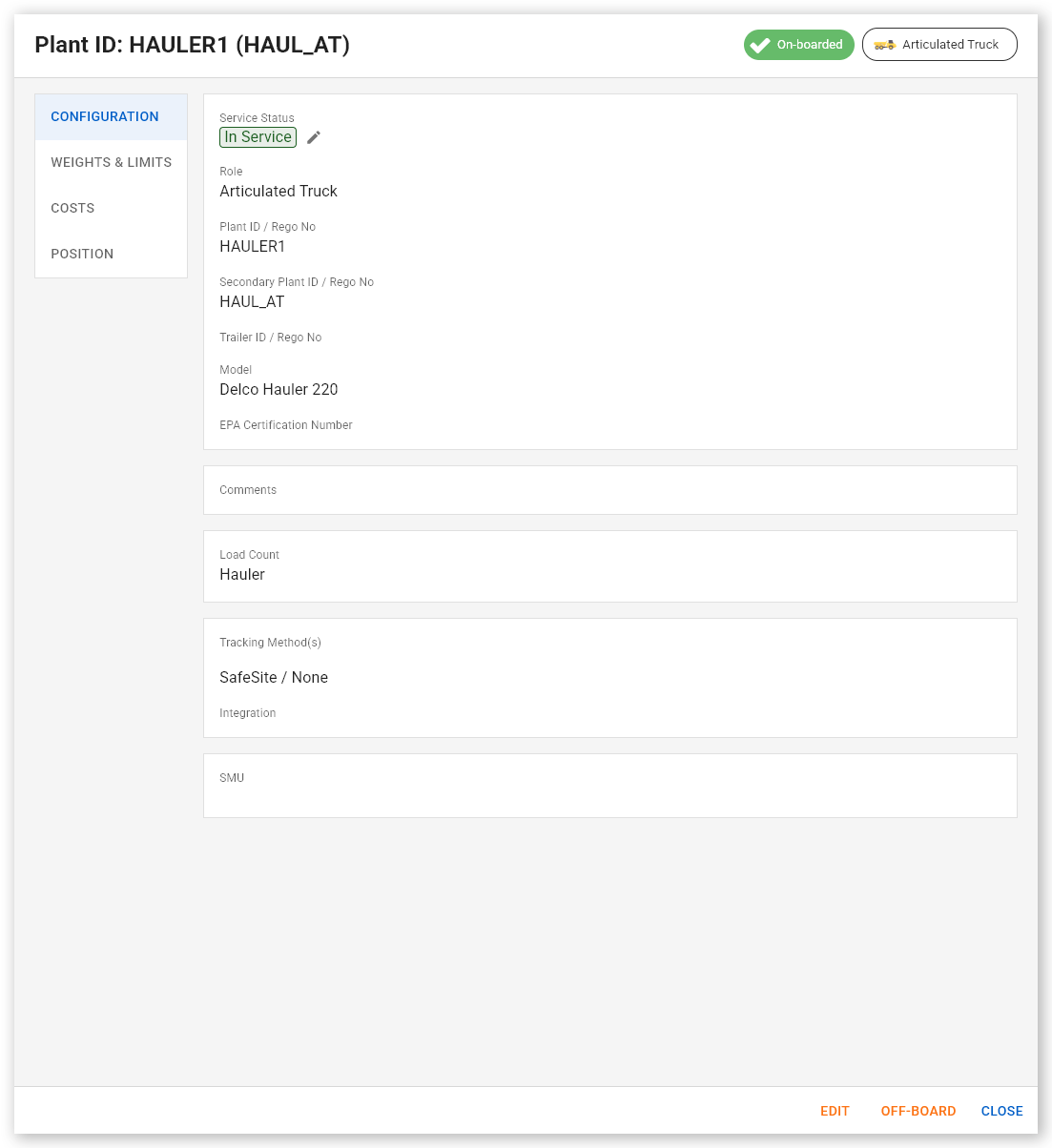
Select the machine. The Edit Plant dialog opens.
 Click or tap to expand image
 - Click the Configuration tab, then click Edit.
-
Select the Load Count - Hauler checkbox.
 Click or tap to expand image
 - Click Save, then Close. The machine can now be used to manually record load and disposal events.
Note: Once a machine is configured as a hauler for load count tracking, its load count type is displayed as Hauler in the Load Counts column on the Plant page.
Item code and sign-on profile configuration
To create a new hauler sign-on profile that includes support for manual recording of loading and disposal events:
- Sign in to Virtual Superintendent.
- Click Menu > Dockets Setup. The Dockets Setup page opens.
- Select the Sign-on Profiles tab.
-
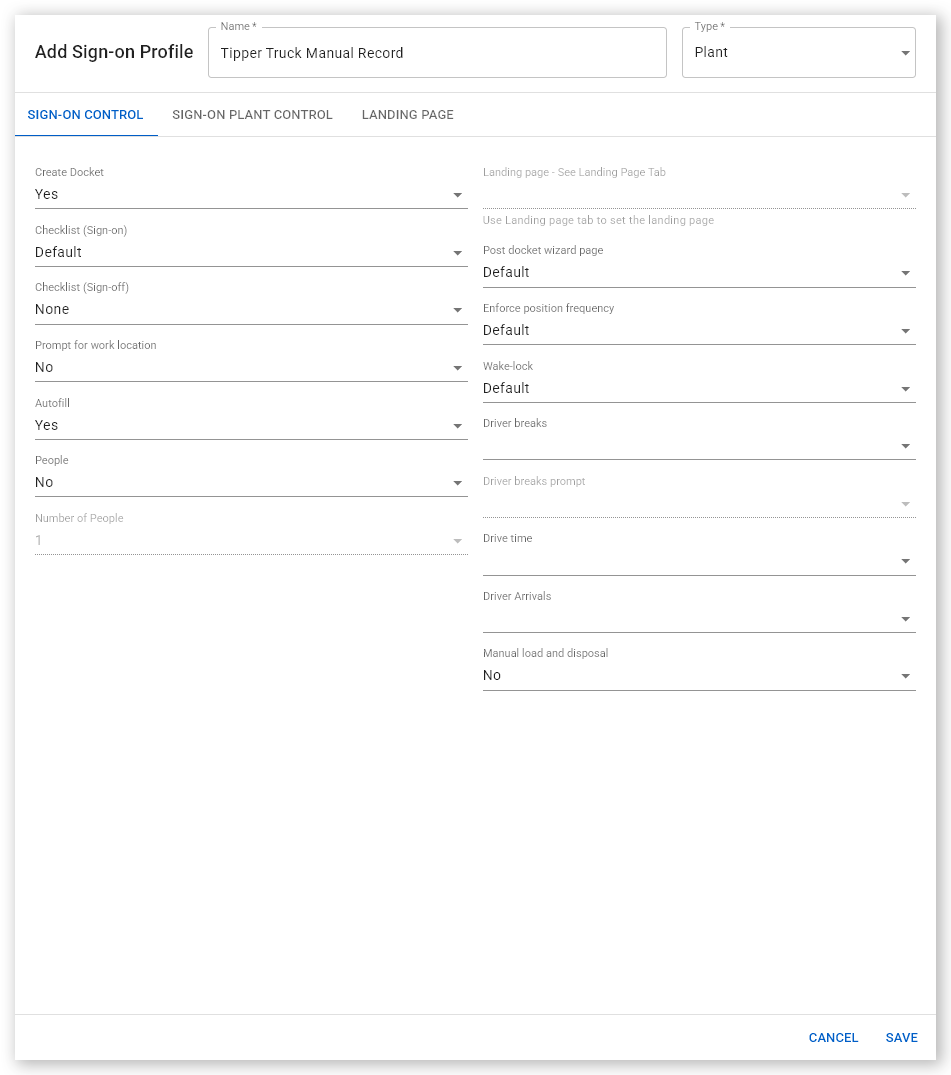
Click Add Sign-on Profile. The Add Sign-on Profile dialog opens.
 Click or tap to expand image
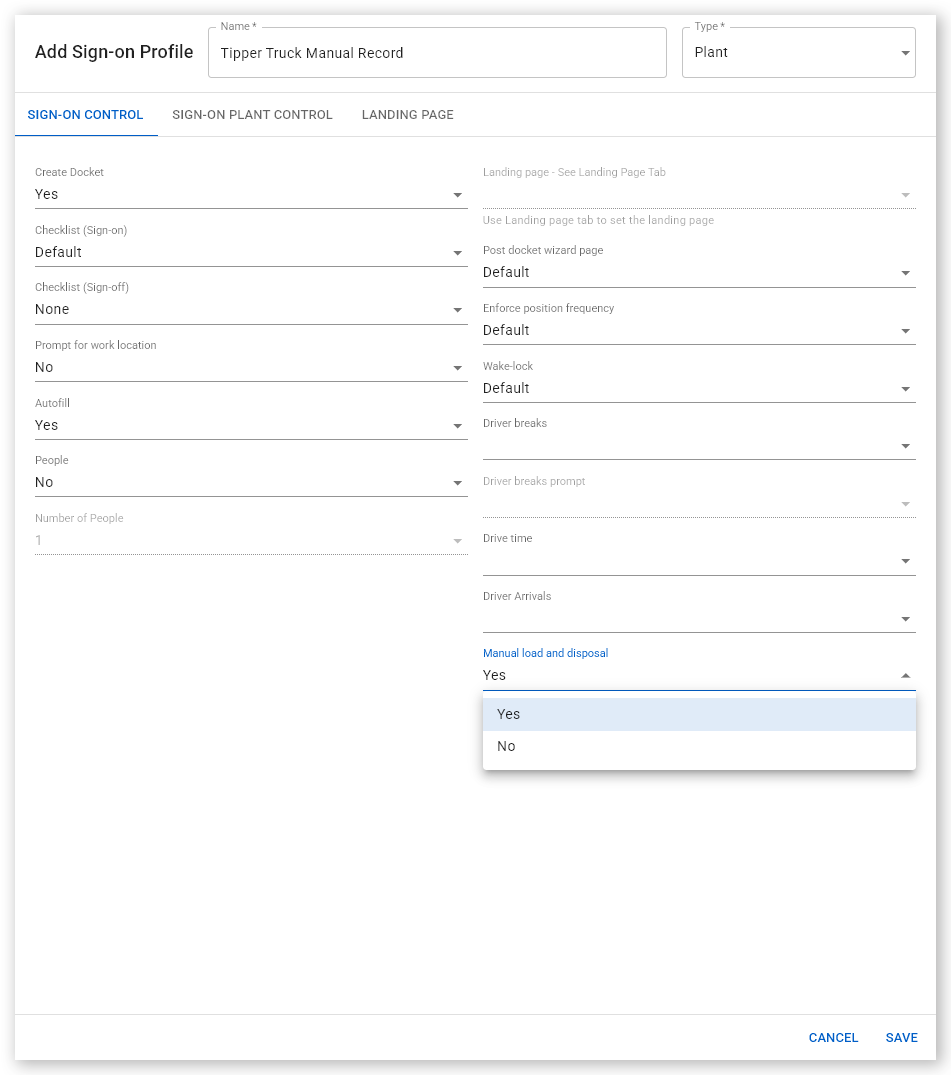
 - Open the Type dropdown and select Plant.
- Type a profile name into the Name field. For example, "Tipper Truck Manual Record" or "Tandem Hauler Manual Events".
-
Open the Manual load and disposal dropdown menu and select Yes.
 Click or tap to expand image
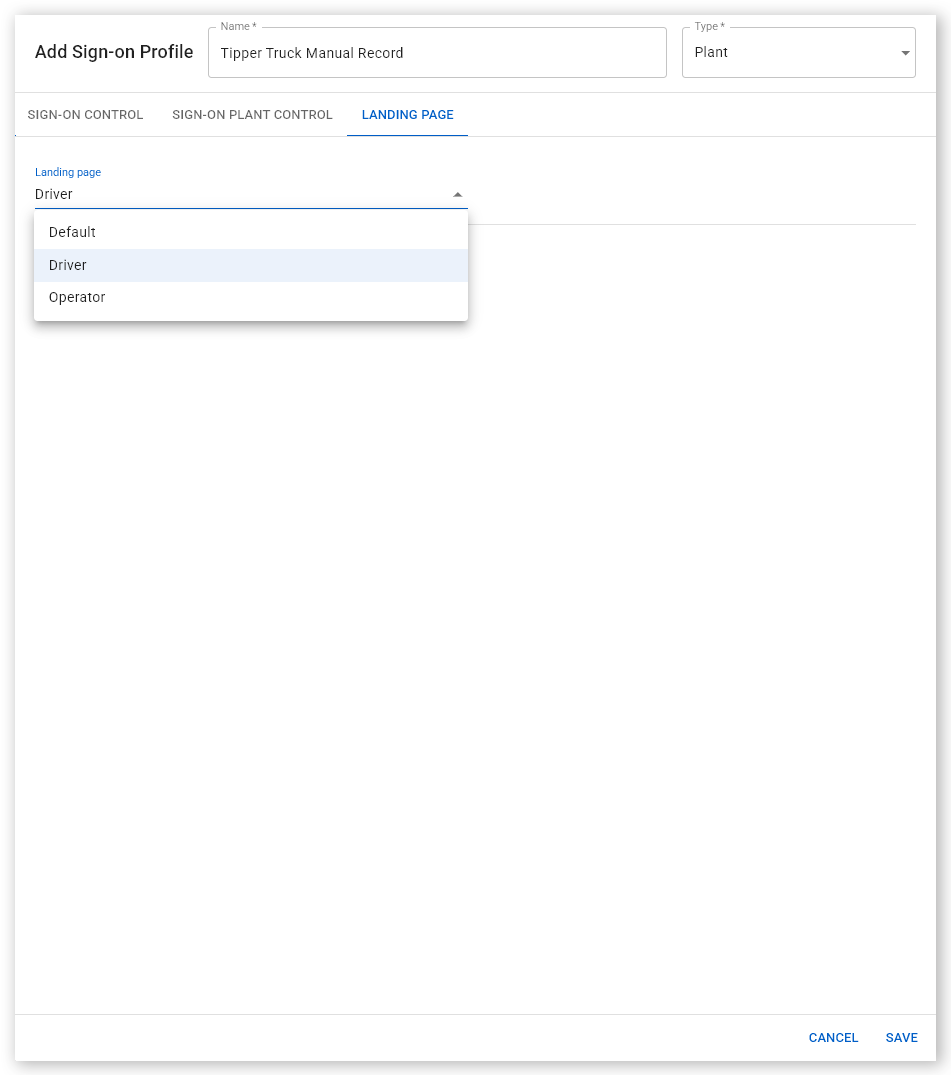
 - Click the Landing Page tab.
-
Open the Landing Page dropdown and select Driver. The SafeSite user selecting an item code using this sign-on profile will be directed to the Driver home page in SafeSite after signing in and will see the Driver menu option in SafeSite.
 Click or tap to expand image
 - Click Save. The sign-on profile is now ready to be used by an item code.
To assign the manual load and disposal sign-on profile to an Item Code:
- Sign in to Virtual Superintendent.
- Click Menu > Dockets Setup. The Dockets Setup page opens.
-
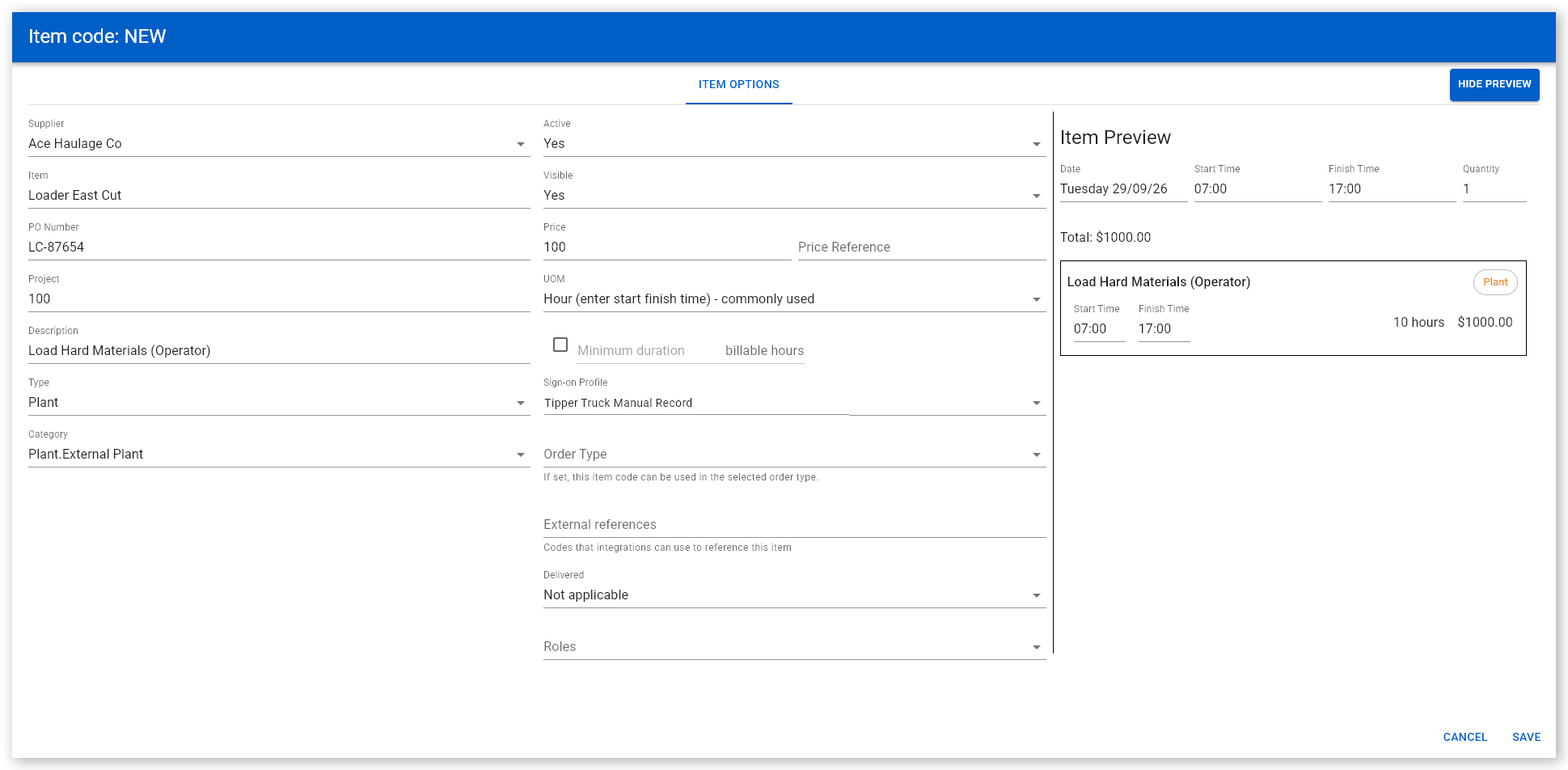
Select the Item Codes tab and click Add Item to create a new item code or select an existing item code from the grid. The Item Code: NEW dialog opens.
 Click or tap to expand image
 - Open the Type dropdown and select Plant.
- Open the Sign-on Profile dropdown and select the sign-on profile you created.
- Complete all required fields highlighted in red.
- Click Save.
The driver can now sign into SafeSite. After selecting the correct Item Code and plant, they will see manual load and disposal panels and buttons on their Driver home screen.
Manually Record Load and Disposal Events
To sign in as a hauler and manually record load and disposal events:
- Open the SafeSite app.
- Tap your name to sign in (Sign-On As [Your Name]). The Fit For Work screen opens.
- Answer each of the Fit For Work questions with a Yes or No, then tap Next. These questions are used to indicate physical and mental fitness to work safely. The Item screen opens.
- Select a hauler driver item code that matches the work you will be doing today, then tap Next. Item codes are the individual chargeable items that describe the type of work you will be performing, and what home page you can access. The Plant Identification screen opens.
- Select the hauler plant you will be operating on your shift from those listed, then tap Next. The Create Docket screen opens.
- Tap Take Photo and take a picture of your plant equipment, making sure that its Plant ID sticker or license plate number are visible, then tap Next. The Plant Checklist loads.
- Complete the plant checklist, recording the condition of each item listed by tapping Yes to indicate the item is in good condition. If an item is faulty, tap No then Take Photo and take a photo of the issue. Add a note describing the fault in the Notes field. When the checklist is complete, tap Next. The Date screen opens.
- Check that the docket date shown is correct. Tap the date and correct if needed, then tap Next. The Supervisor screen opens.
- Select your supervisor from the list, then tap Next. The Location screen opens.
- Select your location from those listed, then tap Next. The Docket Summary screen opens.
- Tap Save and then Close to close the docket summary.
-
Open the menu in the upper-right corner and select Driver. The Driver home page opens, showing your sign-in, checklist and device connection details, your next break, and two options to manually record load and disposal events.
Click or tap to expand image - You can begin loading and dumping material. Tap Record in the Manual Load panel each time your truck is loaded and tap Record in the Manual Disposal panel each time the load is emptied at the disposal location. To prevent accidental double taps, each Record button is disabled for three seconds after it is pressed.