
Use the SafeSite Smart Select Feature
The Smart Select feature makes finding and selecting items in SafeSite lists easier when creating or reviewing electronic dockets.
Selection screens that include the Smart Select feature include a Search field. This field is used to quickly locate options in lists rather than manually scrolling through a complete list.
These pages also include options to save frequently selected items as personalized favorites. These favorites appear in a separate Recent & Favorites section above the full selection list whenever the same user returns to the page.
In this article
Where Can I Use Smart Select?
The Smart Select feature is available on the following SafeSite screens:
- Item Code selection (Item screen)
- Supervisor selection (Supervisor screen)
- Location selection (Location screen)
- Engineer selection when supervisors review dockets (Select Engineer screen, for example when assigning a docket to an engineer from the Supervisor Dockets screen)
- Cost Code selection when supervisors review dockets (Select Cost Code screen)
Note: The Plant Identification screen also supports Smart Select, but requires separate configuration and includes additional features. Read the Use the Plant Page Smart Select help article for more information.
Use the SafeSite Smart Select Feature
To use Smart Select in SafeSite to find an item in a selection list:
- Open the SafeSite app.
- Tap your name to sign in (Sign-On As [Your Name]).
- Complete any checklists and navigate through the sign-in process until a screen using Smart Select opens (typically the Item, Supervisor or Location screens).
- Tap the Search field.
-
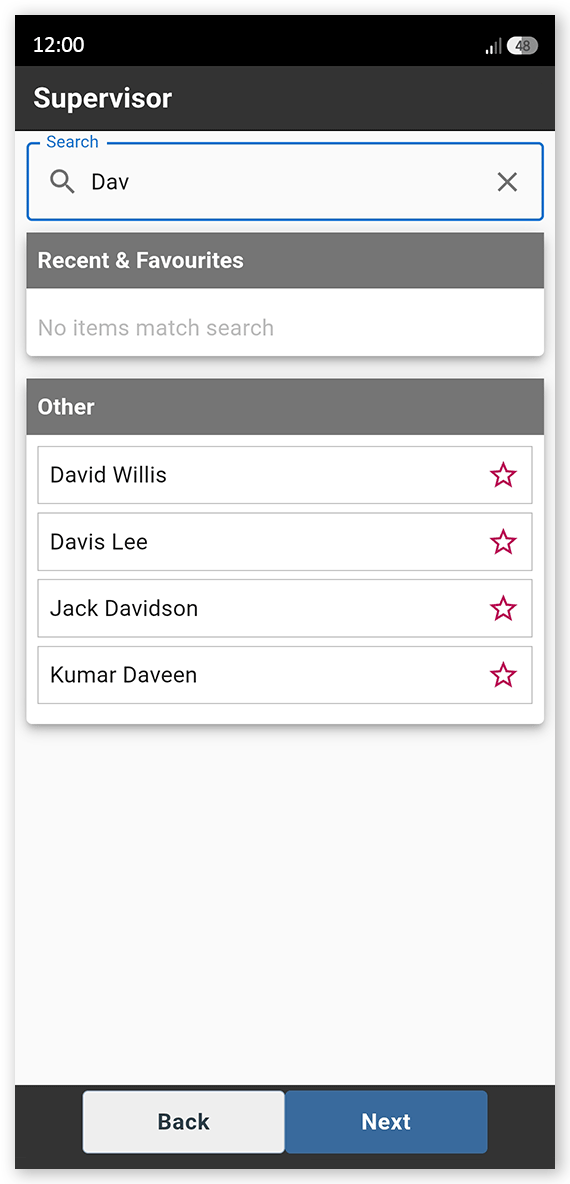
Enter the item, supervisor, location, engineer or cost code name. Matching results are filtered automatically.
 Click or tap to expand image
 - Select the required option from the search results.
Add an item as a favorite
To add frequently used items to your favorites so you can find them quickly find them in future:
-
Type the name of the item you want to save as a favorite in the Search field.
Click or tap to expand image -
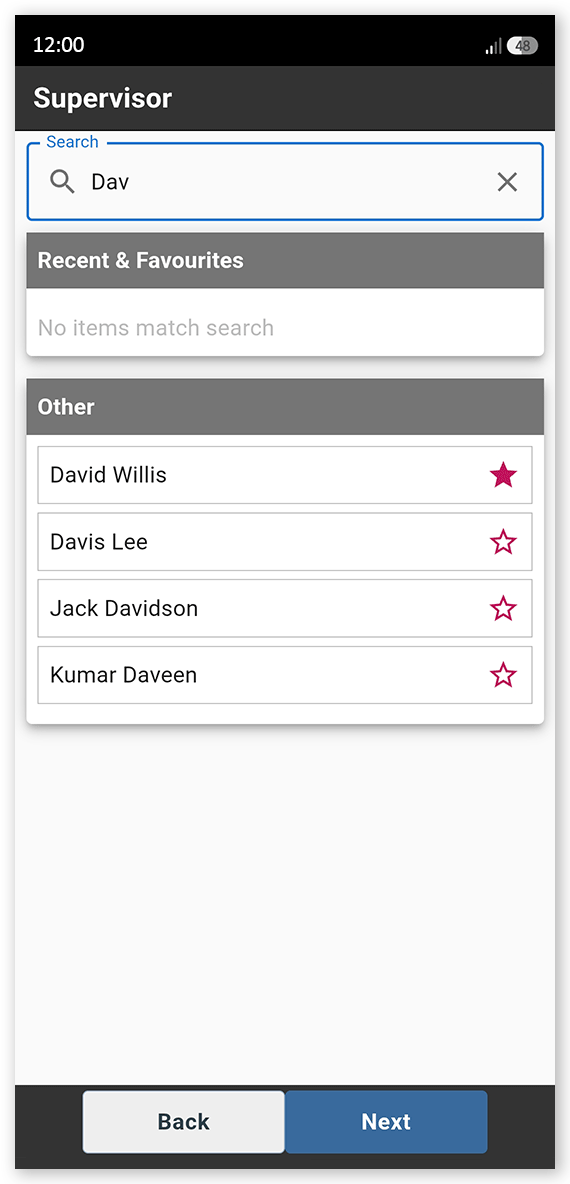
Tap the hollow red star icon by the item's name. The star turns solid red.
 Click or tap to expand image
A solid red star indicates that the item is a favorite. In future, when visiting the same screen, the item appears in the Recent & Favorites section at the top of the screen.
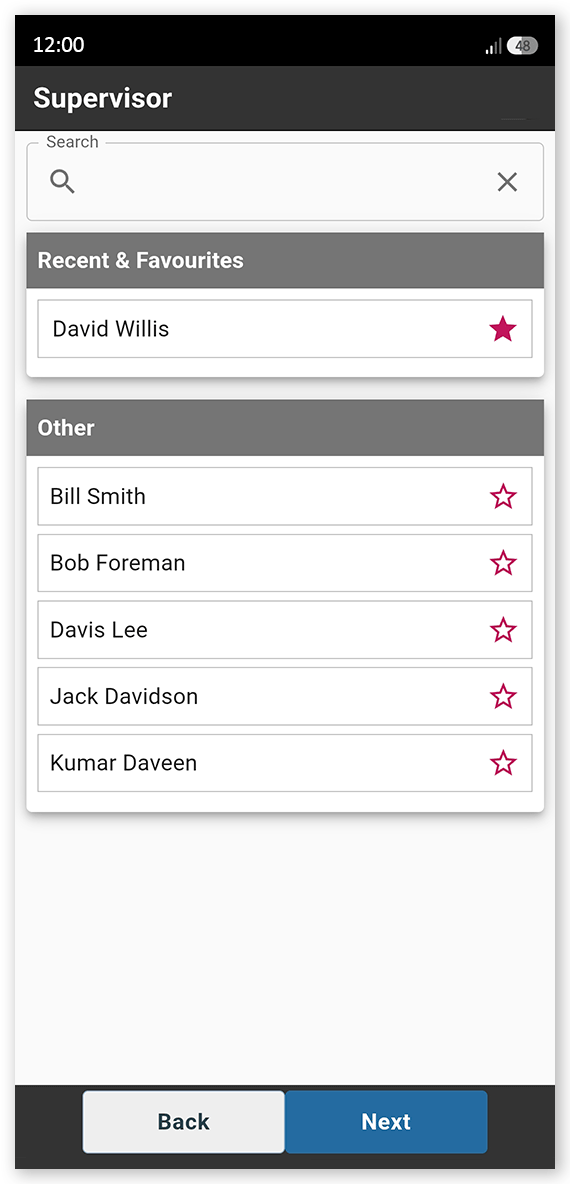
Note: In addition to any manually configured favorites, SafeSite also automatically displays your five most recently selected items in the Recent & Favorites section.
Remove an item as a favorite:
To remove an item from your favorites:
- Locate an item previously saved as a favorite in the Recent & Favorites section.
- Tap the solid red star icon by the item's name. The star turns hollow red and the item is removed as a favorite.