
Using the Virtual Superintendent Main Menu
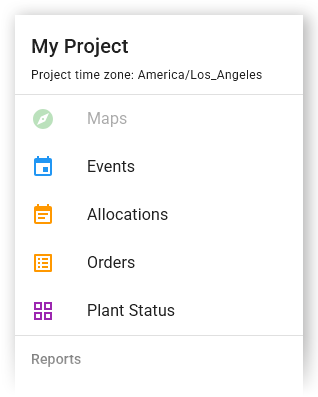
The Main Menu is the primary method of navigating Virtual Superintendent. This menu is opened by clicking the Menu button in the top-right corner of the screen.
Click or tap to expand image
In this article
Menu Visibility and Access
The options you can see in the Main Menu, and therefore the functionality you can access, are determined by the following factors:
- Default pages that are available to all users
- The user permissions assigned to your Virtual Superintendent account
- Project-specific configurations made by Virtual Superintendent support
Because of this, each user will typically see only a subset of all available pages.
Note: Many pages support advanced configuration and setup. These are typically intended for administrative users, including head contractors with Admin Manager permissions and subcontractor administrators with Subcontractor Admin permissions. These users are responsible for configuring system settings and managing access for other users.
All Menu Items and Pages
The following pages are available in Virtual Superintendent through the main menu:
| Page | Description | Access |
| Maps | Displays a map showing all project boundaries, plant, and plant activities. See The Maps Page help article. |
Available to all users except those with Subcontractor Admin permissions
|
| Events |
Displays all events recorded in the project (such as sign-on/off, breaks, load and dump events, user creation, and geofence creation).
|
Available to all users except those with Subcontractor Admin permissions |
| Allocations | Manages spoil removal tasks assigned to transport suppliers. See The Allocations Page and Understand Allocations for Transport Suppliers help articles. | Requires Spoil Admin permissions |
| Orders | Creates and manages supplier orders. See The Orders Page and Understand Orders for Suppliers help articles. | Requires Order Admin permissions |
| Jobs | View, create and manage jobs, including defining job locations, assigning workers and plant equipment to work groups, and tracking job progress. See the Jobs Page help article. | Requires Jobs Admin permissions |
| Plant Status | Displays real-time plant equipment status and last known sign-on locations. See The Plant Status Page help article. | Available to all users except Subcontractor Administrators with Subcontractor Admin permissions |
| Reports |
Displays reports shared with or emailed to Subcontractor Admin users.
|
Requires Subcontractor Admin permissions |
| All Reports | Creates and shows standard reports. See the All Reports Page, Site Event Reports, The Issues Page, Create and View Load Count Reports, Create and View Spoil Reports, and Share Reports with Other Users help articles. | Available to all users except Subcontractor Administrators with Subcontractor Admin permissions |
| Advanced Reports | Creates and shows custom advanced reports. See The Advanced Reporting Page help article. | Requires Advanced Reporting permissions |
| Issues | Displays issue reports. See The Issues Page help article. | Enabled by default for General User accounts |
| Dockets | Dockets management screen for Subcontractor Admin users. | Requires Subcontractor Admin permissions |
| Senior Project Engineer | Dockets management screen for Senior Project Engineers. | Requires Dockets Engineer and Dockets Senior Project Engineer permissions |
| Engineer | Dockets management screen for Engineers. | Requires Dockets Engineer permissions |
| Supervisor | Dockets management screen for Supervisors. | Requires Dockets Supervisor permissions. |
| Admin | Dockets management screen for Dockets Admin users. | Requires Dockets Admin permissions |
| Super User | Dockets management screen for Dockets Admin users. | Requires Dockets Super User permissions |
| Dockets Setup |
Manages item codes, cost codes, sign-on profiles, labels, and orderable items.
|
Requires Dockets Super User or Admin Manager permissions |
| Users | Creates and manages SafeSite and Virtual Superintendent users and their permissions. See the Register New Virtual Superintendent Users, Register New SafeSite Users, Manage SafeSite User Permissions, and Manage Virtual Superintendent User Permissions | Requires User Admin permissions. When combined with Subcontractor Admin permissions, only SafeSite user management is available from this page. |
| Register Users | Registers SafeSite users (Subcontractor Administrators only). See the Register New SafeSite Users as a Subcontractor Administrator help article. | Requires Subcontractor Admin and User Admin permissions |
| Suppliers | Creates and manages suppliers. See the Suppliers Page help article. | Requires Admin Manager or User Admin permissions |
| Plant | Creates and manages plant equipment. See the On-board and Manage Plant Equipment, Manage Machine Service Status in Virtual Superintendent and Bulk Import Plant Equipment Using an Excel Spreadsheet help articles. | Requires Admin Manager or User Admin permissions |
| Integrations |
Manages integrations with external systems.
|
Requires Integration Admin permissions |
| Tags |
Manages tags and tag rules for users, plant, and map polygons.
|
Requires Tag Admin permissions |
| Map Layers | Manages custom map layers. See The Map Layers Page help article. | Requires Map Editor account permissions. |
| Messaging | Sends messages and notifications to SafeSite mobile app users. See the Messaging Page and Read Messages in the SafeSite App help articles. | Requires User Admin permissions |
| Speeding Configuration | Manages speed bands to control when speeding events are triggered. See the Manage Speeding Events help article. | Requires Spoil Admin permissions |
| Switch Project |
Switches to another configured project.
|
Available to all users |
| Settings |
View or update username and password. See the Settings Page help article.
|
Available to all users |
| Log Out |
Signs out of Virtual Superintendent.
|
Available to all users |