
Sign in on the SafeSite Mobile App
When using the SafeSite mobile app, the process you follow depends on the option you select on the sign-on page. You can:
- Sign on and create a docket
- Open and view dockets without signing on
- Sign in to SafeSite using a QR code
During sign-on, the screens presented to you depend on the Item Code you select, and the sign-on profile associated with that Item Code. The sign-on profile may require specific steps, such as completing declarations, checklists, or equipment selections before sign-on is complete.
After signing on, the screens and features available to you are determined by both the sign-on profile and the permissions configured for your account. As a result, the information and options shown in this guide may differ from what you see in the app.
Sign-on Screen Options
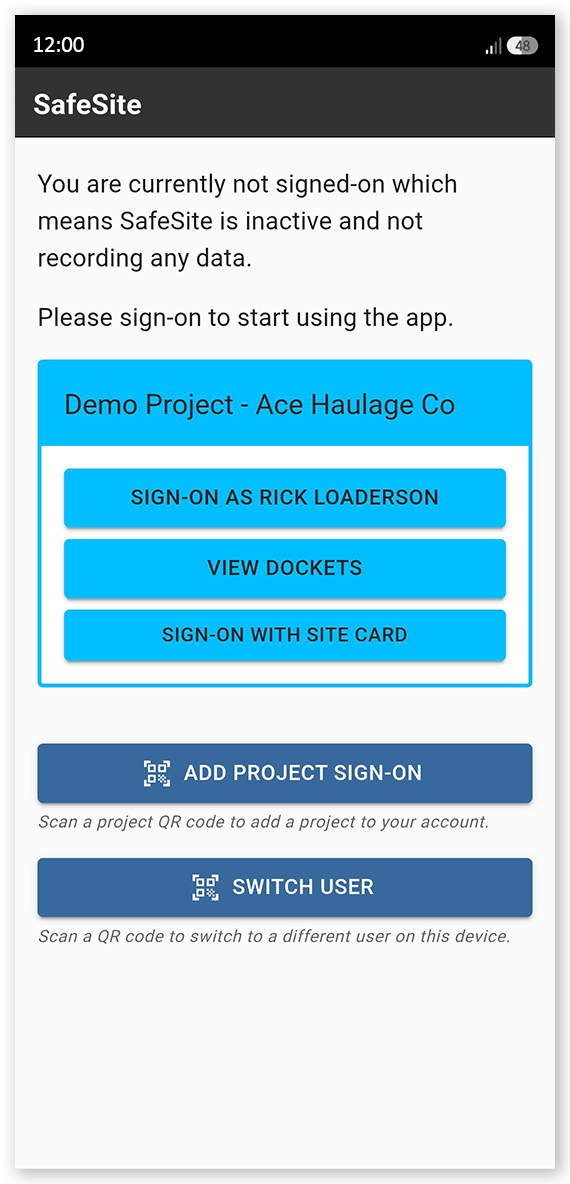
These options are:
| Option | Description |
| Sign-On As [Your Name] | Click this option to complete your sign-on checklists, choose an item code, select plant equipment, specify your supervisor, and create a new docket, |
| View Dockets | Click this option to bypass sign-on checklists, item code selection, and docket creation. Use this option to view and edit dockets. You can only create new dockets after you sign-on. See the View and Edit Dockets in SafeSite Without Signing In help article. |
| Sign-on With Site Card | Click this option to use your camera to scan a site card QR code linked to a SafeSite account. See the Link a QR Code to a SafeSite User help article. |
| Add Project Sign-on | Click this option to add a new project to SafeSite by scanning a supplier QR code for a different project. Projects contain separate sets of workers, orders, plant, reports, events, and dockets. See the How Subcontractor Administrators Register New SafeSite Users and Register New SafeSite Users help articles for information about creating these supplier QR codes. Your existing SafeSite account is added to the new project with the same set of permissions. |
| Switch User | Click this to change to a different user in the SafeSite app by scanning a User Registration QR code (Menu > Users > SafeSite App Users > Select User > User Registration Code > Option 2). This can either be an account already configured by a Virtual Superintendent administrator, or one created using a generic account invitation. |
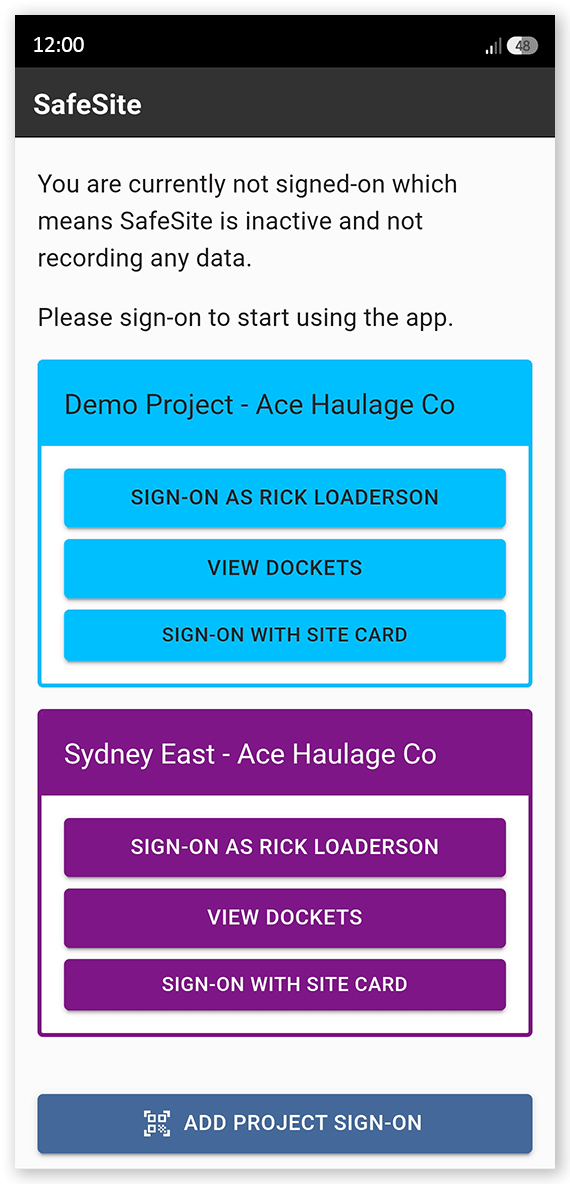
The Sign-On As [Your Name], View Dockets, and Sign-On With Site Card options are linked to a specific project.
If you add additional projects using the Add Project Sign-On option, each project provides the same three options. Projects are color-coded to help you identify and switch between them, as demonstrated below:
Understand the Sign-On Process
When you tap Sign-On As [Your Name], you are guided through a series of sign-on screens.
The screens you see depend on the item code you select, which is linked to a sign-on profile. The sign-on profile controls:
- Whether a new docket is created automatically after you select an item code.
- Whether you must complete a Fit for Work checklist.
- Whether you must complete a Machine checklist.
- Whether you are required to provide a work location.
- Whether fields support autofill.
- Which page opens automatically after sign-on is complete.
- Whether your device screen remains on while SafeSite is running.
- Whether you are prompted to start and end break periods.
How sign-on profiles and permissions determine available screens
| Screen | Description | Configuration |
| Driver | Used by haulers to view and complete assigned weighbridge spoil transport dockets. See the Record a Virtual Weighbridge Docket as a Truck Driver help article. | Menu > Dockets Setup > Sign-on Profiles tab > Select a Profile > Landing Page tab > Landing page dropdown > Driver |
| Operator | Used by loaders to manage weighbridge docket assignments for loading spoil material onto haulers. See the Record a Virtual Weighbridge Docket as a Machine Operator help article. | Menu > Dockets Setup > Sign-on Profiles tab > Select a Profile > Landing Page tab > Landing page dropdown > Operator |
In addition to sign-on profiles, your SafeSite account permissions can determine which screens you can access, and which options are available from the SafeSite menu.
Depending on your permissions, you may have access to the following screens:
| Screen | Description | Permission |
| Supervisor Home | Used by supervisors to view today's dockets that require review, create new dockets, and open the Site Diary (with the Site Diary permission) to review urgent site diary entries. | Docket Supervisor, Docket Leading Hand |
| My Dockets | Used to edit, submit or unsubmit your own dockets. See the Record an Electronic Docket as a Subcontractor and Dockets Workflow, help articles. | Docket Supervisor, Docket Leading Hand, Docket Contractor |
| Weighbridge Dockets | Used to view and edit Weighbridge Dockets that have not yet been accepted. See the View and Edit Weighbridge Dockets in SafeSite help article. | Weighbridge Dockets |
| Approve Dockets | Used by supervisors to review, accept or reject dockets submitted by subcontractors. See the Introduction to Dockets for Supervisors and Understand Docket States help articles. | Docket Supervisor, Docket Leading Hand |
| Today's Checklist | Used by supervisors to review Fit for Work and Machine checklists submitted by subcontractors and, if needed, update machine statuses. See the Manage Failed Fit for Work and Machine Checklists help article. | Docket Supervisor, Docket Leading Hand |
| Site Diary | Used to record, edit and review site activities, incidents, and other important events in the site diary. See the Create and Manage Events in Your Site Diary and Create a Site Event help articles. | Site Diary |
| Plant | Used to view and update the service status of plant equipment, including marking machinery as Out of Service. See the Manage Machine Service Status in SafeSite help article. | Superuser, Docket Supervisor |
| On-board | Used to register and onboard new SafeSite users and plant equipment directly from the mobile app. See the Register a SafeSite User in the Field and On-board Plant Equipment with a QR Code help articles. | Superuser |
A Typical Sign-on Sequence
- Open the SafeSite app on your mobile device.
- Tap your name to sign in (Sign-On As [Your Name]). The Fit For Work screen opens.
- Answer each of the Fit For Work questions with a Yes or No, then tap Next. These questions are used to indicate whether you are physically and mentally fit to work safely today.
-
If you are a driver or a machine operator:
- Select an item code that matches the work you will be doing today, then tap Next. Item codes are the individual chargeable items that describe the work you will be performing.
- Select the truck or plant that you will be operating on your shift, then tap Next.
- Tap Take Photo and take a picture of your plant equipment, making sure that its Plant ID sticker or license plate number are visible, then tap Next.
- Complete the plant checklist, recording the condition of each item listed by tapping Yes to indicate the item is in good condition. If an item is faulty, tap No then Take Photo and take a photo of the issue. Add a note describing the fault in the Notes field. When the checklist is complete, tap Next.
- Check that the docket date shown is correct. Tap the date and correct if needed, then tap Next.
- Select your supervisor from the list, then tap Next.
- Select your location from those listed, then tap Next. The docket is created in Draft status and opens in the Docket Summary screen. Required fields are highlighted in red. These must be completed before you can submit the docket to your supervisor.
-
If you are not a driver or machine operator:
- Select the wages type that best describes your work for the day from the dropdown menu, then tap Next.
- Confirm the date. If needed, tap the date and update it using the date picker, then tap Next.
- Select your supervisor, then tap Next. The docket is created in Draft status and opens in the Docket Summary screen. Required fields are highlighted in red. These must be completed before you can submit the docket to your supervisor.
- In the docket summary, select your Location.
- Add any Item Remarks. Use this to provide a brief description of the work completed.
- Confirm your Start time and enter your Finish time.
- Review and edit Break times as required. Deselect a break by tapping the checkbox.
- Tap Save if you are not ready to submit or Submit to submit it to your supervisor.
Saved dockets appear on the My Dockets screen with a Draft status.