
Using the SafeSite Main Menu
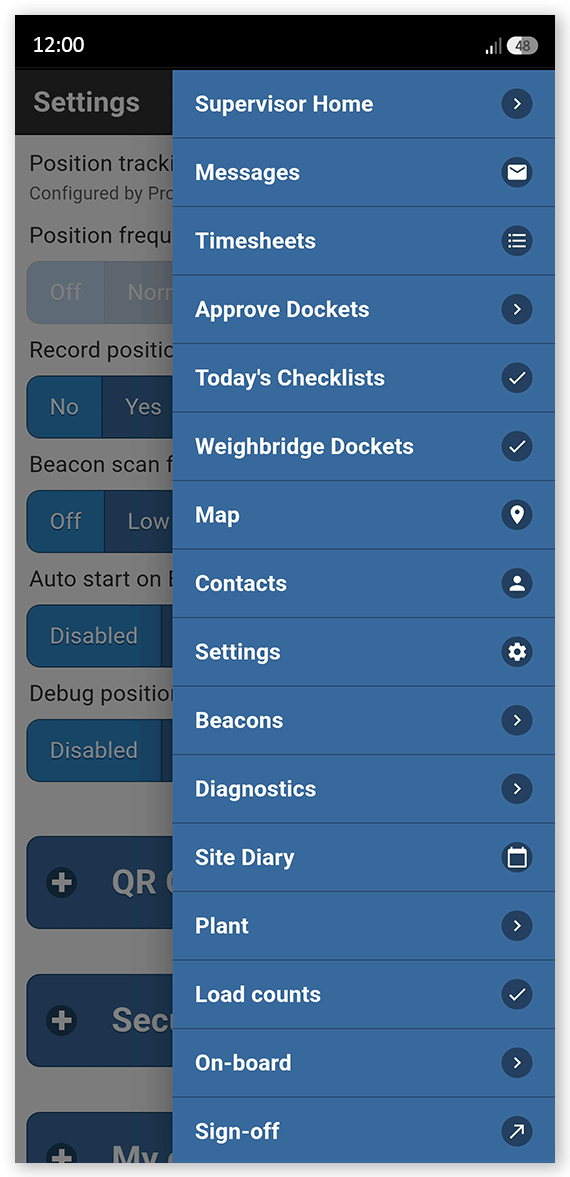
The Main Menu is the primary method of navigating the SafeSite mobile app. This menu is opened by tapping the hamburger Menu button in the top-right corner of the screen.
In this article
Menu Visibility and Access
The options you can see in the Main Menu, and therefore the functionality you can access, are determined by the following factors:
- Default screen that are available to all users
- The SafeSite user permissions assigned to your account
- Sign-on and item code configurations set by your administrator
Because of this, each user will typically see only a subset of all available pages.
All Menu Items and Screens
The following screens are available in SafeSite through the main menu:
Note: In addition to the menu options shown below, Operator and Driver screens are also available. Access to these screens is not controlled by SafeSite account permissions. Instead, they are determined by the sign-on profile associated with the Item Code selected during the sign-in process. The configuration steps needed to enable access to these screens are demonstrated in the Understand Virtual Weighbridge Dockets help article.
| Screen | Description | Access |
| Supervisor Home | Used by supervisors to view today's dockets that require review, create new dockets, and open the Site Diary (with the Site Diary permission) to review urgent site diary entries. | Requires Docket Supervisor or Docket Leading Hand permissions |
| Messages | Displays site notices, messages and event notifications. See the Read Message in SafeSite and Messaging Page help articles. | Available to all users |
| Timesheets | Used to view and submit your own daily timesheets. Timesheets are displayed one week at a time (Monday to Sunday), with options to move to the previous or next week. Each day is displayed on its own card. Tap Add Activity to create a timesheet entry, then select an activity, enter the hours worked, choose a supervisor, and add any remarks. When complete, tap Submit to send the timesheet for approval or save it as a draft to finish later. See the Simple Operator Timesheets help article. | Requires Timesheets permission |
| Approve Dockets | Used by supervisors to review, accept or reject dockets submitted by subcontractors. See the Introduction to Dockets for Supervisors and Understand Docket States help articles. | Requires Docket Supervisor or Docket Leading Hand permissions |
| My Dockets | Used to edit, submit or unsubmit your own dockets. See the Record an Electronic Docket as a Subcontractor and Dockets Workflow, help articles. | Requires Docket Contractor, Docket Supervisor or Docket Leading Hand permissions |
| Today's Checklists | Used by supervisors to review Fit for Work and Machine checklists submitted by subcontractors and, if needed, update machine statuses. See the Manage Failed Fit for Work and Machine Checklists help article. | Requires Docket Supervisor or Docket Leading Hand permissions |
| Weighbridge Dockets | Used to view and edit Weighbridge Dockets that have not yet been accepted. See the View and Edit Weighbridge Dockets in SafeSite help article. | Requires Weighbridge Dockets permission |
| Map | Used to display your current location on a map, and the air temperature. If you have View Positions, View Drone Imagery, or View Overlays permissions, you can also see the location of nearby users and plant and their recent trips, drone imagery, and map overlays. | Available to all users |
| Contacts | Used to view other SafeSite users in your project, including their location and contact details. For each user, the screen shows their name, Plant ID, whether they are stationary or moving, the site (geofence) they are currently within, their distance from your location, and when they were last seen. You can call users directly if they have a phone number recorded in their account details, open the map centered on their location, and sort the list by name or distance. | Requires View Positions permission |
| Settings | Used to manage SafeSite app settings, add QR codes for sign-in, view your current permissions, update your name, phone number, and email address, and review the SafeSite Privacy Policy. | Available to all users |
| Beacons | Used to view details of nearby Bluetooth beacons, including their name, role, signal strength, description, version, and last seen time. To edit a beacon's role, name, or description, you must have the Beacon Configuration permission. | Available to all users |
| Diagnostics | Used to view app information, check for updates, and perform diagnostic tasks when troubleshooting issues with guidance from the Virtual Superintendent support team. | Available to all users |
| Site Diary | Used to record, edit and review site activities, incidents, and other important events in the Site Diary. See the Create and Manage Events in Your Site Diary and Create a Site Event help articles. | Requires Site Diary permission |
| Plant | Used to view and update the service status of plant equipment, including marking machinery as Out of Service. See the Manage Machine Service Status in SafeSite help article. | Requires Docket Supervisor or Superuser permissions |
| Load Counts | Used by drivers to enter details about loads they are carrying. Information captured includes the material type, the volume of material being carried, whether the vehicle has a trailer, and the trailer volume when Has trailer is set to Yes. | Available to all users with a role name that includes "truck" |
| On-board | Used to register and onboard new SafeSite users and plant equipment directly from the mobile app. See the Register a SafeSite User in the Field and On-board Plant Equipment with a QR Code help articles | Requires Superuser permission |
| Sign-off |
Used to sign out of SafeSite at the end of the workday. Signing out records the end of your shift and completes your sign-on session for the project. Depending on your project configuration, you may be prompted to review outstanding items before signing out, such as incomplete dockets, missed driver breaks, or you may be required to complete a sign-off machine checklist.
|
Available to all users |